How to Back Up Your Motorola Phone to Google
Google One backup saves your Motorola phone’s content, data and settings to your Google account automatically. Backups are encrypted with your Google account password, and everything is restored when you sign in on a new or reset phone.
What gets backed up
- Apps and app data
- Call history and contacts
- Phone settings, including Wi-Fi passwords and permissions
- Photos and videos (to your Google Photos library)
- SMS text messages (if you use Google Messages)
Before you start
- Connect the phone to Wi-Fi.
- You need a Google account. If one is already on the phone, your backed-up data restores automatically when you sign in on another phone.
If your Google account is already on the phone
-
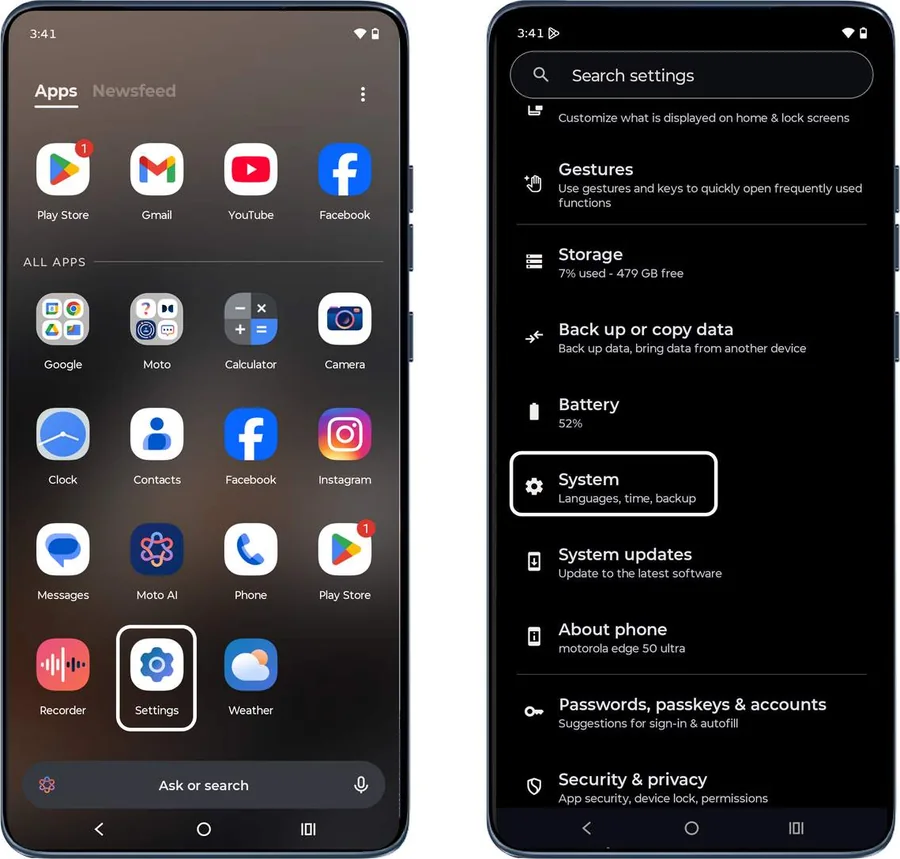 Step 1
Open System settings
Open Settings from the app tray and tap System.
-
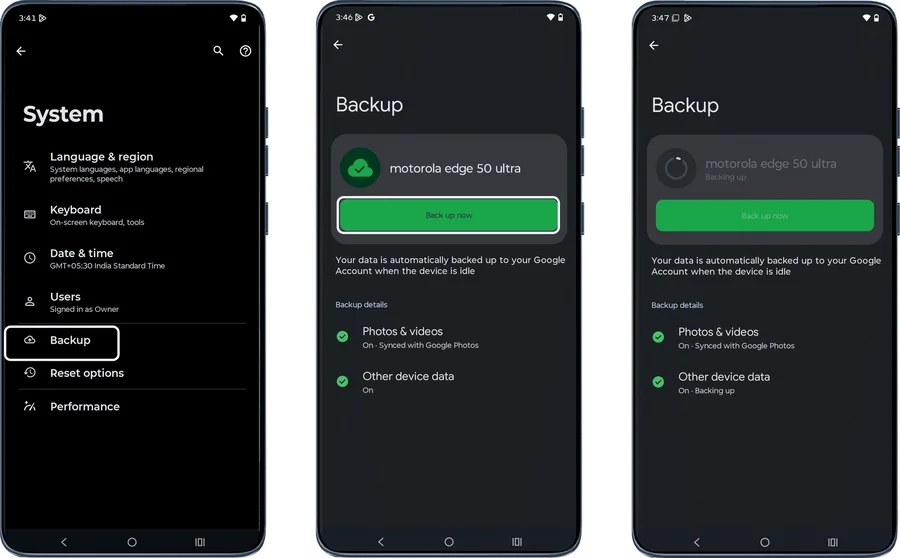 Step 2
Tap Backup, then Back up now
Tap Backup, then tap Back up now. Your phone starts a complete backup.
-
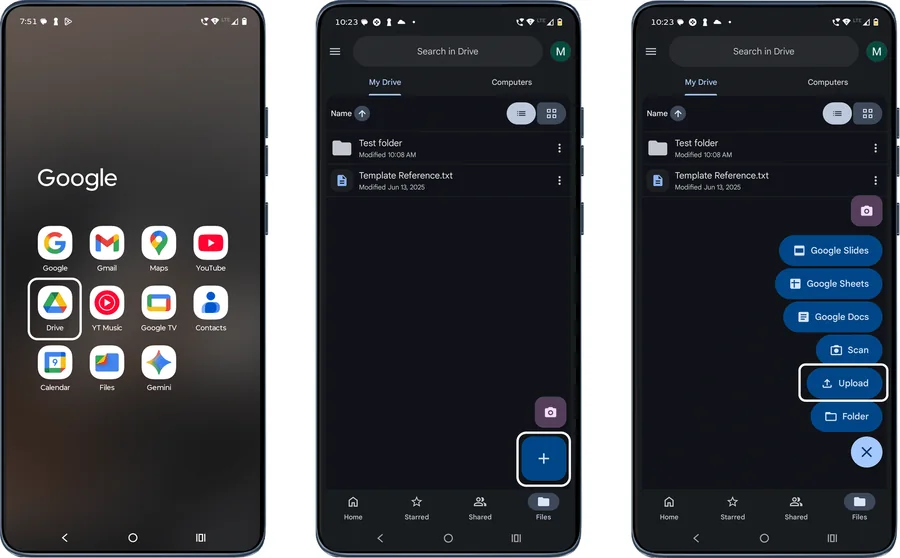 Step 3
Upload other files to Google Drive (optional)
Files that aren’t included in automatic backup, like downloads and attachments, can be saved to Google Drive: open the Drive app, tap +, choose Upload and pick the files or folders.
If backup is off or no Google account is added
-
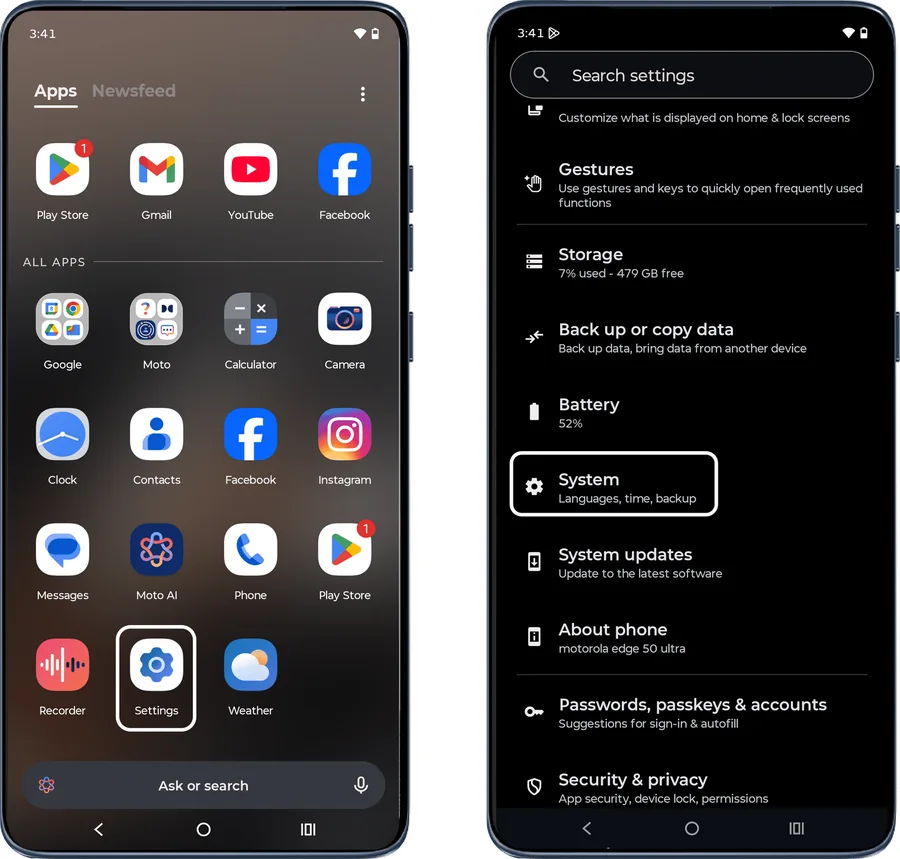 Step 1
Open System settings
Open Settings from the app tray and tap System.
-
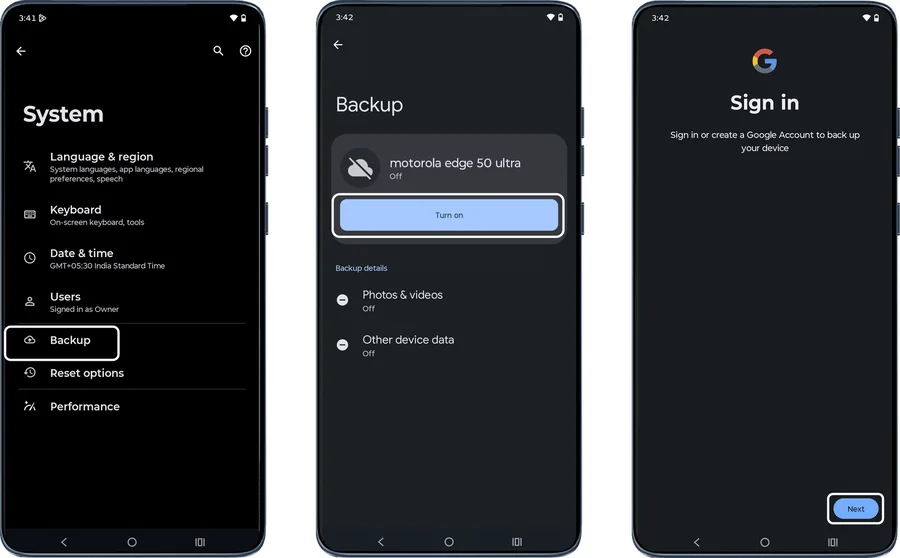 Step 2
Turn on Backup
Tap Backup, then tap Turn on and tap Next.
-
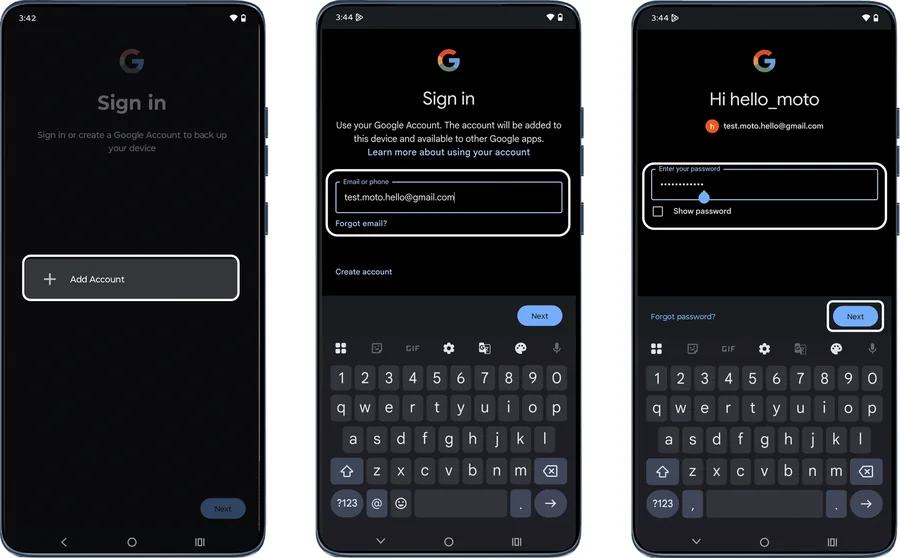 Step 3
Add your Google account
Tap + Add account, enter your Google email and password, and tap Next.
-
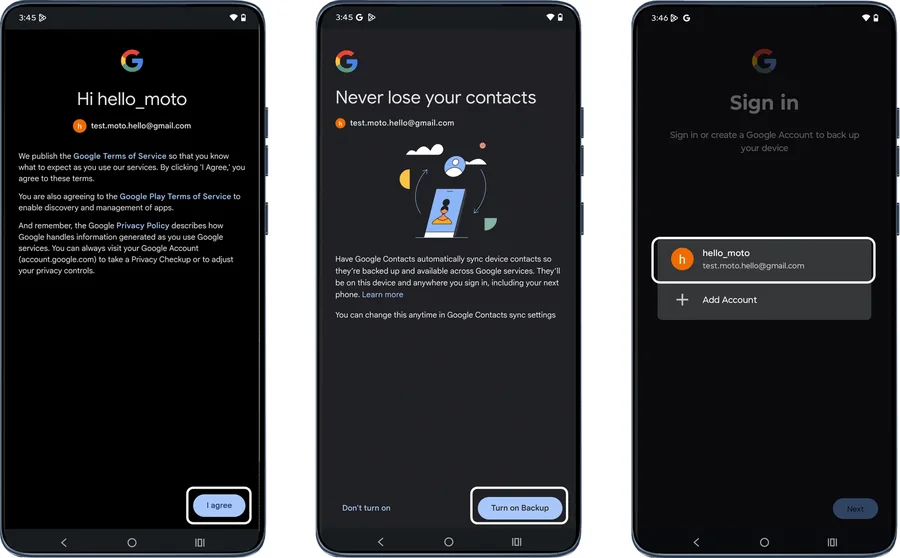 Step 4
Agree and turn on backup
Tap I agree, then Turn on Backup. If you have more than one account, choose the one you want to back up to.
-
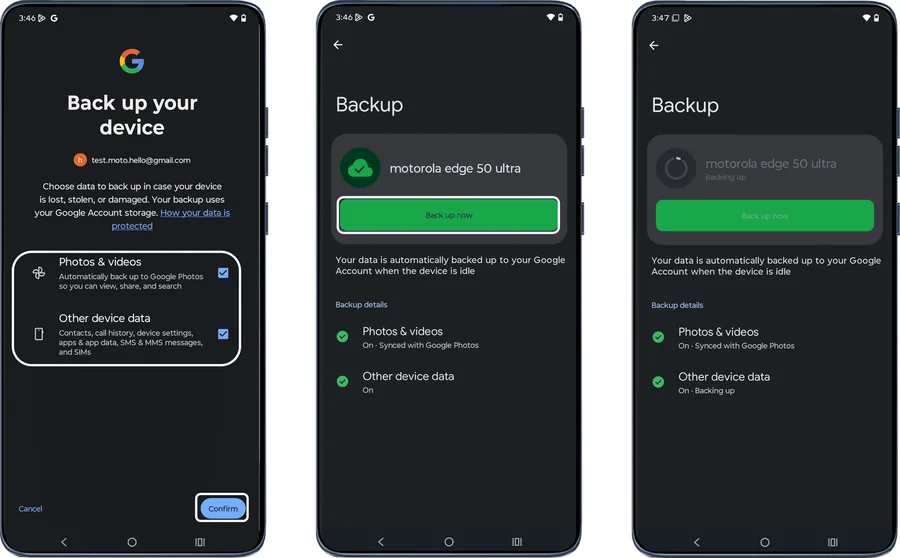 Step 5
Choose what to back up and start
On Back up your device, tick Photos & videos and Other device data, tap Confirm, then tap Back up now. For other files, upload them to Google Drive as above.
Good to know
- The first Google One backup can take up to 24 hours.
- Check Settings > System > Backup > Backup details to see exactly what has been backed up.
- Free Google accounts include 15 GB of storage shared across Gmail, Drive and Photos.
Frequently asked questions
How do I restore my backup on a new Motorola phone?
During setup, sign in with the same Google account and choose to restore from your backup. Apps, contacts, settings and messages are copied back automatically.
Does Google backup include WhatsApp chats?
WhatsApp uses its own backup. Open WhatsApp > Settings > Chats > Chat backup and back up to your Google account.
Should I back up before a factory reset or repair?
Yes. Always back up before a factory reset, software update or sending the phone for repair, as service centres may need to reset it.
Still having problems? It may be a hardware fault. Check the Motorola spare part prices for your model, or compare battery and display replacement costs.
Related Motorola guides
- How to Factory Reset a Motorola Phone from Settings
- How to Format an SD Card as Storage on a Motorola Phone
- How to Transfer Files from a Motorola Phone to a Windows PC
- How to Transfer Photos from a Motorola Phone to a Mac
- How to Set Up a New Motorola Phone
Steps and screenshots based on Motorola's official Back up your phone tutorial. Steps can vary slightly by model and Android version.