How to Transfer Photos from a Motorola Phone to a Mac
Macs don’t show Android phones in Finder, but you can still import photos and videos from your Motorola phone with a USB cable. Set the phone’s USB mode to PTP and the Mac’s Photos app opens it like a camera.
On your phone
-
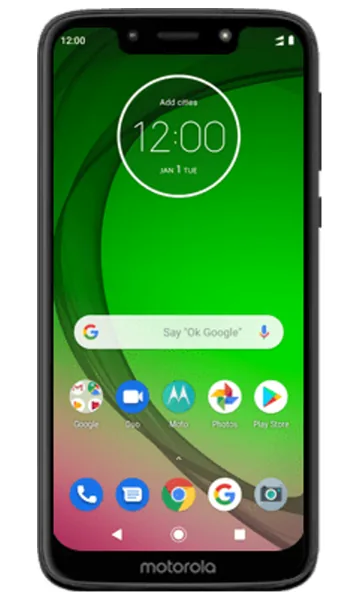 Step 1
Connect the phone to your Mac
Connect your Motorola phone to the Mac with a USB cable and unlock the phone.
-
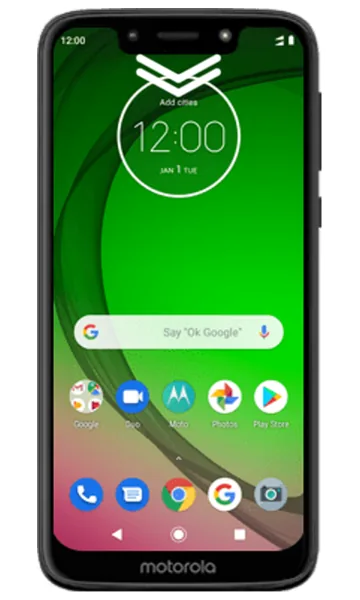 Step 2
Open notifications
Swipe down from the top of the screen to open the notification shade.
-
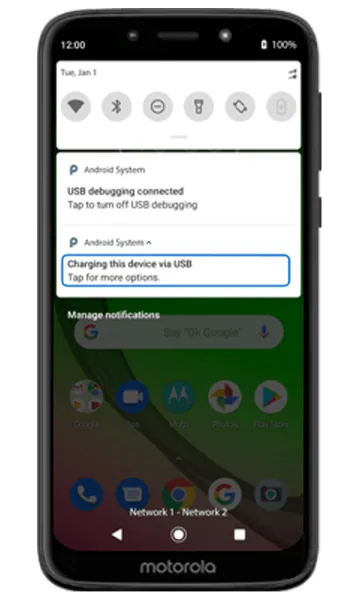 Step 3
Tap the USB notification
Tap Charging this device via USB.
-
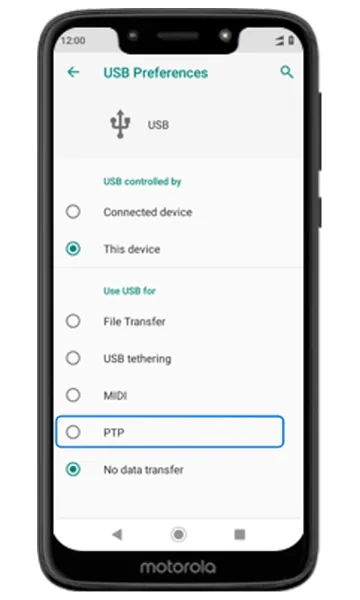 Step 4
Choose PTP
Under Use USB for, select PTP. The Photos app opens automatically on the Mac.
On your Mac
-
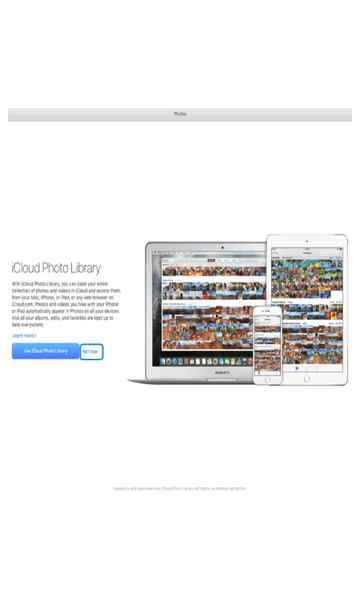 Step 1
Skip the iCloud prompt (if shown)
If Photos asks about iCloud Photo Library, choose Not now. If this screen doesn’t appear, go to the next step.
-
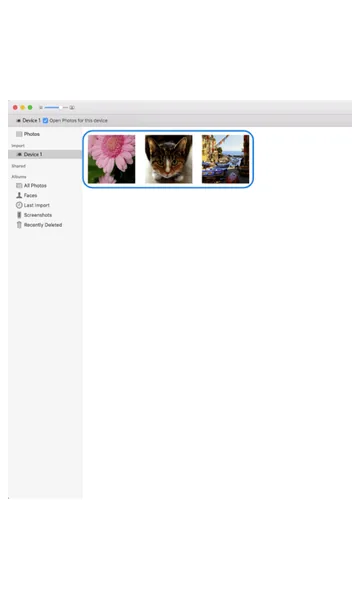 Step 2
Select photos
Your phone appears under Devices in Photos. Select the photos and videos you want to import.
-
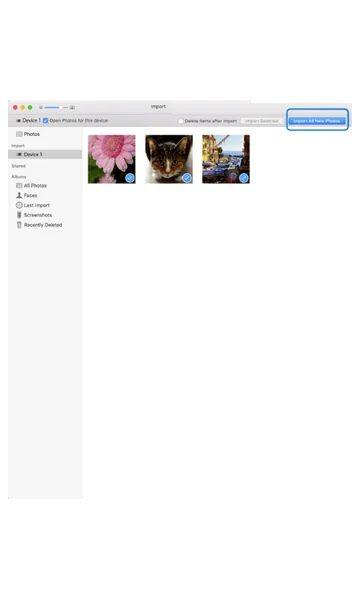 Step 3
Import
Click Import Selected, or Import All New Photos to copy everything that isn’t already on the Mac.
-
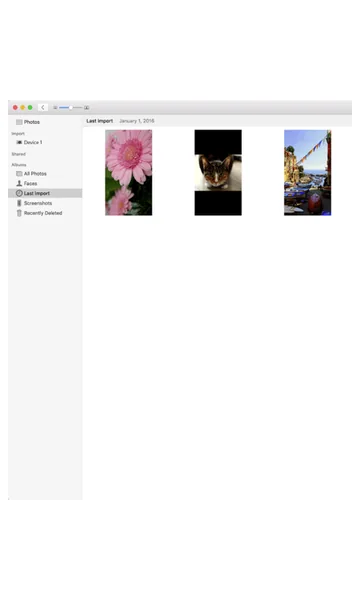 Step 4
Find your imported photos
The photos are now in your Photos library on the Mac, under Imports and Library.
Transferring other files to a Mac
- PTP mode only shows photos and videos. For documents, music and other files, upload them to Google Drive on the phone and download them on the Mac.
- You can also use a USB-C flash drive, or a third-party Android file transfer app for macOS.
Frequently asked questions
Why doesn’t my Motorola phone show up on my Mac?
macOS doesn’t mount Android phones in Finder. Choose PTP in the phone’s USB notification so Photos (or Image Capture) can see it, and make sure the phone is unlocked.
Can I use Image Capture instead of Photos?
Yes. With the phone in PTP mode, open Image Capture on the Mac, choose your phone and import photos to any folder.
Still having problems? It may be a hardware fault. Check the Motorola spare part prices for your model, or compare battery and display replacement costs.
Related Motorola guides
- How to Format an SD Card as Storage on a Motorola Phone
- How to Transfer Files from a Motorola Phone to a Windows PC
- How to Back Up Your Motorola Phone to Google
- How to Factory Reset a Motorola Phone from Settings
- How to Set Up a New Motorola Phone
Steps and screenshots based on Motorola's official Transfer data from phone to computer (Mac) tutorial. Steps can vary slightly by model and Android version.