How to Format an SD Card as Storage on a Motorola Phone
When you insert an SD card for the first time, your Motorola phone lets you set it up as extra storage for photos, videos, music and files. Follow these steps to format the card from Settings so the phone can use it. Formatting erases everything on the card, so back it up first.
-
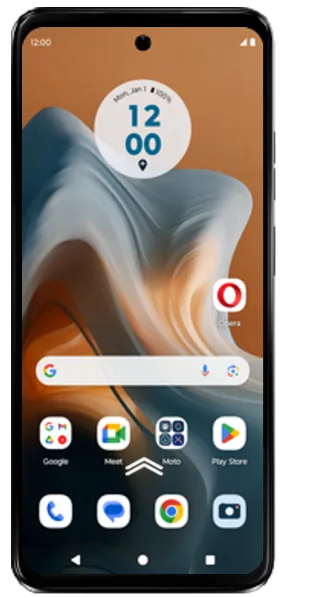 Step 1
Open the app drawer
Go to the Home screen and swipe up to open the list of all apps.
Tip: Copy any photos or files you want to keep off the SD card first — formatting erases it.
-
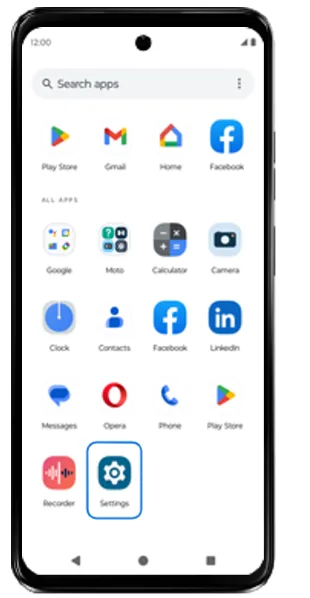 Step 2
Open Settings
Tap Settings.
-
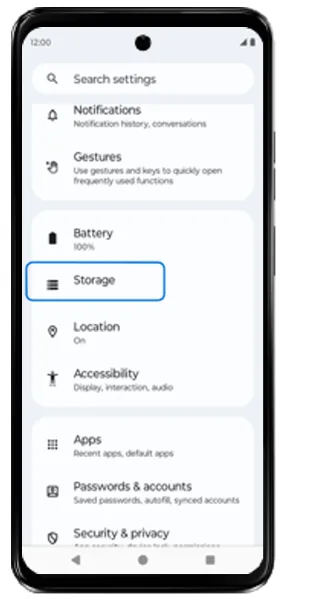 Step 3
Go to Storage
Scroll down and tap Storage.
-
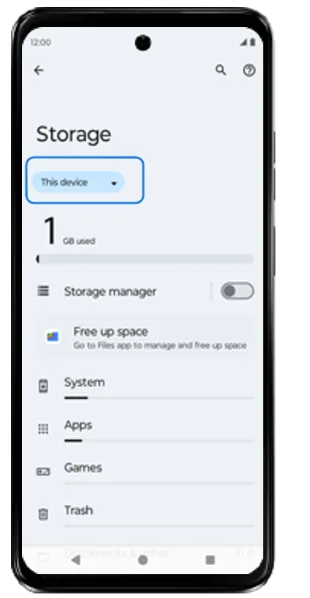 Step 4
Tap This device
At the top of the Storage screen, tap the This device drop-down.
-
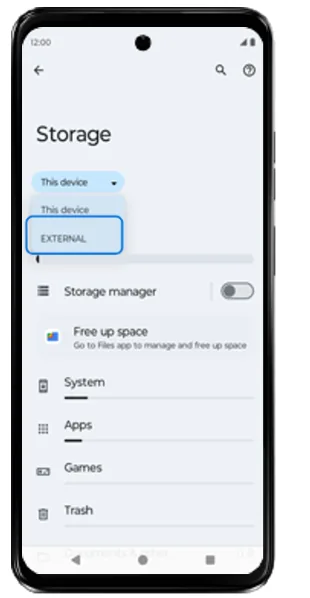 Step 5
Choose EXTERNAL
Select EXTERNAL to switch to your SD card.
-
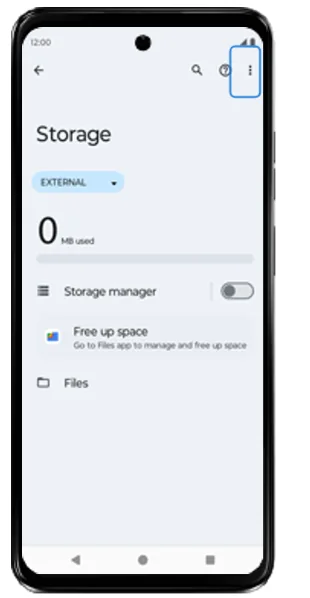 Step 6
Tap the options menu
Tap the three-dot options menu at the top right.
-
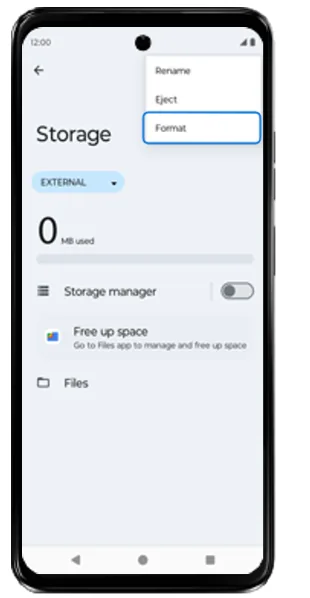 Step 7
Choose Format
From the menu (Rename, Eject, Format), tap Format.
-
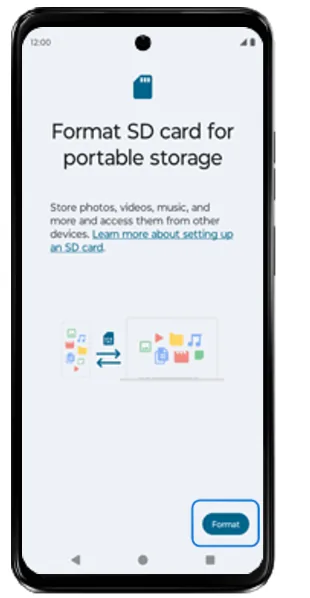 Step 8
Tap Format
On the “Format SD card” screen, tap Format at the bottom right.
-
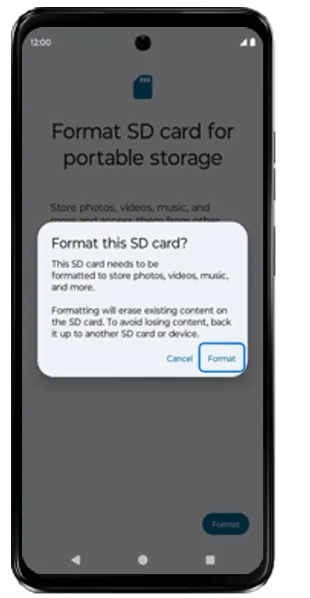 Step 9
Confirm Format
A “Format this SD card?” warning explains that all content on the card will be erased. Tap Format to confirm.
-
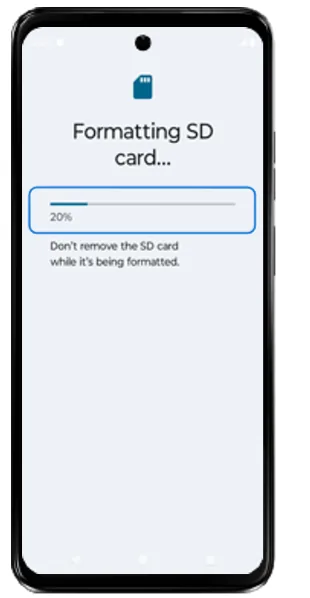 Step 10
Wait while the card formats
The SD card is now formatting. Don't remove the card until it finishes.
-
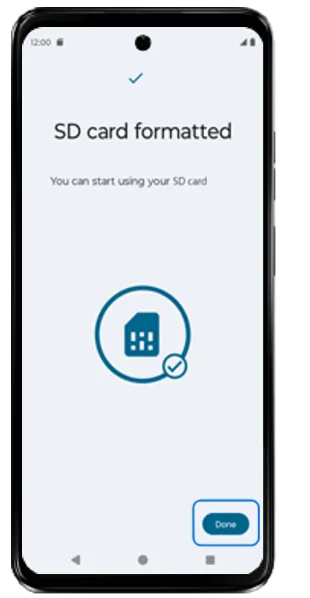 Step 11
Tap Done
When you see “SD card formatted”, tap Done.
-
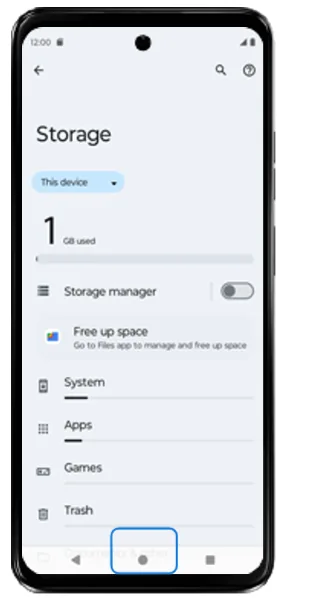 Step 12
Return to the Home screen
The SD card is ready to use. Return to the Home screen — you can now save photos, videos, music and files to it.
Before you format: things to know
- Formatting permanently erases everything on the SD card — back up photos and files first.
- Use a good-quality, fast card (UHS-I U3 / A2 class or better) so apps and media load smoothly.
- On many recent Motorola phones the card can only be set up as portable storage; the option to merge it with internal storage has been removed in newer Android versions.
- Keep the phone charged and don’t remove the card while it is formatting.
Frequently asked questions
Can I use an SD card as internal storage on my Motorola phone?
It depends on the model and Android version. Older Motorola phones offered a “use as internal storage” option, but many newer models only allow the card to be used as portable storage for photos, videos, music and files.
Will formatting the SD card delete my files?
Yes. Formatting erases everything on the card. Copy anything you want to keep to your phone, a computer or cloud storage before you start.
Why is my Motorola phone not detecting the SD card?
Re-insert the card with the phone switched off, try another card, and check it works in a computer. If no card is detected, the SIM/SD card tray or slot may be damaged and need a repair.
How do I move photos to the SD card?
Open the Files app, select the photos or folders on internal storage, choose Move to, and pick your SD card. You can also set the Camera app to save new photos to the SD card in its settings, where supported.
Still having problems? It may be a hardware fault. Check the Motorola spare part prices for your model, or compare battery and display replacement costs.
Related Motorola guides
- How to Transfer Files from a Motorola Phone to a Windows PC
- How to Transfer Photos from a Motorola Phone to a Mac
- How to Back Up Your Motorola Phone to Google
- How to Factory Reset a Motorola Phone from Settings
- How to Set Up a New Motorola Phone
Steps and screenshots based on Motorola's official Using SD card as internal storage tutorial. Steps can vary slightly by model and Android version.