How to Factory Reset a Motorola Phone from Settings
A factory reset erases everything on your Motorola phone and returns it to how it was out of the box. Use it before selling or giving away the phone, or as a last resort for serious software problems. Back up your data first.
Before you reset
- Back up your phone — photos, contacts, chats and files will be erased.
- Make sure you know your Google account email and password. After the reset, the phone asks for them (Factory Reset Protection).
- Charge the phone to at least 30% or keep it plugged in.
- Selling the phone? Also remove your Google account (Settings > Passwords, passkeys & accounts) and take out the SIM and SD card.
-
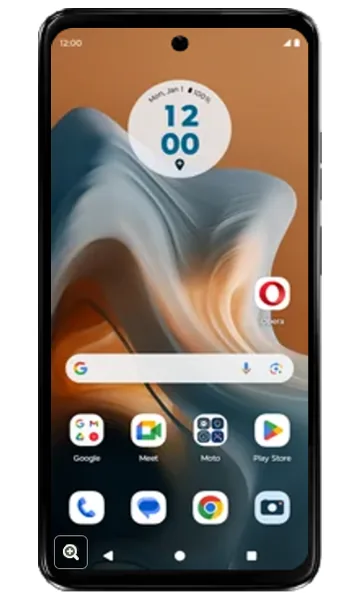 Step 1
Open the app drawer
Go to the Home screen and swipe up to open all apps.
-
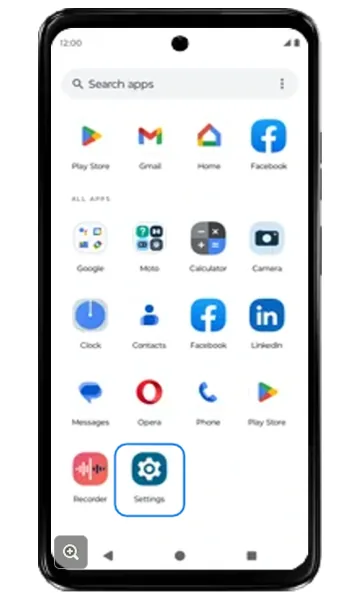 Step 2
Open Settings
Tap Settings.
-
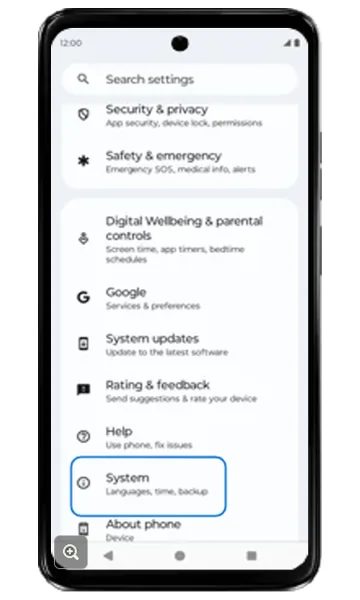 Step 3
Tap System
Scroll down and tap System.
-
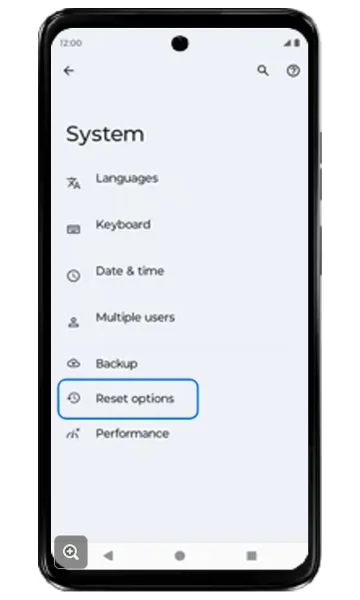 Step 4
Tap Reset options
Tap Reset options. (Tap Backup first if you still need to back up.)
-
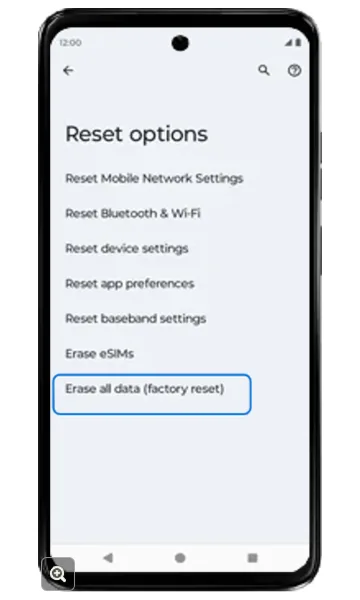 Step 5
Tap Erase all data (factory reset)
Tap Erase all data (factory reset).
-
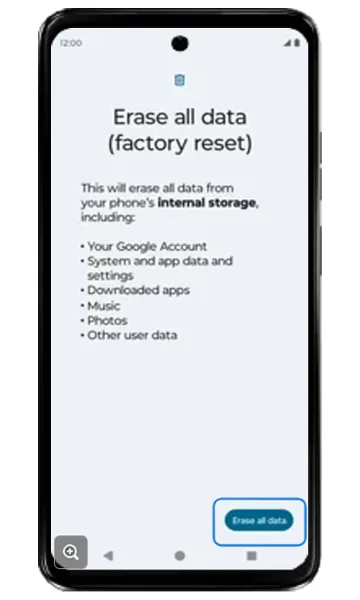 Step 6
Review and tap Erase all data
The screen lists what will be erased: your Google account, system and app data, downloaded apps, music, photos and other user data. Tap Erase all data. Enter your PIN, pattern or password if asked.
-
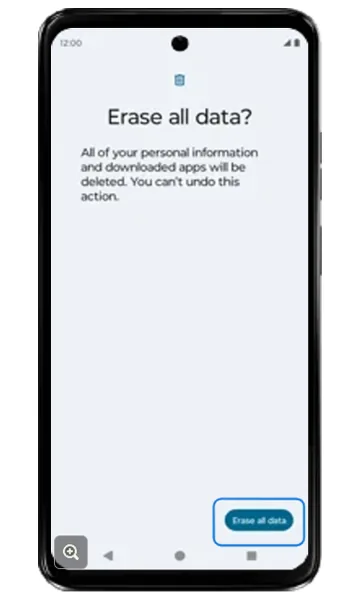 Step 7
Confirm
Tap Erase all data again to confirm. The phone erases everything, restarts automatically and opens the setup screen.
Frequently asked questions
Can I factory reset my Motorola phone if it won’t turn on or I forgot the PIN?
Yes — use recovery mode with the Power and Volume buttons instead. See our guide for when you forgot your unlock PIN, pattern or password.
Does a factory reset remove the Android update?
No. A factory reset erases your data and apps, but the phone keeps the latest Android version and security updates that were installed.
How long does a factory reset take?
Usually 5–15 minutes, depending on the phone and how much data was stored.
Still having problems? It may be a hardware fault. Check the Motorola spare part prices for your model, or compare battery and display replacement costs.
Related Motorola guides
- How to Back Up Your Motorola Phone to Google
- How to Start a Motorola Phone in Safe Mode
- Is My Motorola Phone Hacked? How to Check and Remove Malware
- Lost Your Motorola Phone? How to Find, Lock or Erase It
- How to Reset Network Settings on a Motorola Phone
Steps and screenshots based on Motorola's official Reset the phone tutorial. Steps can vary slightly by model and Android version.