Is My Motorola Phone Hacked? How to Check and Remove Malware
Phones usually get hacked through phishing messages with malicious links or attachments, fake websites that download malware, or fake apps pretending to be real ones. If your Motorola phone is acting strangely, use these checks to find and remove the problem.
Warning signs your phone may be hacked
- Poor battery life or unusually high battery use
- Apps you didn’t install appearing on your phone
- Unusually high mobile data usage
- Strange pop-ups and ads, even outside apps
- Apps or the phone itself crashing often
Scan your phone for malware
-
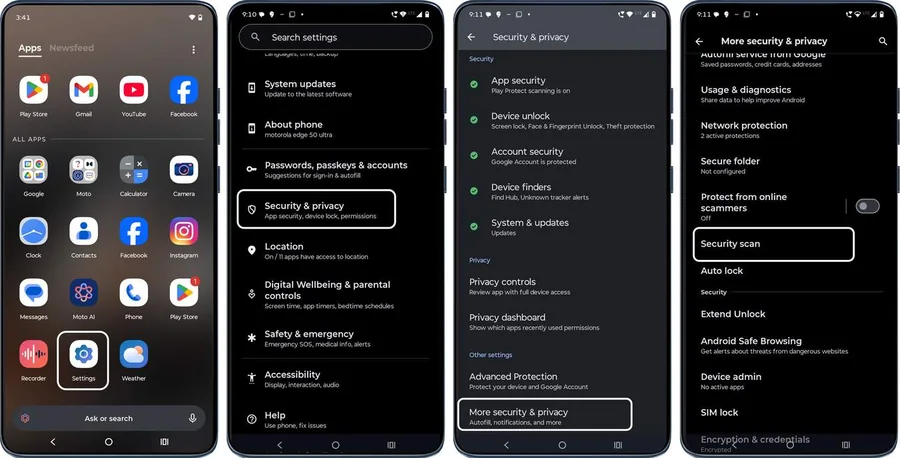 Step 1
Run a security scan
Go to Settings > Security & privacy > More security & privacy > Security scan. Your phone scans for malware and tells you if it finds any potential issues.
Check the warning signs
-
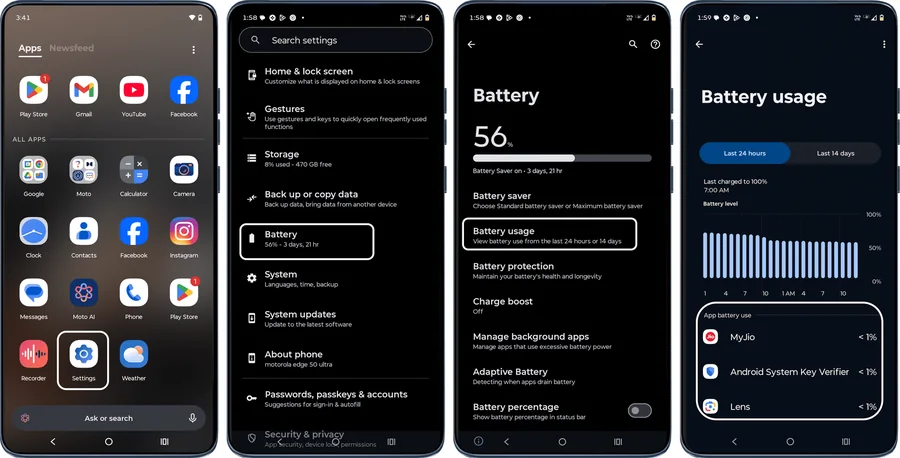 Step 1
Check battery usage
Go to Settings > Battery > Battery usage. Look for unknown apps or unusual activity using a lot of power.
-
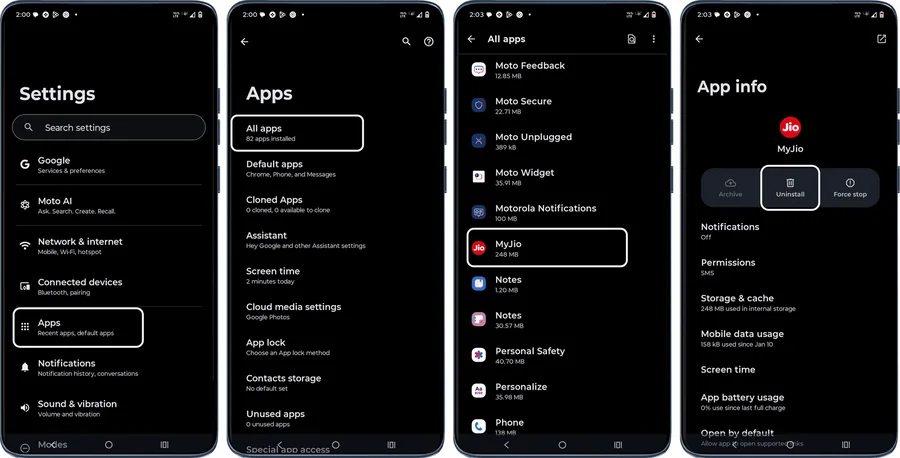 Step 2
Remove apps you don’t recognise
Open Settings > Apps > All apps. Scroll through the list and uninstall anything you don’t recognise or want. Only apps downloaded from the Play Store or other sources can be uninstalled.
-
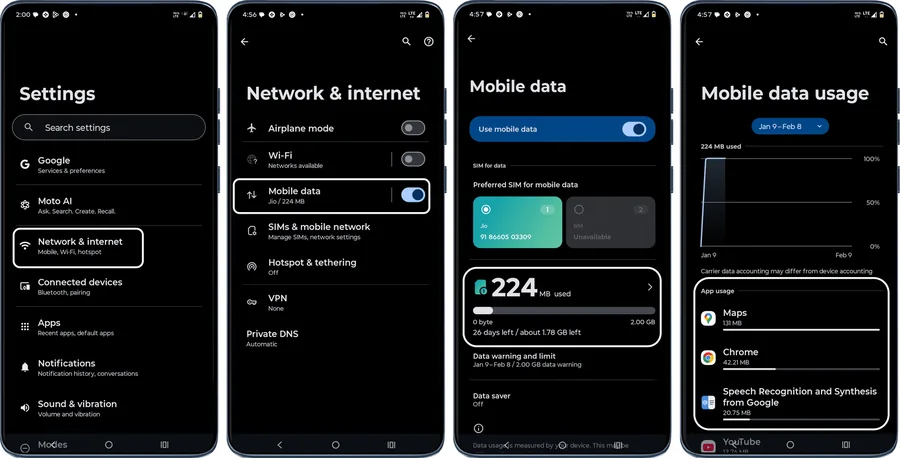 Step 3
Check mobile data usage
Go to Settings > Network & internet > Mobile network > App data usage. No unknown app should use several gigabytes (e.g. 5 GB) a month. If an app looks suspicious, tap it and uninstall it.
- Step 4
Ignore strange pop-ups and ads
Never tap suspicious pop-ups or ads. If they appear, close your browser completely and restart your phone.
-
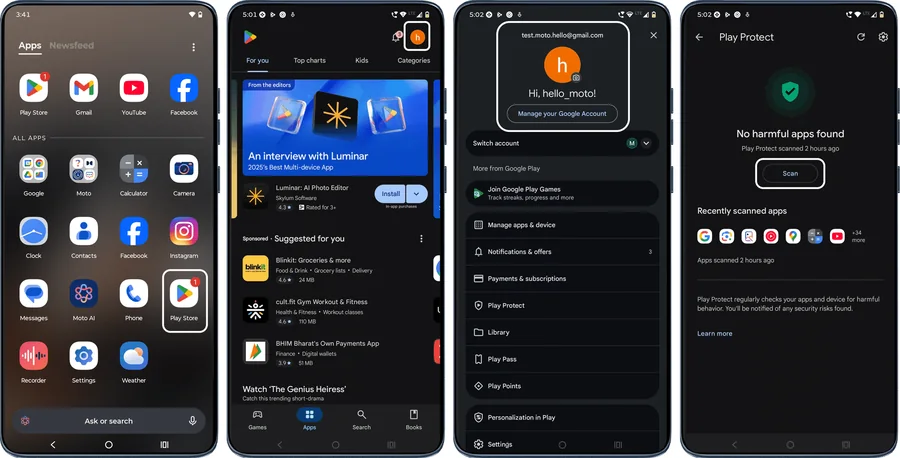 Step 5
Scan with Google Play Protect
If apps or the phone keep crashing, open the Play Store, tap your profile icon, then select Play Protect > Scan.
Last resort: factory reset
-
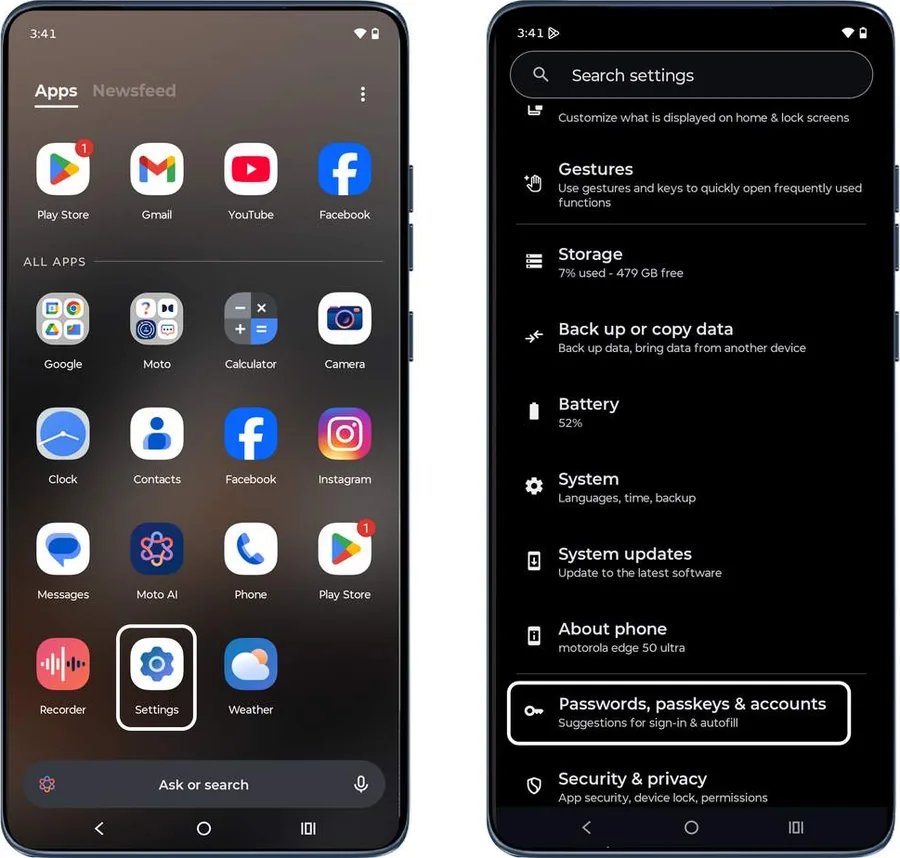 Step 1
Prepare before resetting
A factory reset erases all data. First back up your data, and make sure you know your Google account username (Settings > Passwords, passkeys & accounts), your Google account password, and your screen lock PIN, pattern or password. You’ll need them after the reset to prove the phone is yours.
Tip: If you recently changed your Google password, wait 24 hours before resetting the phone.
-
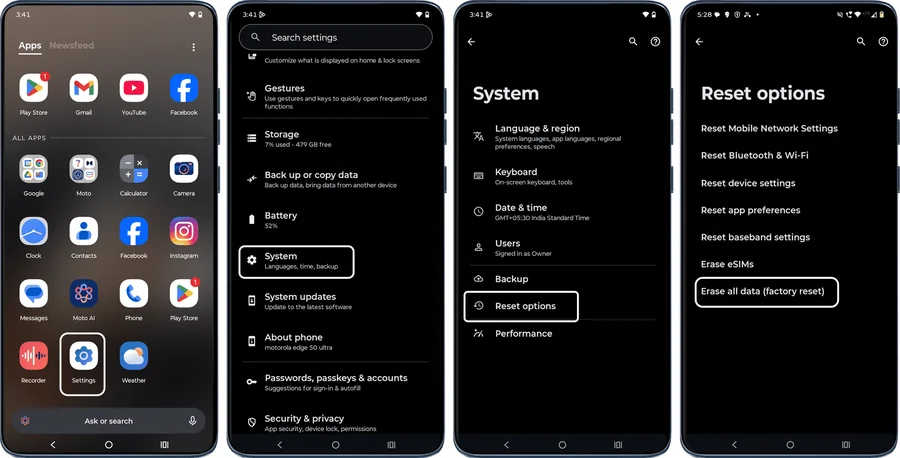 Step 2
Erase all data (factory reset)
Go to Settings > System > Reset options > Erase all data (factory reset). After the reset, enter your security information to restore your data and verify ownership.
Tip: When setting the phone up again, choose Set up as new and reinstall apps one at a time, using the phone for a while after each, to find any app causing problems.
Frequently asked questions
How do I know if my Motorola phone has a virus?
Common signs are fast battery drain, high data usage, apps you didn’t install, constant pop-up ads and frequent crashes. Run Settings > Security & privacy > More security & privacy > Security scan and a Google Play Protect scan to check.
Does a factory reset remove hackers and malware?
Yes, a factory reset erases all apps and data, including malware. Set the phone up as new and reinstall only apps you trust from the Play Store. Change your Google account password from a safe device too.
Can my Motorola phone get hacked by opening a message?
Most attacks need you to tap a malicious link, open an attachment or install an app. Don’t open links or attachments from unknown senders, and keep your phone software up to date.
Still having problems? It may be a hardware fault. Check the Motorola spare part prices for your model, or compare battery and display replacement costs.
Related Motorola guides
- Lost Your Motorola Phone? How to Find, Lock or Erase It
- Forgot Your Motorola Unlock PIN, Pattern or Password? How to Reset It
- How to Start a Motorola Phone in Safe Mode
- How to Force Restart a Frozen Motorola Phone
- How to Hard Reset a Motorola Phone Using the Buttons (Recovery Mode)
Steps and screenshots based on Motorola's official Hacking, Malware & Virus attacks tutorial. Steps can vary slightly by model and Android version.