How to Hard Reset a Motorola Phone Using the Buttons (Recovery Mode)
If your Motorola phone won’t start normally or you can’t reach the Settings menu, you can do an external (hard) reset from recovery mode using only the buttons. This erases everything on the phone.
Before you start
- All data on the phone will be erased. Only data already backed up to your Google account can be restored.
- Make sure you know the Gmail address and password that were on the phone — you’ll need them after the reset (Factory Reset Protection).
- Charge the battery to at least 20%.
- Use the volume buttons to move up and down in recovery mode, and the Power button to select.
-
 Step 1
Turn the phone off
Turn the phone off completely. If it’s frozen, hold Power and Volume up until the screen turns off.
-
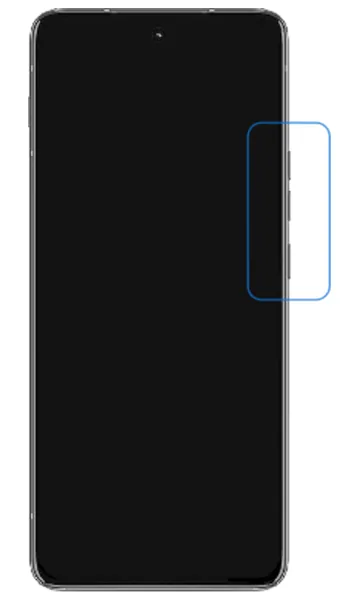 Step 2
Open the boot menu
Press and hold the Power button and the Volume down button together until the boot menu appears.
-
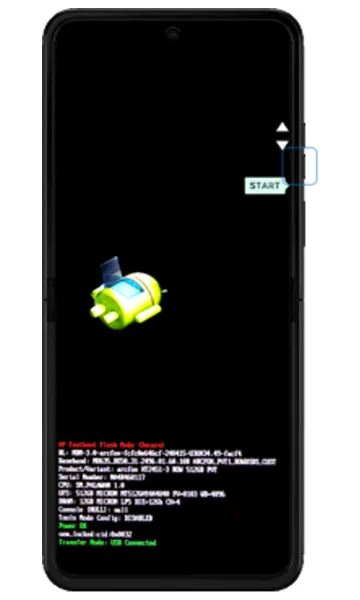 Step 3
Select Recovery mode
Press Volume down until RECOVERY MODE is shown, then press the Power button.
-
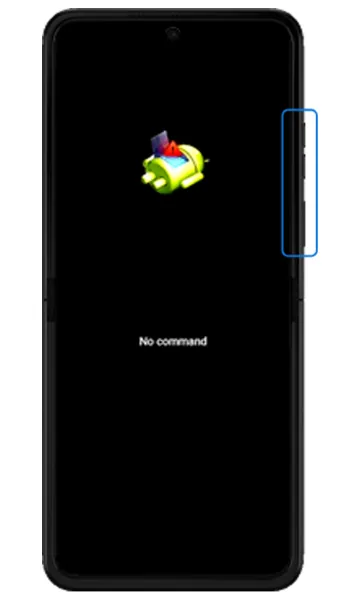 Step 4
Open the recovery menu
When the Android robot with “No command” appears, press and hold Power, then press and release Volume up.
-
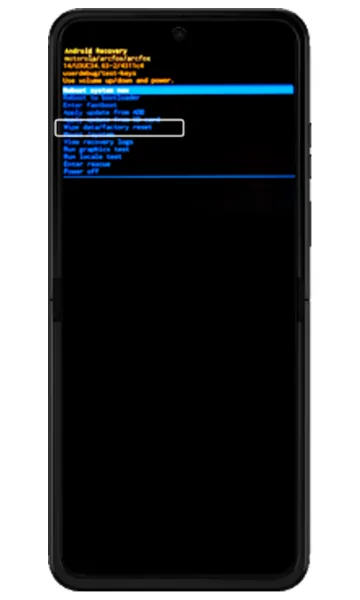 Step 5
Choose Wipe data/factory reset
Use Volume down to highlight Wipe data/factory reset, then press Power.
-
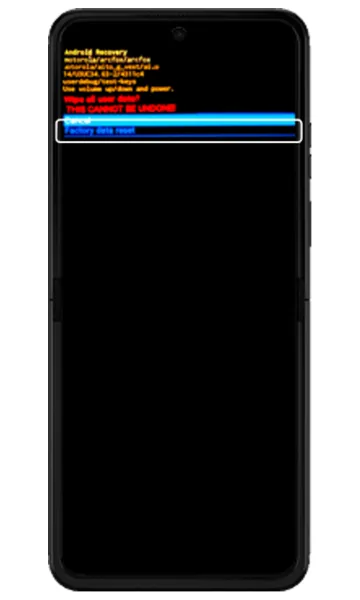 Step 6
Confirm Factory data reset
Highlight Factory data reset with Volume down and press Power. All data and settings are deleted.
-
 Step 7
Reboot
When the wipe finishes, select Reboot system now and press Power. The phone restarts and shows the setup screen.
Frequently asked questions
What’s the difference between a hard reset and a forced reboot?
A forced reboot (holding Power + Volume up) just restarts a frozen phone and keeps your data. A hard reset from recovery mode erases everything and returns the phone to factory settings.
Can I hard reset a Motorola phone without the Google account password?
You can do the reset, but the phone will ask for the previous Google account during setup. Recover your Google account first, or visit an authorised service centre with proof of purchase.
Still having problems? It may be a hardware fault. Check the Motorola spare part prices for your model, or compare battery and display replacement costs.
Related Motorola guides
- How to Start a Motorola Phone in Safe Mode
- Is My Motorola Phone Hacked? How to Check and Remove Malware
- How to Force Restart a Frozen Motorola Phone
- Lost Your Motorola Phone? How to Find, Lock or Erase It
- How to Reset Network Settings on a Motorola Phone
Steps and screenshots based on Motorola's official Perform an external reset tutorial. Steps can vary slightly by model and Android version.