How to Start a Motorola Phone in Safe Mode
Apps crashing, unexpected reboots or fast battery drain are often caused by a downloaded app. Safe mode starts your phone with only its original software and apps, so you can find out whether a third-party app is to blame — without deleting anything.
-
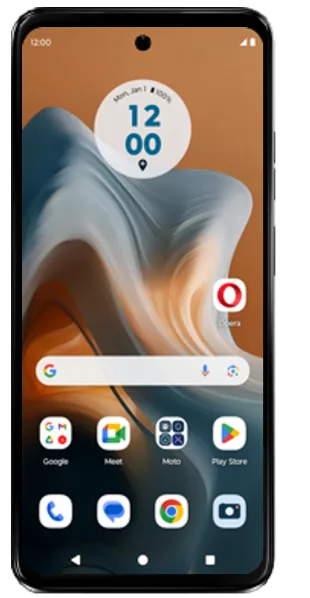 Step 1
Know when to use safe mode
If your Motorola phone runs slow, keeps crashing apps, reboots on its own or drains battery fast, restart it in safe mode. Safe mode starts the phone without any third-party (downloaded) apps, so you can tell whether one of them is causing the problem.
Tip: Apps most often to blame are custom launchers, task killers and antivirus apps.
-
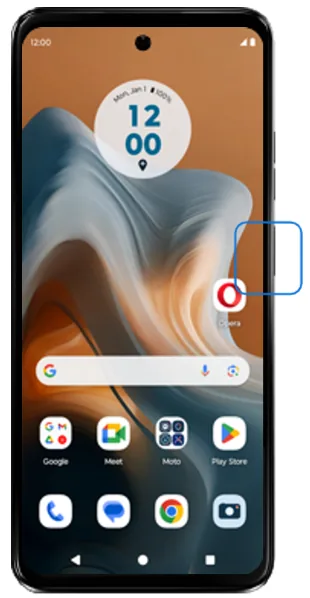 Step 2
Press Power and Volume up together
Press and hold the Power button and the Volume up button at the same time until the power menu appears.
-
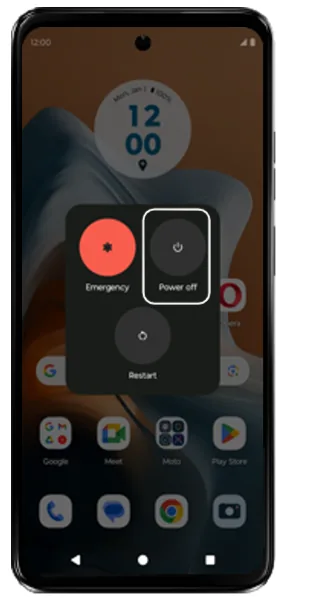 Step 3
Touch and hold Power off
In the power menu, touch and hold Power off (don't just tap it).
-
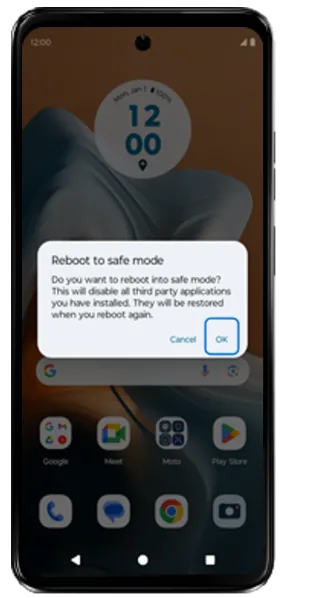 Step 4
Tap OK to reboot to safe mode
A “Reboot to safe mode” prompt appears. Tap OK.
-
 Step 5
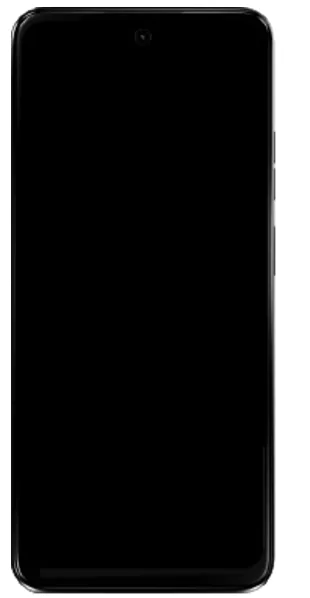
Wait for the phone to restart
The phone switches off and restarts in safe mode automatically. This can take a minute.
-
 Step 6
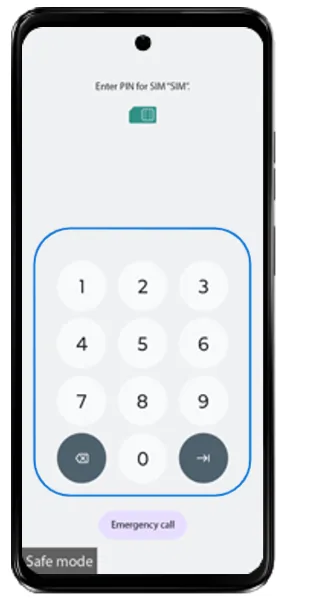
Enter your SIM PIN if asked
If a PIN screen appears, enter your SIM PIN and tap the arrow at the bottom right. If it doesn't appear, go to the next step.
-
 Step 7
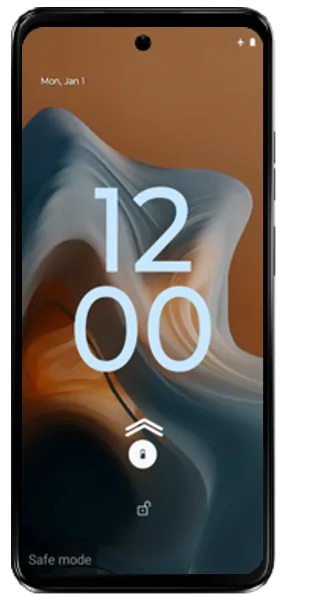
Swipe up to unlock
If the lock screen appears, swipe up (and enter your screen lock if you have one). If it doesn't appear, go to the next step.
-
 Step 8
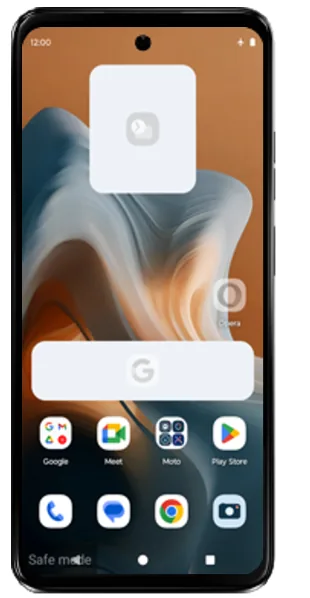
Confirm you are in safe mode
You'll see “Safe mode” at the bottom-left of the screen, and widgets and downloaded apps are greyed out. Use the phone normally and check whether the problem is gone.
If the problem goes away in safe mode
- Exit safe mode by restarting your phone.
- Uninstall recently downloaded apps one at a time.
- Restart after each removal and check whether the problem is gone.
- Once you find the problem app, reinstall the other apps you removed.
Frequently asked questions
How do I turn off safe mode on a Motorola phone?
Just restart the phone: press and hold Power (or Power + Volume up), then tap Restart. It starts back up in normal mode with all your apps.
What should I do if the problem goes away in safe mode?
A downloaded app is most likely the cause. Exit safe mode, then uninstall recently downloaded apps one at a time, restarting after each removal, until the problem stops. Then reinstall the other apps you removed.
What if the problem still happens in safe mode?
Then it is probably not caused by a downloaded app. Update the phone software, and if the issue continues it may be a hardware fault such as the battery, display or motherboard — see our spare part price lists to estimate repair costs.
Will safe mode delete my apps or data?
No. Safe mode only stops downloaded apps from running. Your apps, photos and data stay on the phone and everything returns when you restart normally.
Still having problems? It may be a hardware fault. Check the Motorola spare part prices for your model, or compare battery and display replacement costs.
Related Motorola guides
- Is My Motorola Phone Hacked? How to Check and Remove Malware
- How to Force Restart a Frozen Motorola Phone
- How to Hard Reset a Motorola Phone Using the Buttons (Recovery Mode)
- Motorola Battery Draining Fast? Settings to Make It Last Longer
- How to Check Signal Strength on a Motorola Phone (and Fix No Signal)
Steps and screenshots based on Motorola's official Safe mode tutorial. Steps can vary slightly by model and Android version.