Motorola Battery Draining Fast? Settings to Make It Last Longer
If your Motorola phone’s battery drains quickly, a few settings can make a big difference. Switching from mobile data to Wi-Fi saves power, and the Battery settings let you find power-hungry apps and turn on built-in saving features.
Find apps that drain the battery
-
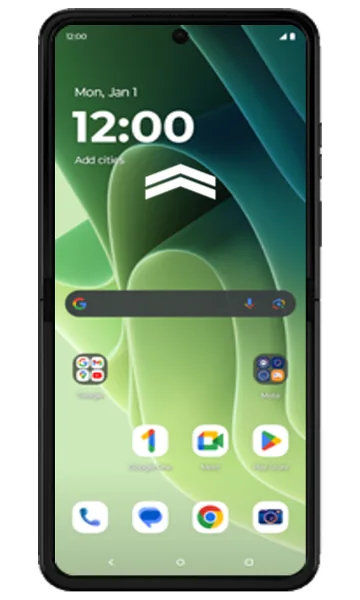 Step 1
Open the app drawer
Go to the Home screen and swipe up to open all apps.
-
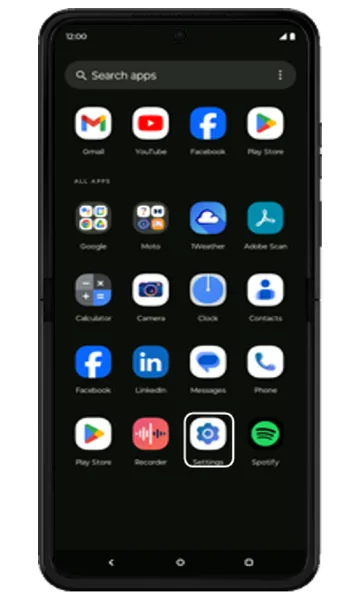 Step 2
Open Settings
Tap Settings.
-
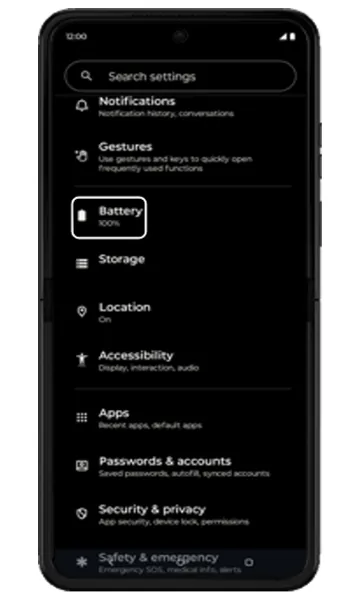 Step 3
Tap Battery
Scroll down and tap Battery.
-
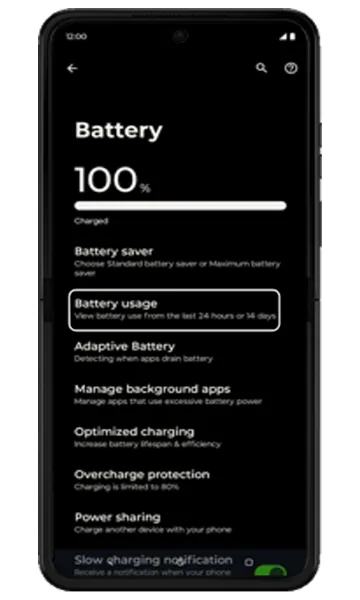 Step 4
Tap Battery usage
The battery level is shown at the top. Tap Battery usage to see which apps use the most power.
-
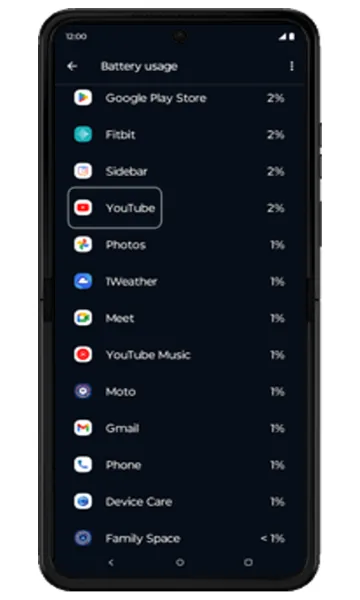 Step 5
Choose an app
Scroll down and tap an app using a lot of battery — in this example, YouTube.
-
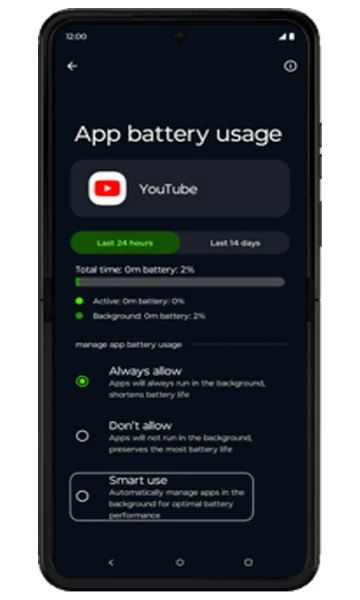 Step 6
Limit background use
To stop the app using battery in the background, choose Smart use (or Restricted). Then tap back twice.
Tip: Restricting background use can delay notifications — for example, messaging apps may not show new messages until you open them.
Turn on battery-saving features
-
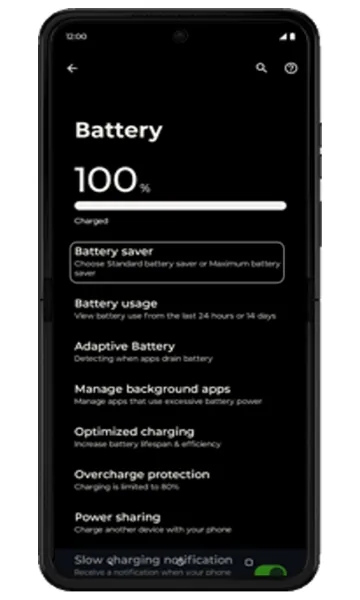 Step 1
Tap Battery saver
In Battery settings, tap Battery saver.
-
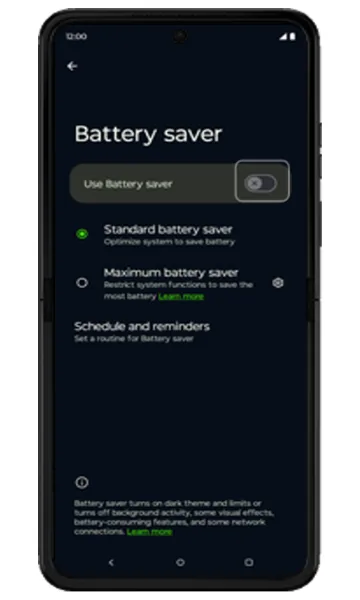 Step 2
Turn on Battery saver
Battery saver limits background activity and some features to save power. Turn on Use Battery saver.
-
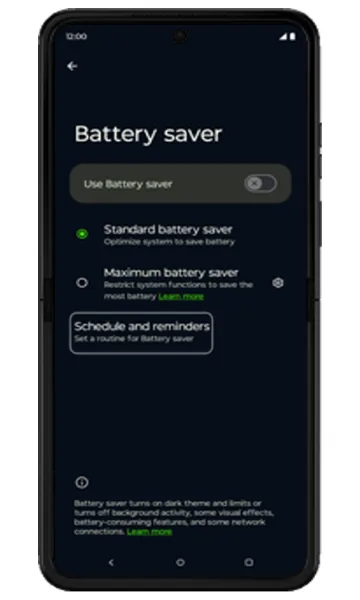 Step 3
Set a schedule (optional)
Tap Schedule and reminders to turn Battery saver on automatically at a set battery level. Then tap back.
-
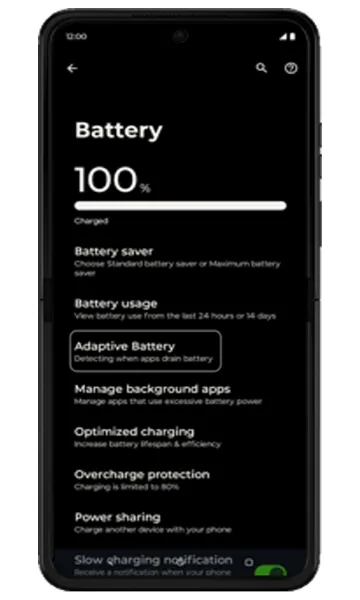 Step 4
Tap Adaptive Battery
In Battery settings, tap Adaptive Battery.
-
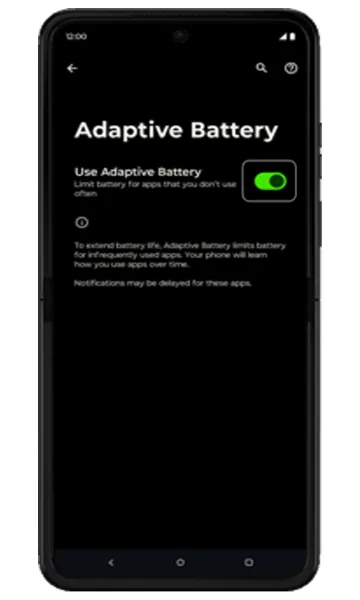 Step 5
Turn on Adaptive Battery
Adaptive Battery limits battery use for apps you rarely use. Make sure Use Adaptive Battery is on, then tap back.
-
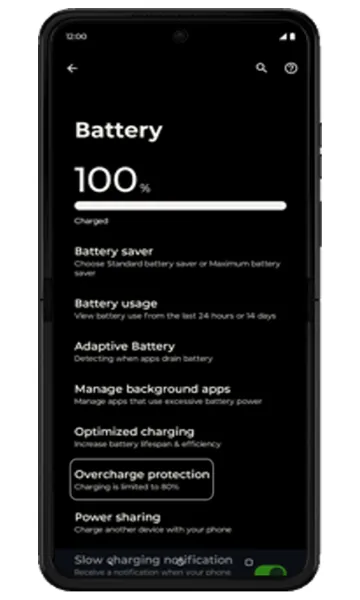 Step 6
Tap Overcharge protection
In Battery settings, tap Overcharge protection. If an intro screen appears, close it.
-
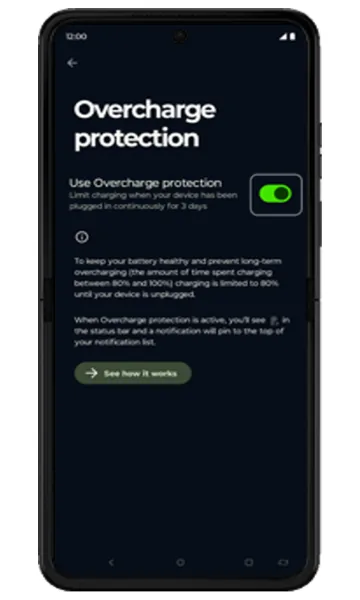 Step 7
Turn on Overcharge protection
Overcharge protection stops the battery spending too long at full charge, which helps it last longer over the years. Make sure it is on, then go back to Settings.
Reduce location and screen power use
-
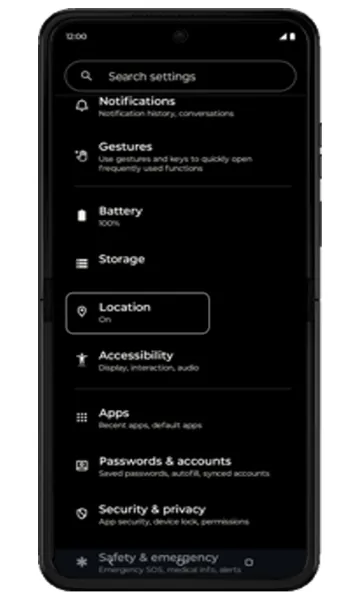 Step 1
Tap Location
In Settings, tap Location.
-
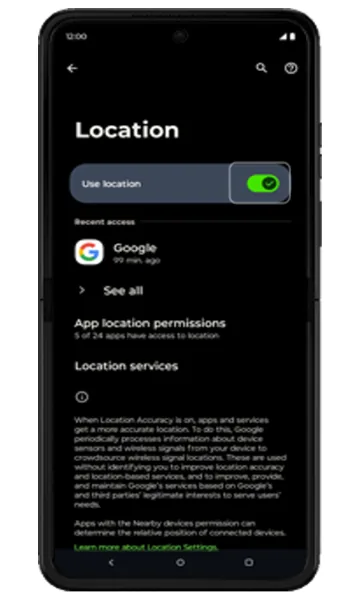 Step 2
Turn off Location
Turn off Use location when you don’t need GPS. If a pop-up appears, tap Close. Then go back to Settings.
Tip: Navigation, ride-hailing, delivery and Find Hub need location — turn it back on when you use them.
-
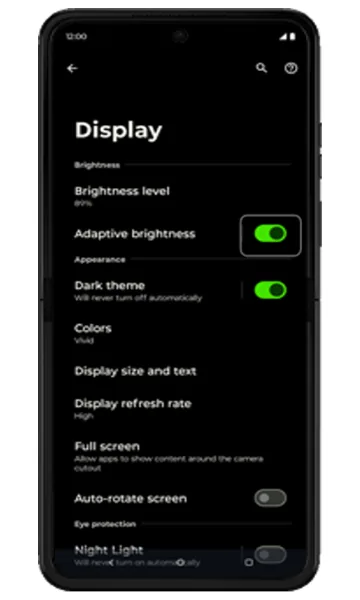 Step 3
Turn off Adaptive brightness
Scroll up, tap Display, and turn off Adaptive brightness.
-
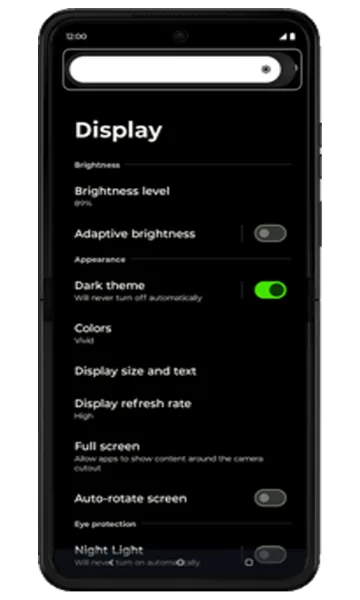 Step 4
Lower the brightness
Tap Brightness level and drag the slider to the left. Then return to the Home screen — your phone is now set up to save battery.
More ways to save battery
- Use Wi-Fi instead of mobile data when you can.
- Turn on Dark theme (Settings > Display) — it saves power on OLED screens.
- Keep the phone software and apps up to date.
- Avoid very hot places and use the original or a certified charger.
Frequently asked questions
Why is my Motorola battery draining so fast?
Common causes are apps running in the background, high screen brightness, poor mobile signal, location services and an ageing battery. Check Settings > Battery > Battery usage to find the apps using the most power.
How do I check my Motorola battery health?
On many recent models, go to Settings > Battery > Battery health (or open the Moto app). If the capacity is low or the phone shuts down at 20–30%, the battery may need replacing.
How much does a Motorola battery replacement cost?
It depends on the model. See the Motorola battery price list on this site for official out-of-warranty battery prices for every model.
Still having problems? It may be a hardware fault. Check the Motorola spare part prices for your model, or compare battery and display replacement costs.
Related Motorola guides
- How to Update the Software on a Motorola Phone
- How to Start a Motorola Phone in Safe Mode
- Is My Motorola Phone Hacked? How to Check and Remove Malware
- How to Check Signal Strength on a Motorola Phone (and Fix No Signal)
- How to Force Restart a Frozen Motorola Phone
Steps and screenshots based on Motorola's official Battery tips tutorial. Steps can vary slightly by model and Android version.