How to Set Up a New Motorola Phone
Setting up a new (or freshly reset) Motorola phone takes about 15 minutes. Have your Wi-Fi password and Google account details ready, and charge the phone to at least 20% before you start.
Turn on and choose a language
-
 Step 1
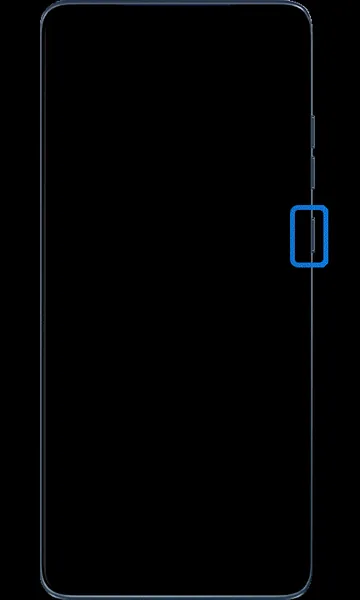
Turn on the phone
Press and hold the Power button until the phone turns on. Make sure the battery is at least 20% charged.
-
 Step 2
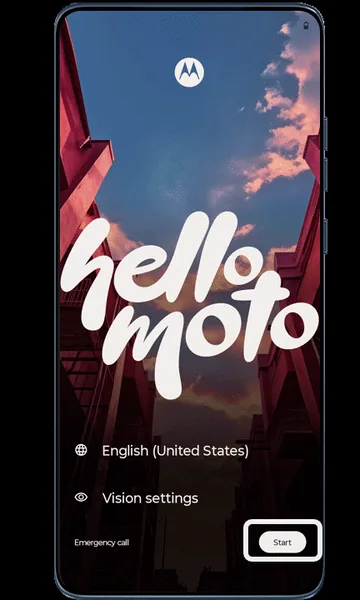
Choose your language
On the hello moto screen, tap the language, choose your preferred language from the list, and tap Start.
Connect to a network
-
 Step 1
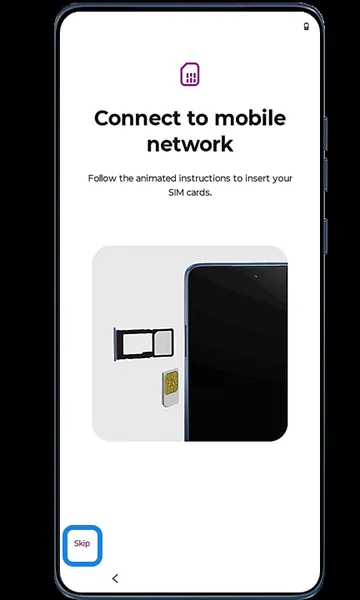
Set up the SIM (or skip)
If the SIM card screen appears, insert or set up your SIM now, or tap Skip to do it later.
-
 Step 2
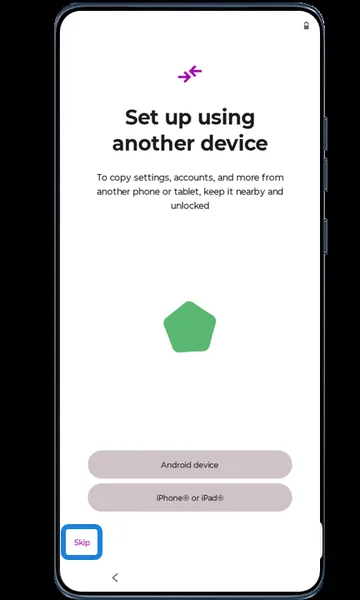
Skip copying from another device
When asked to Set up using another device, tap Skip. (You can copy apps and data later.)
-
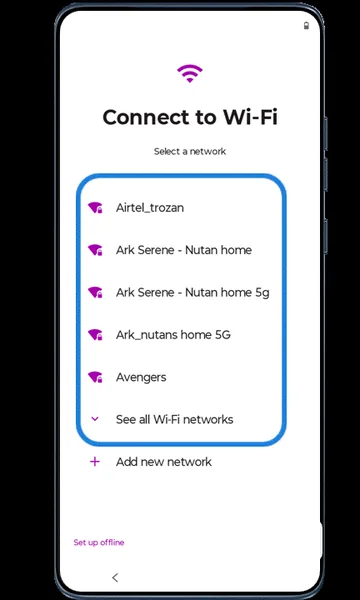 Step 3
Choose a Wi-Fi network
Select your Wi-Fi network. If it isn’t listed, tap See all Wi-Fi networks.
-
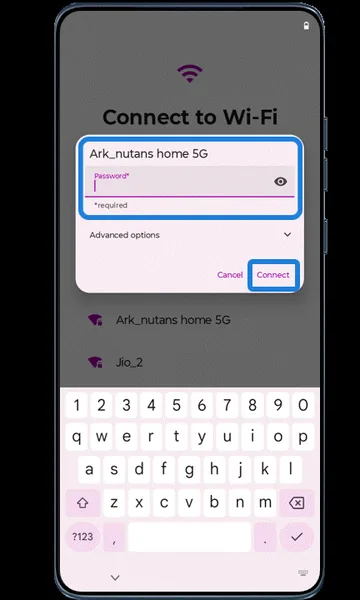 Step 4
Enter the Wi-Fi password
Enter the Wi-Fi password and tap Connect.
-
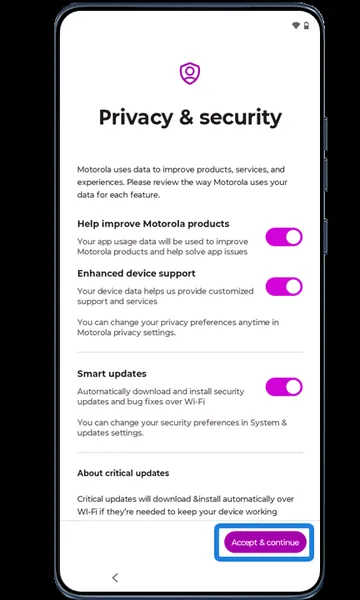 Step 5
Accept privacy & security terms
Review the terms and tap Accept & continue.
-
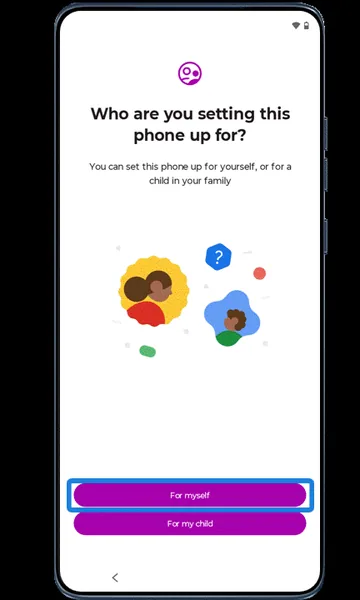 Step 6
Choose who the phone is for
If asked who you’re setting the phone up for, tap For myself.
Sign in to Google
-
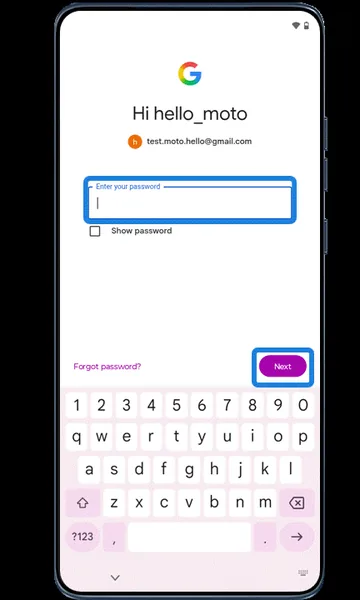 Step 1
Enter your Google email
Enter your Gmail address or phone number and tap Next. No Google account? Tap Create account and follow the steps.
-
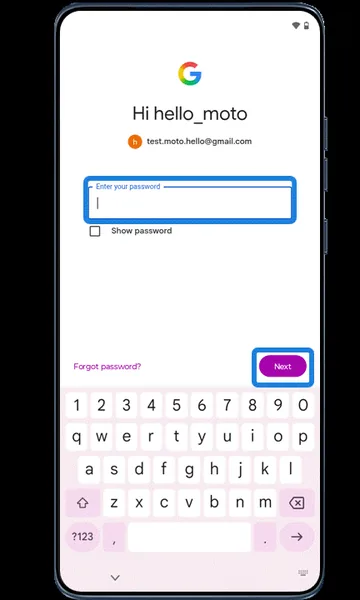 Step 2
Enter your password
Enter your password and tap Next.
-
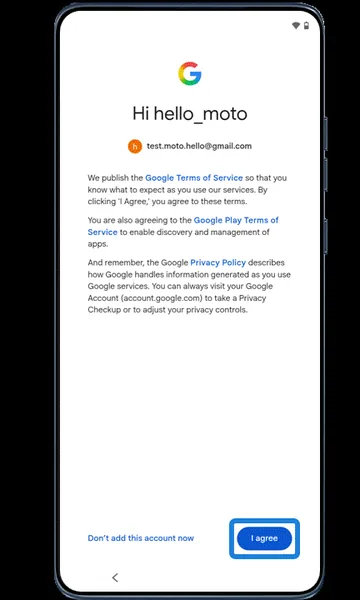 Step 3
Agree to Google’s terms
Review the terms and tap I agree.
Secure your phone
-
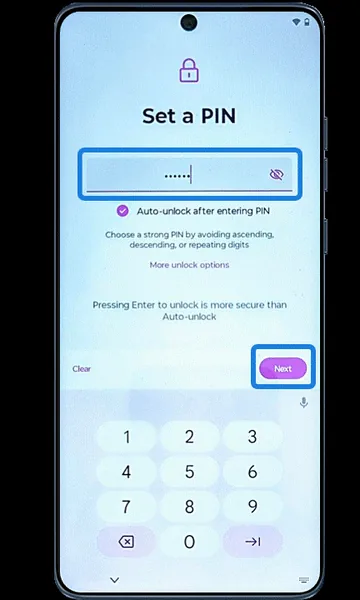 Step 1
Set a PIN
Enter a PIN for your screen lock and tap Next.
-
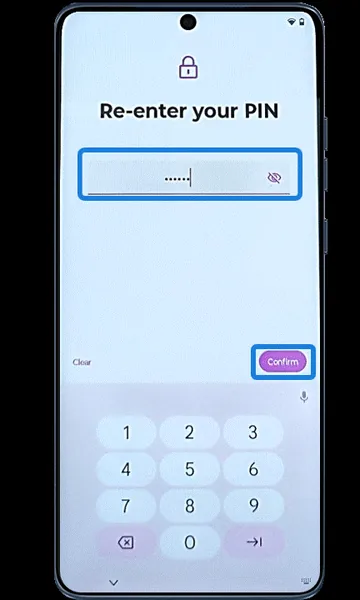 Step 2
Confirm the PIN
Re-enter the PIN, tap Confirm, then tap Done.
-
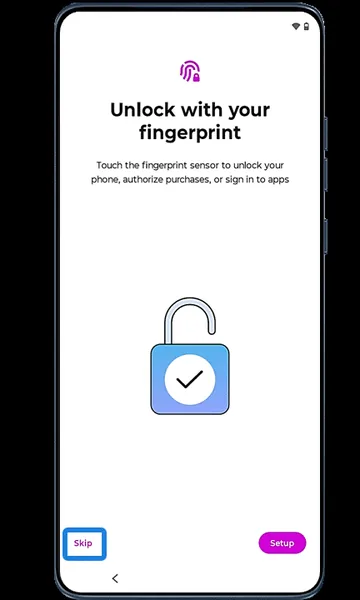 Step 3
Fingerprint (optional)
Set up fingerprint unlock now, or tap Skip to do it later in Settings.
Google services and backup
-
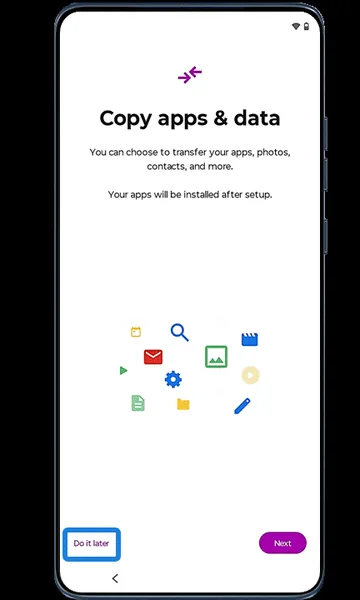 Step 1
Copy apps & data (optional)
If the Copy apps & data screen appears, choose an option — or Do it later to set up as a new phone.
-
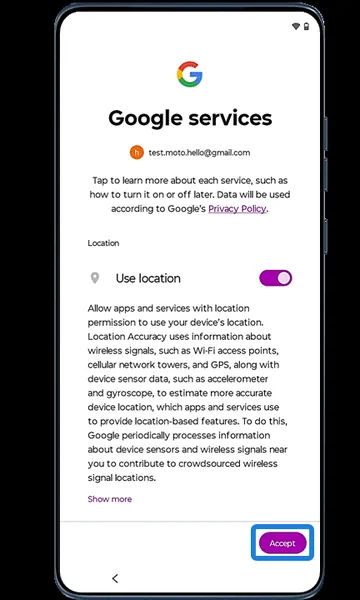 Step 2
Accept Google services
Review the Google services options (such as location) and tap Accept.
-
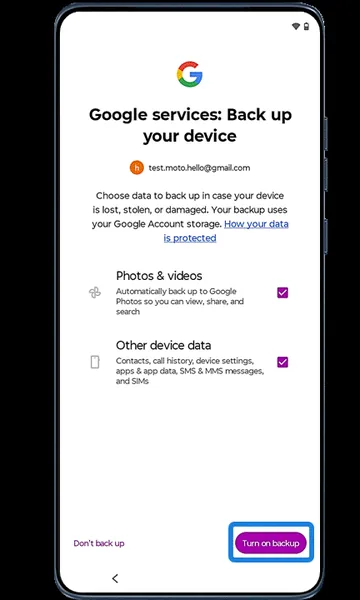 Step 3
Turn on backup
Tap Turn on backup to back up your photos and device data to your Google account.
-
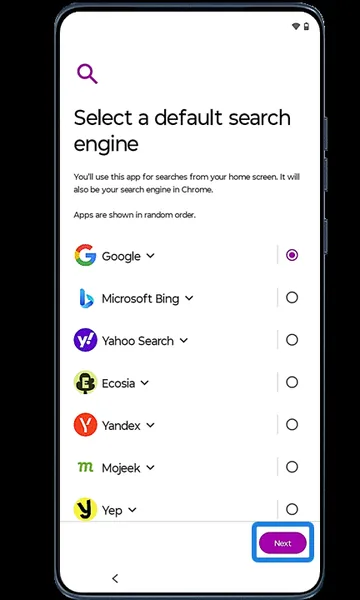 Step 4
Choose a search engine
Tap Next, choose your preferred search engine and tap Next.
-
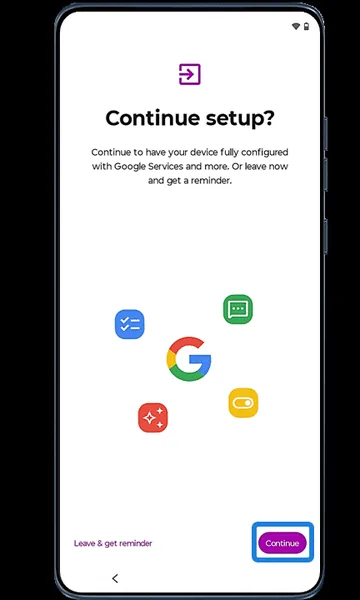 Step 5
Continue setup
Tap Continue.
-
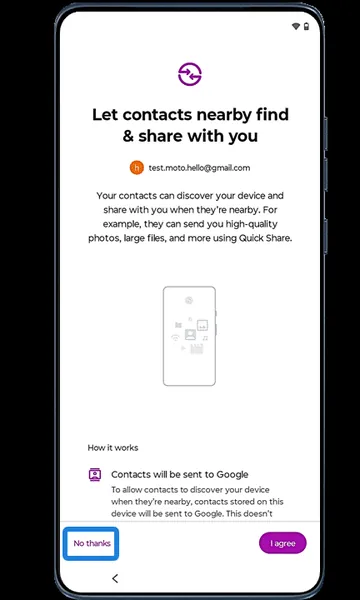 Step 6
Nearby contacts sharing
Choose whether nearby contacts can find you and share content (Quick Share) — for example, tap No thanks.
-
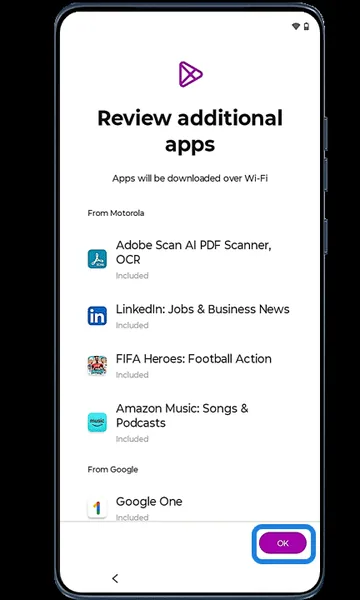 Step 7
Review additional apps
Review the list of additional apps that will be installed and tap OK.
Motorola settings
-
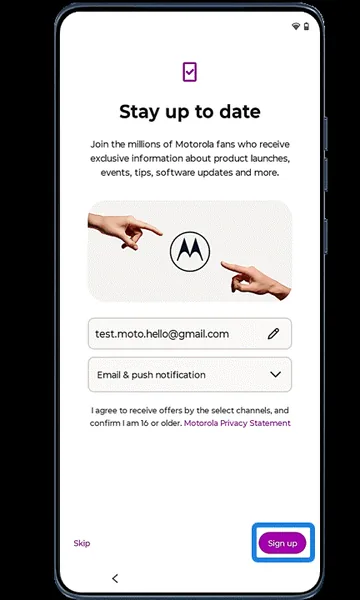 Step 1
Motorola updates
Tap Sign up to get Motorola news and offers, or Skip.
-
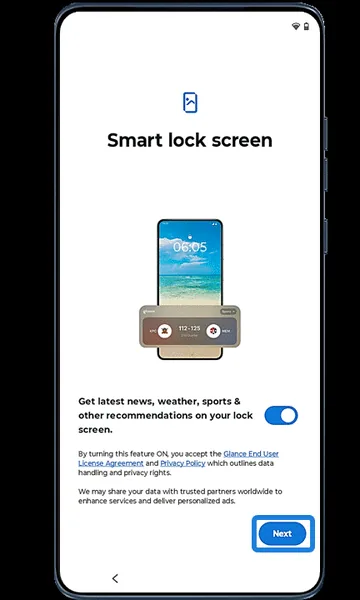 Step 2
Smart lock screen
Tap Next to set up Smart lock screen recommendations (you can change this later).
-
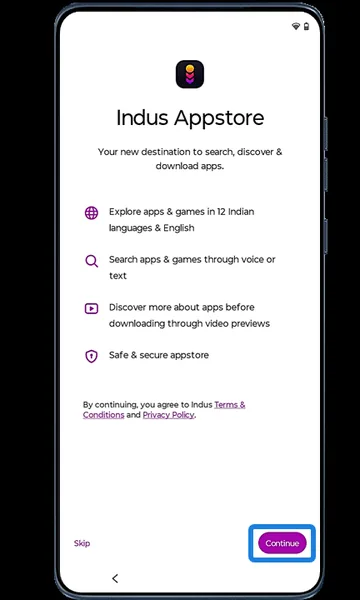 Step 3
Indus Appstore
Tap Continue to set up Indus Appstore, or Skip.
-
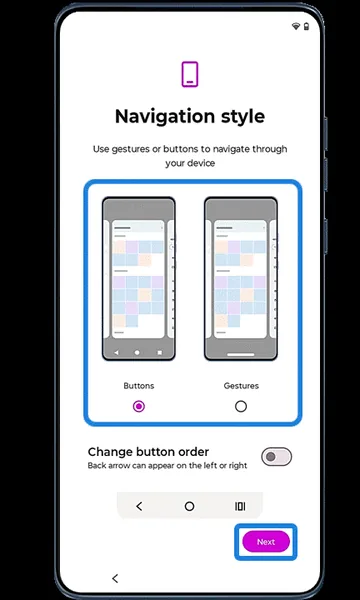 Step 4
Choose a navigation style
Choose gesture navigation or 3-button navigation and tap Next.
-
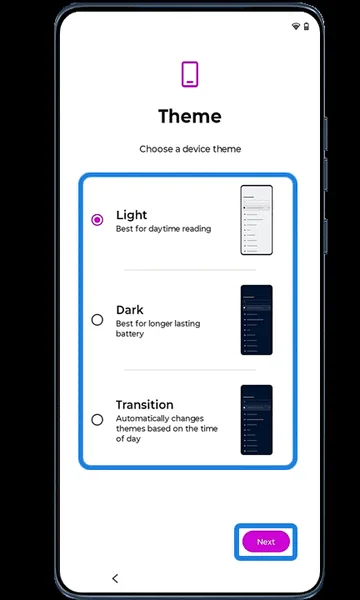 Step 5
Choose a theme
Choose Light, Dark or Transition and tap Next.
-
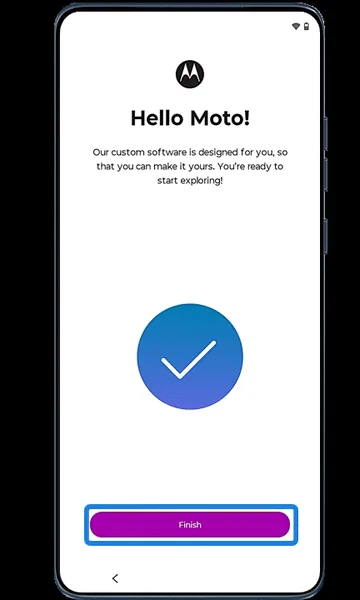 Step 6
Finish
Tap Finish to complete setup.
-
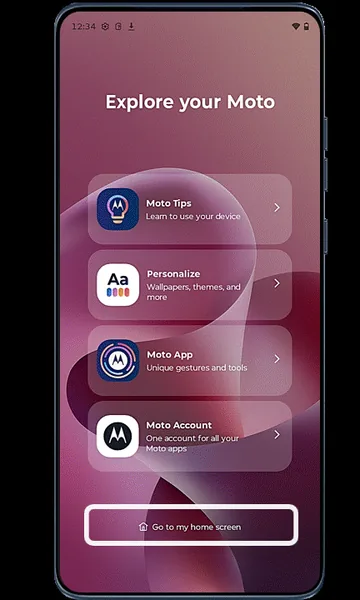 Step 7
Start using your phone
Setup is complete. Go to the Home screen and start exploring your Motorola phone.
Frequently asked questions
How do I transfer data from my old phone to a new Motorola?
During setup, choose Copy apps & data and follow the steps to connect your old phone with a cable or wirelessly. You can also restore from your Google backup by signing in with the same account.
Can I set up a Motorola phone without a Google account?
Yes — tap Skip on the sign-in screen. You won’t be able to use the Play Store or Google backup until you add an account later.
Still having problems? It may be a hardware fault. Check the Motorola spare part prices for your model, or compare battery and display replacement costs.
Related Motorola guides
- How to Format an SD Card as Storage on a Motorola Phone
- How to Back Up Your Motorola Phone to Google
- How to Transfer Files from a Motorola Phone to a Windows PC
- How to Transfer Photos from a Motorola Phone to a Mac
- How to Factory Reset a Motorola Phone from Settings
Steps and screenshots based on Motorola's official Set up a new phone tutorial. Steps can vary slightly by model and Android version.