Moto Secure: Motorola Security and Privacy Settings Explained
Moto Secure brings your Motorola phone’s security and privacy features together in one place. You can open it from the Moto app or from Settings > Security & privacy. These are the settings worth checking.
Security
-
 Step 1
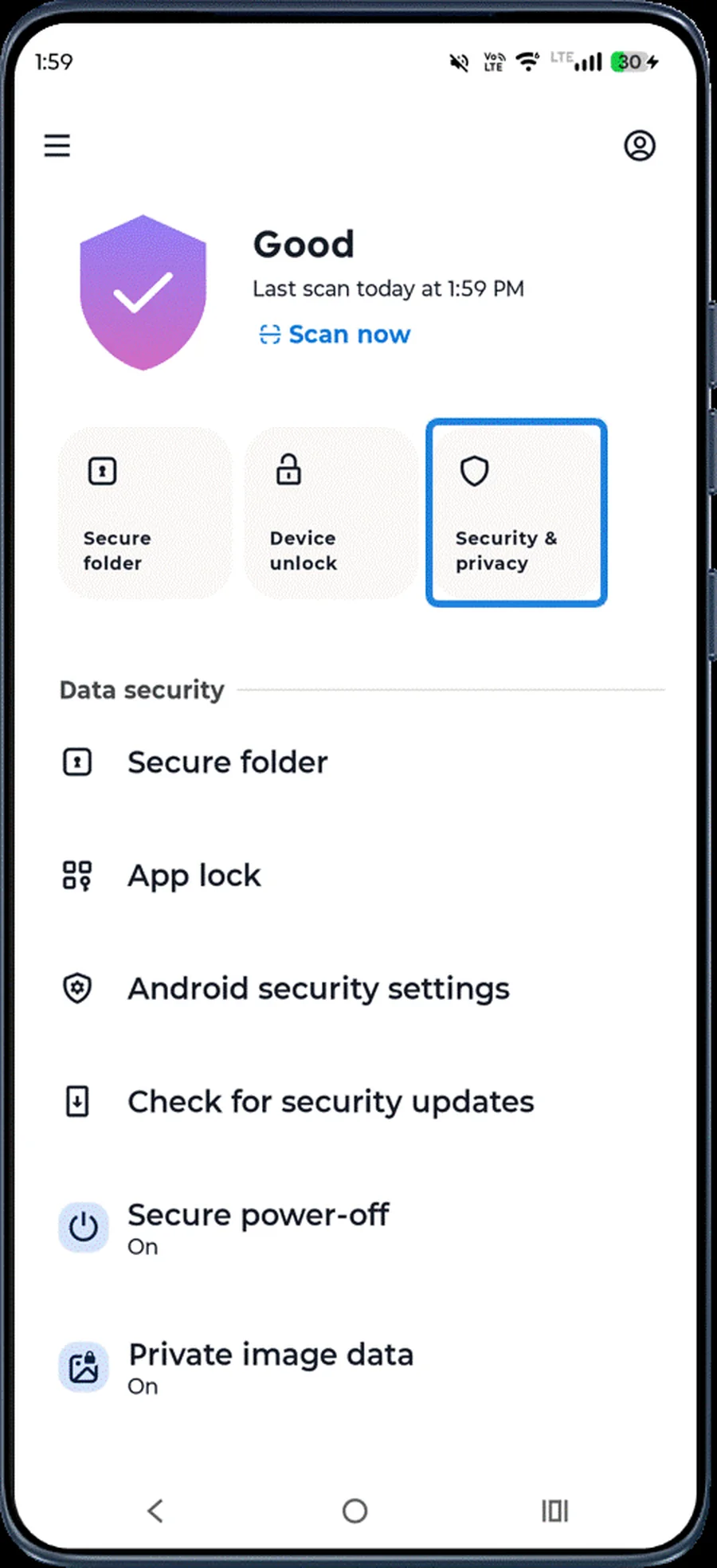
Open Moto Secure
Open the Moto app and tap Moto Secure (or go to Settings > Security & privacy). It brings all security and privacy settings together.
-
 Step 2
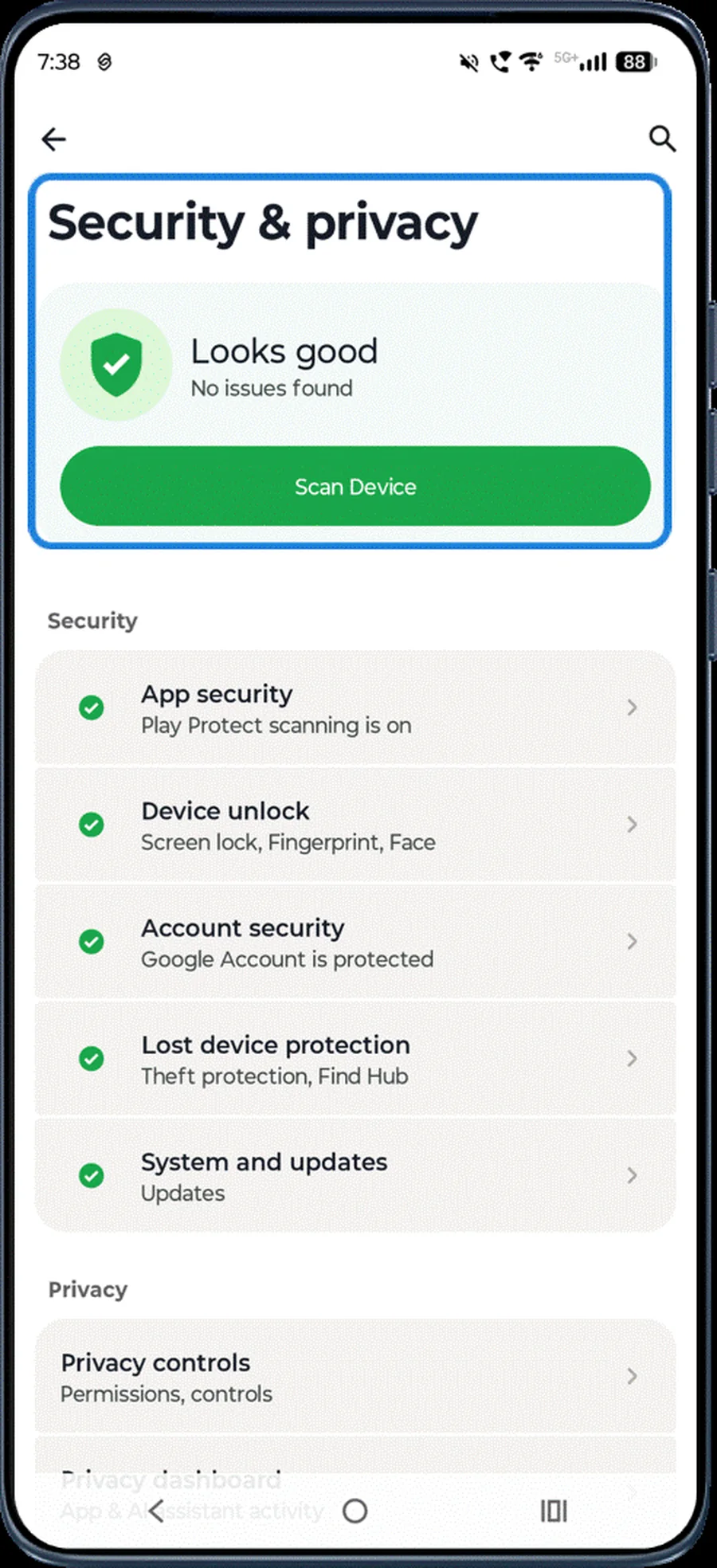
Scan your device
Tap Scan device to check for security and privacy issues, then review the results.
-
 Step 3
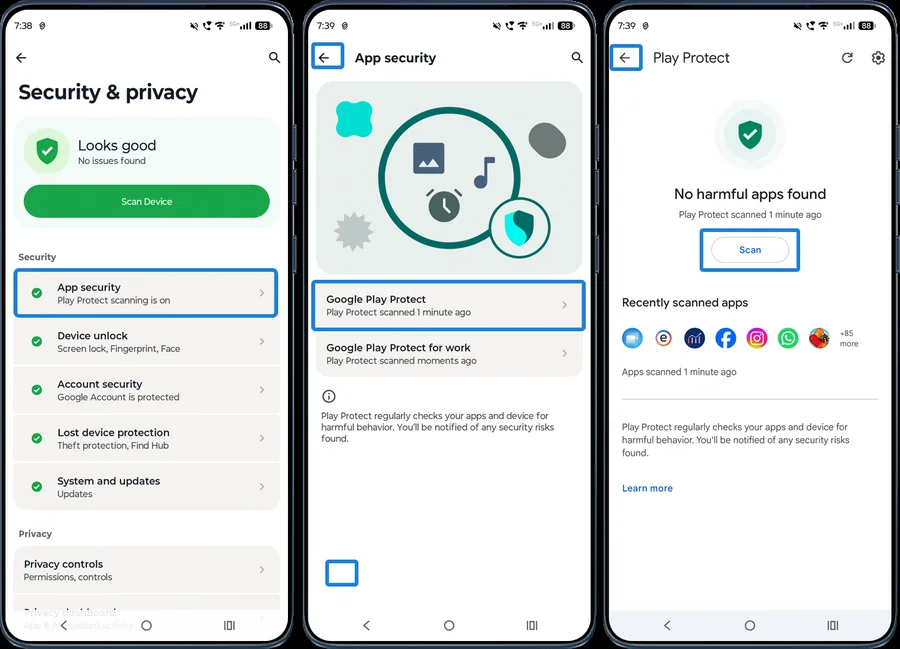
Scan apps with Play Protect
Tap App security > Google Play Protect, then tap Scan to check your apps for threats.
-
 Step 4
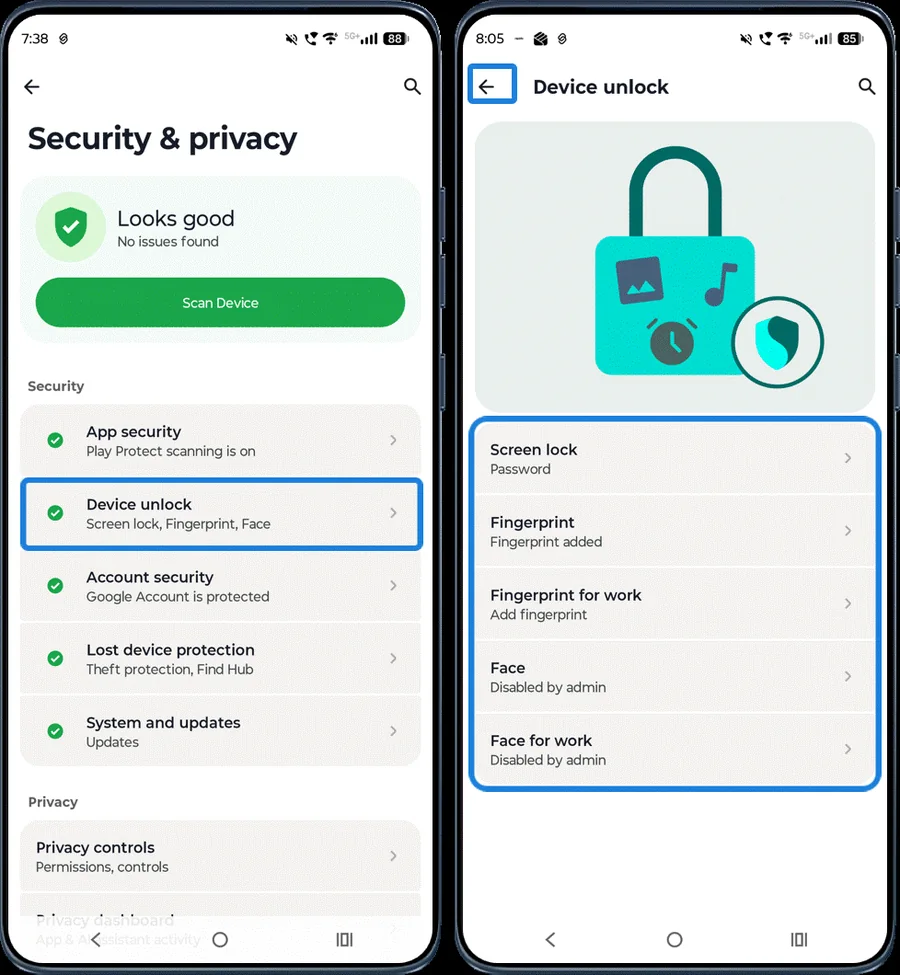
Manage screen lock and biometrics
Tap Device unlock to set up or change your screen lock, fingerprint and face unlock.
-
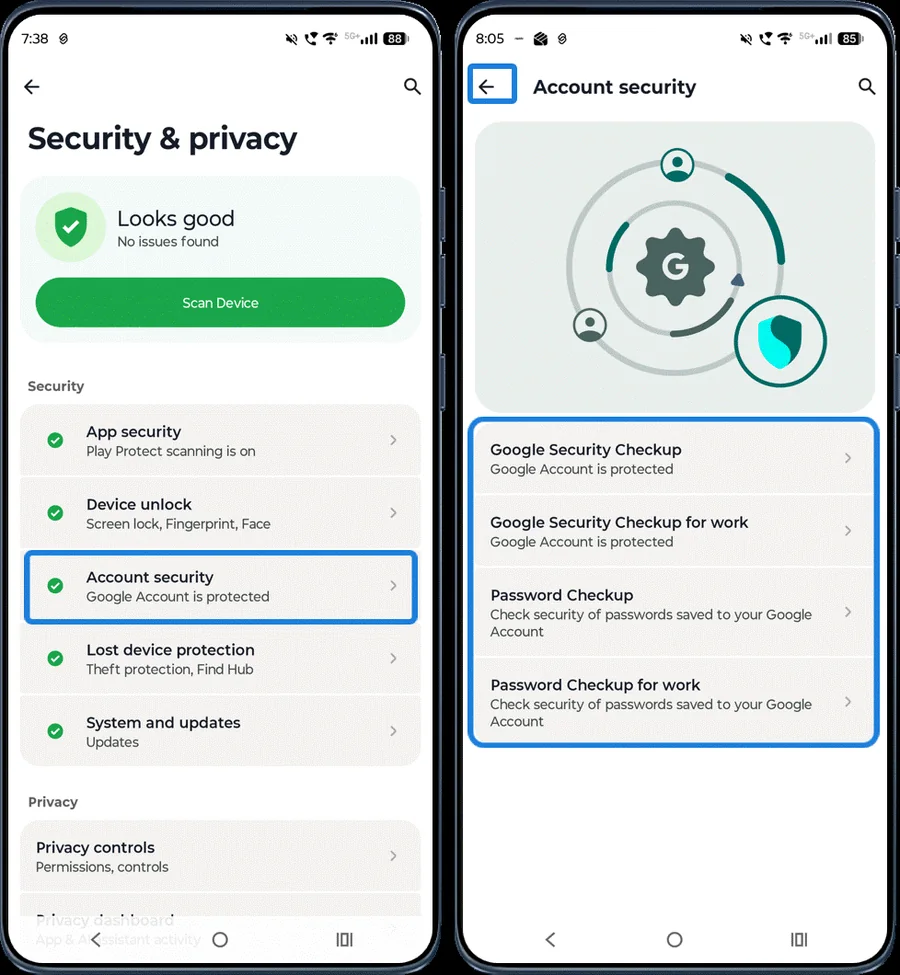 Step 5
Check your Google account security
Tap Account security to run Google’s security and password checkups.
-
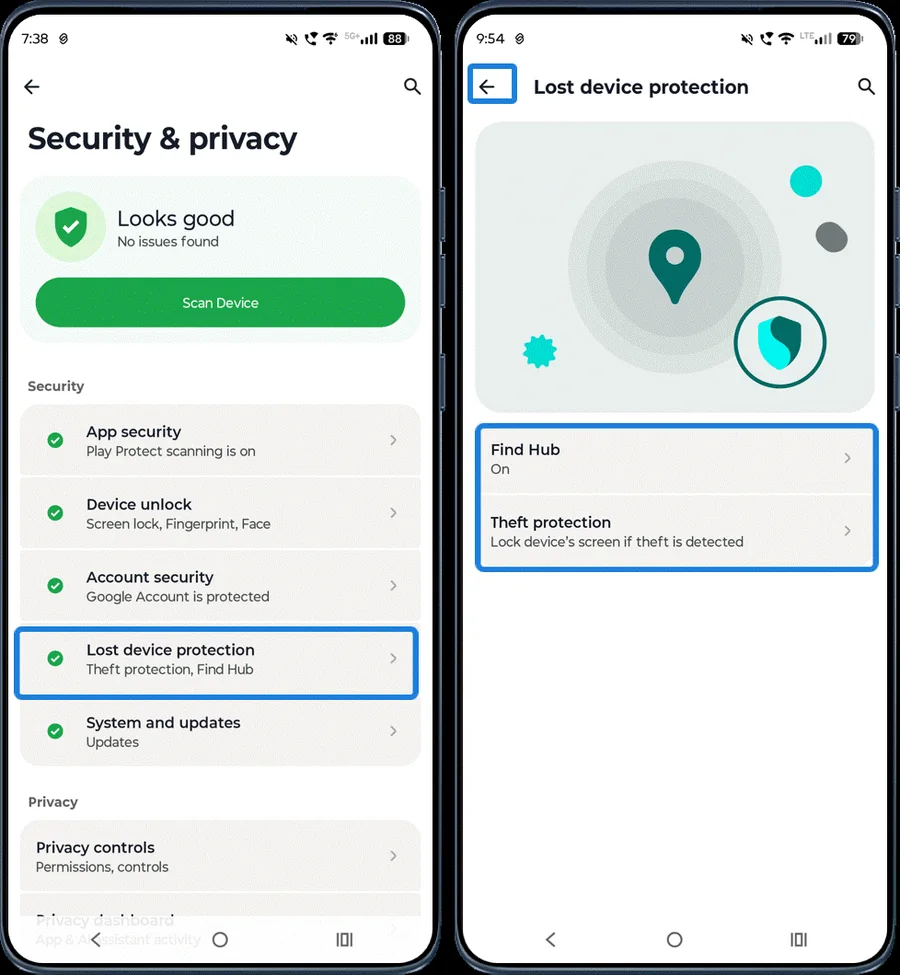 Step 6
Lost device protection
Tap Lost device protection to set up Find Hub and theft protection, so you can locate, lock or erase the phone if it’s lost.
-
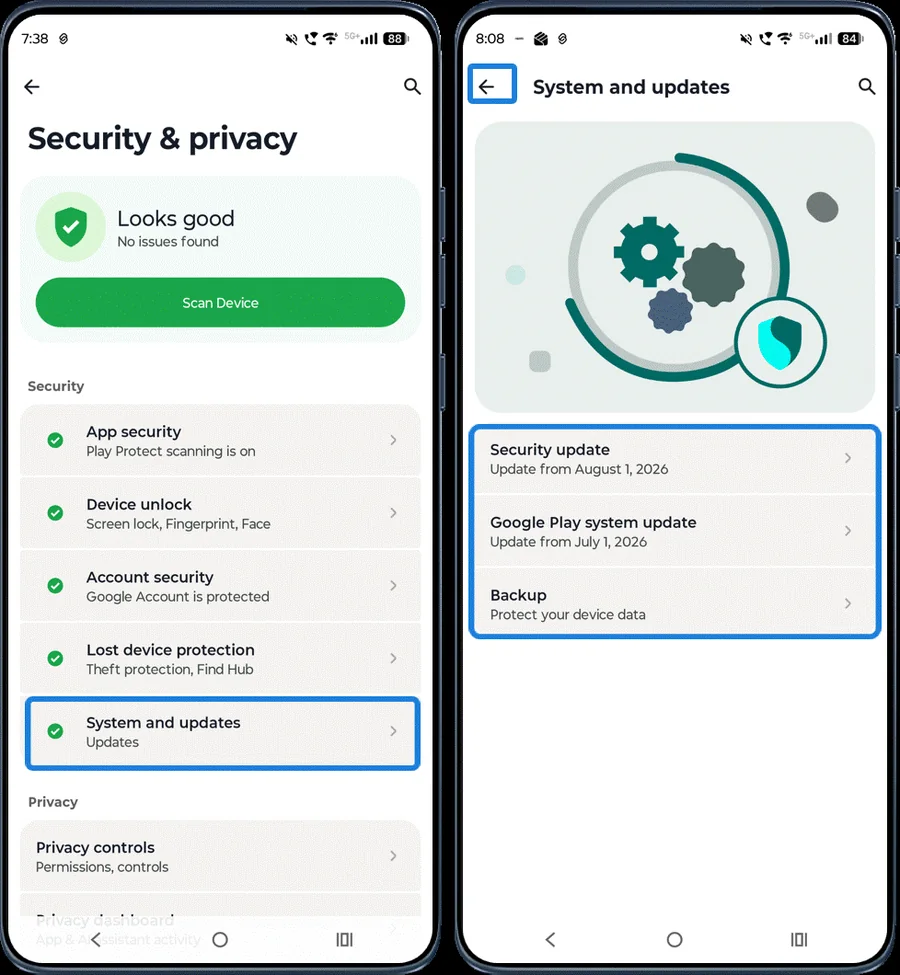 Step 7
Security updates
Tap System and updates to check for security updates and Google Play system updates.
Privacy
-
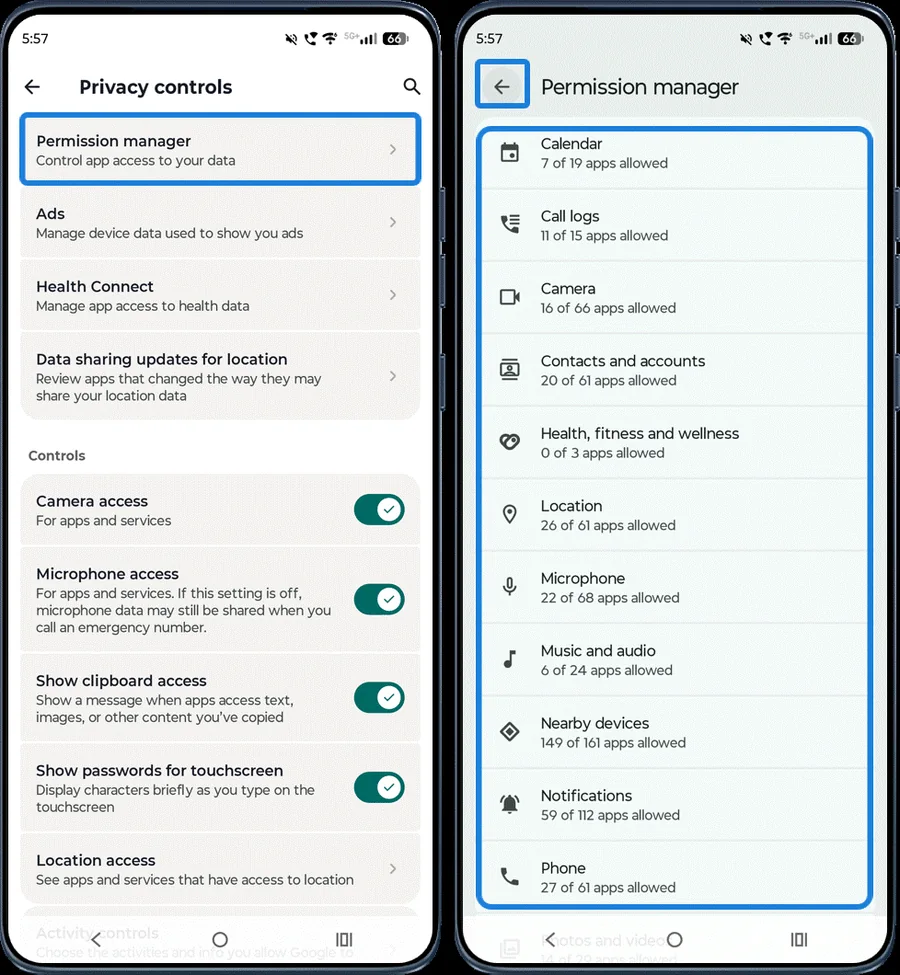 Step 1
Manage app permissions
Tap Privacy controls > Permission manager to see and change which apps can use your camera, location, microphone, contacts and more.
-
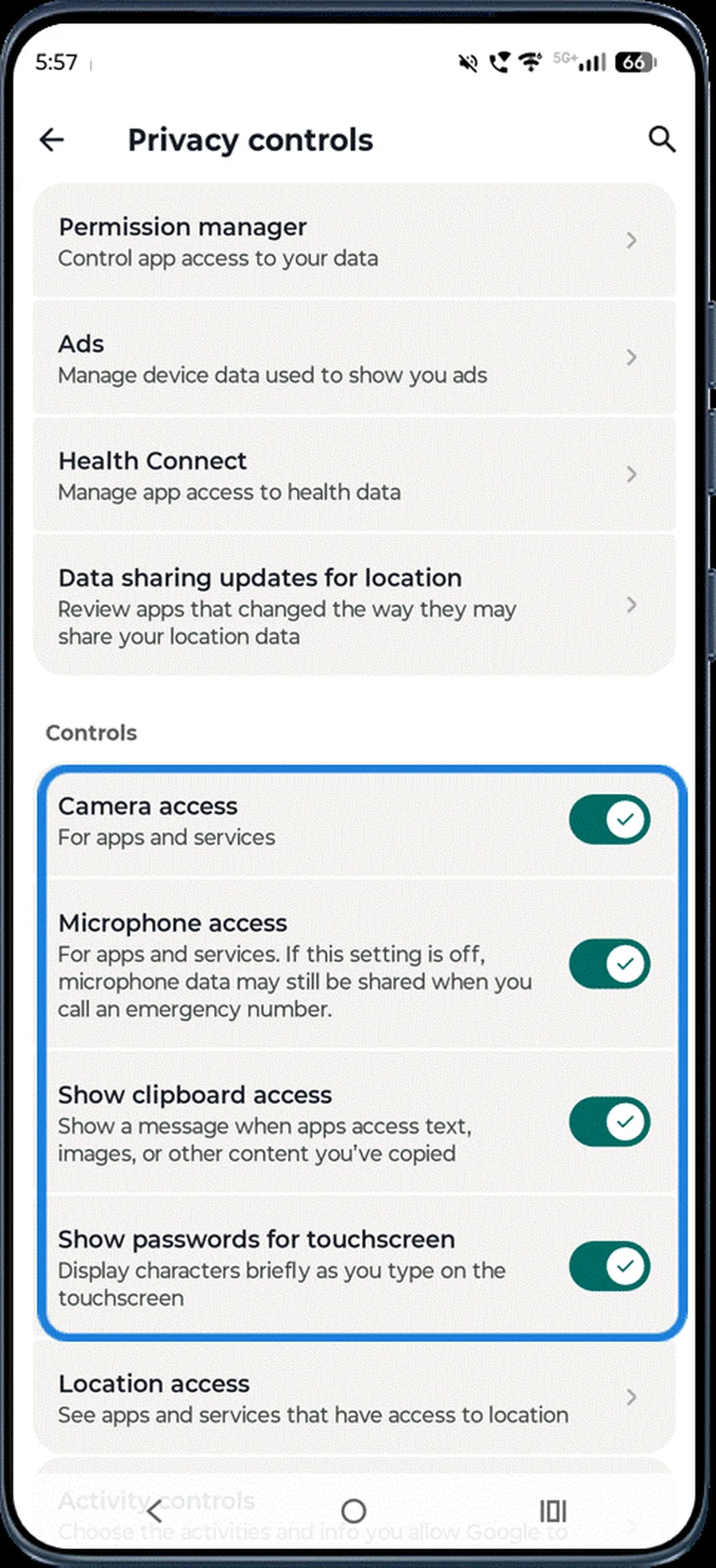 Step 2
Camera, microphone and clipboard controls
In Privacy controls, turn Camera access and Microphone access on or off for all apps, and choose whether to show clipboard access and passwords.
-
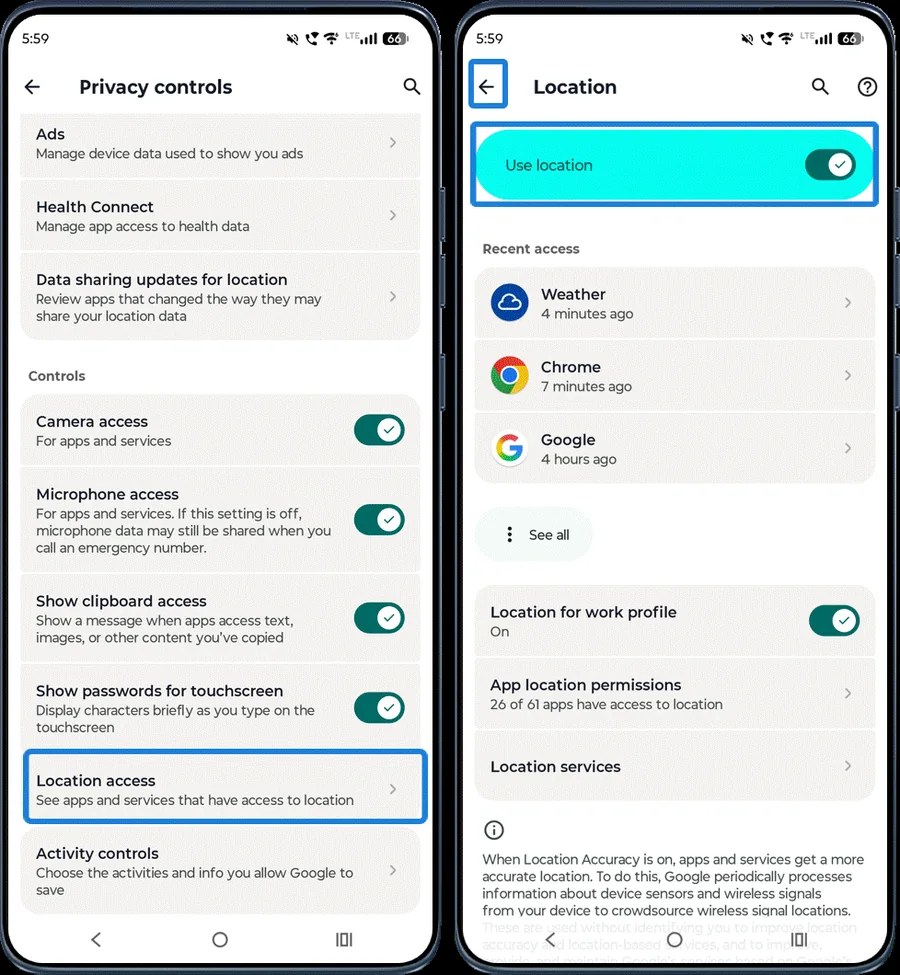 Step 3
Location access
Tap Location access to turn location on or off, see which apps used it recently and manage app location permissions.
More security & privacy
-
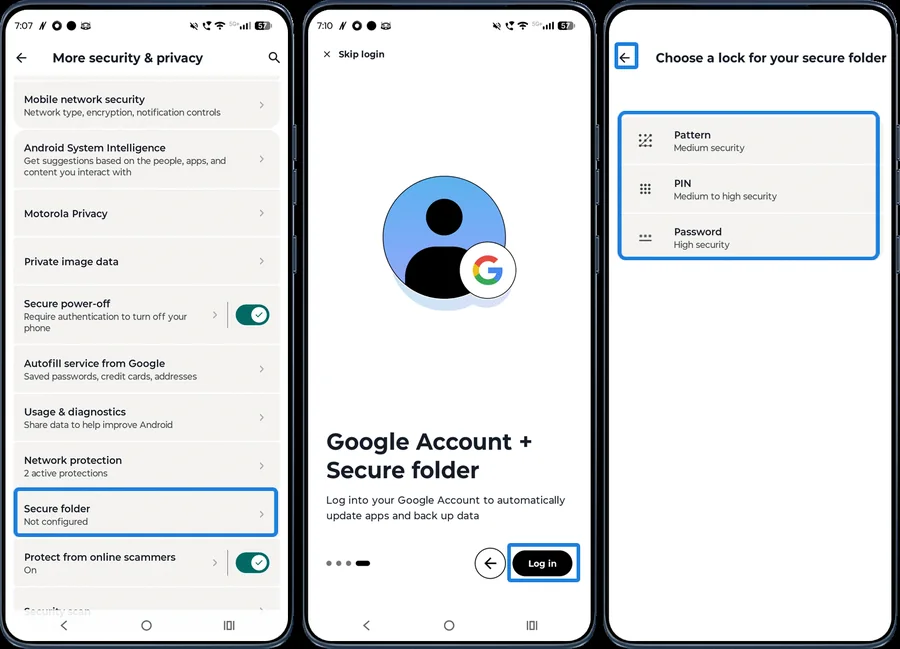 Step 1
Secure folder
Tap More security & privacy > Secure folder, sign in with Google if asked, and choose a pattern, PIN or password to lock private apps and files.
-
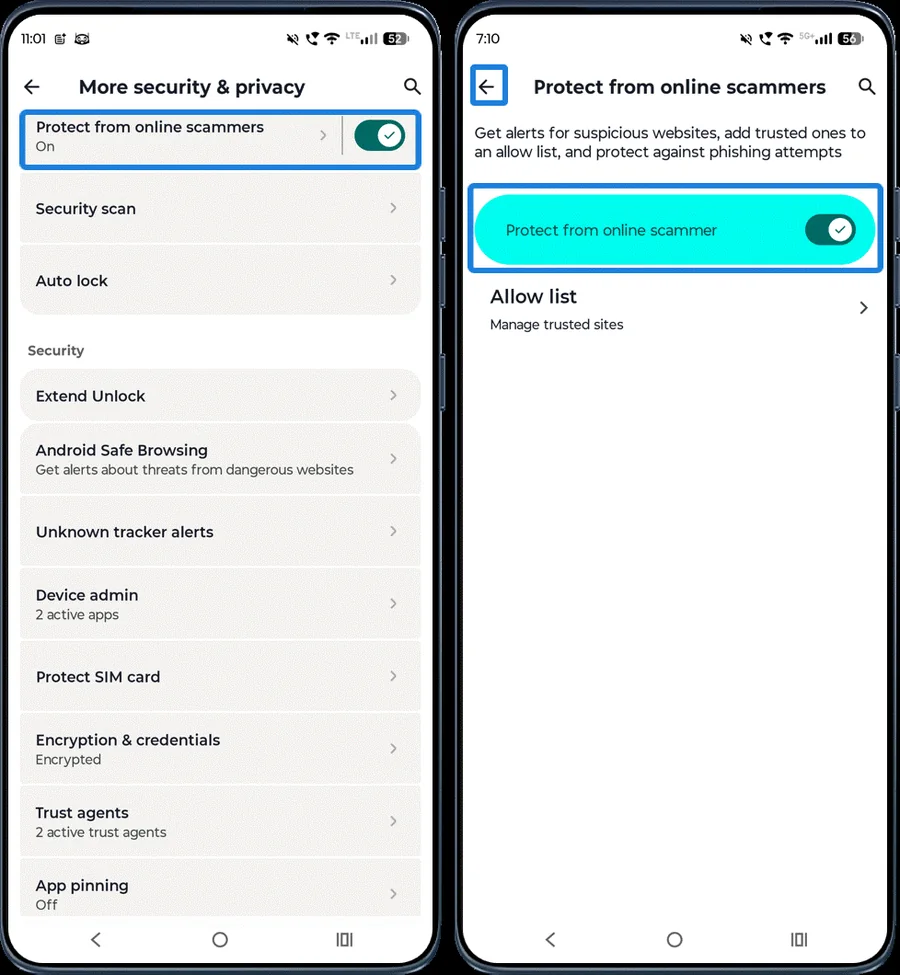 Step 2
Protect from online scammers
Tap Protect from online scammers and turn it on to get alerts about suspicious websites. Add trusted sites to the Allow list.
-
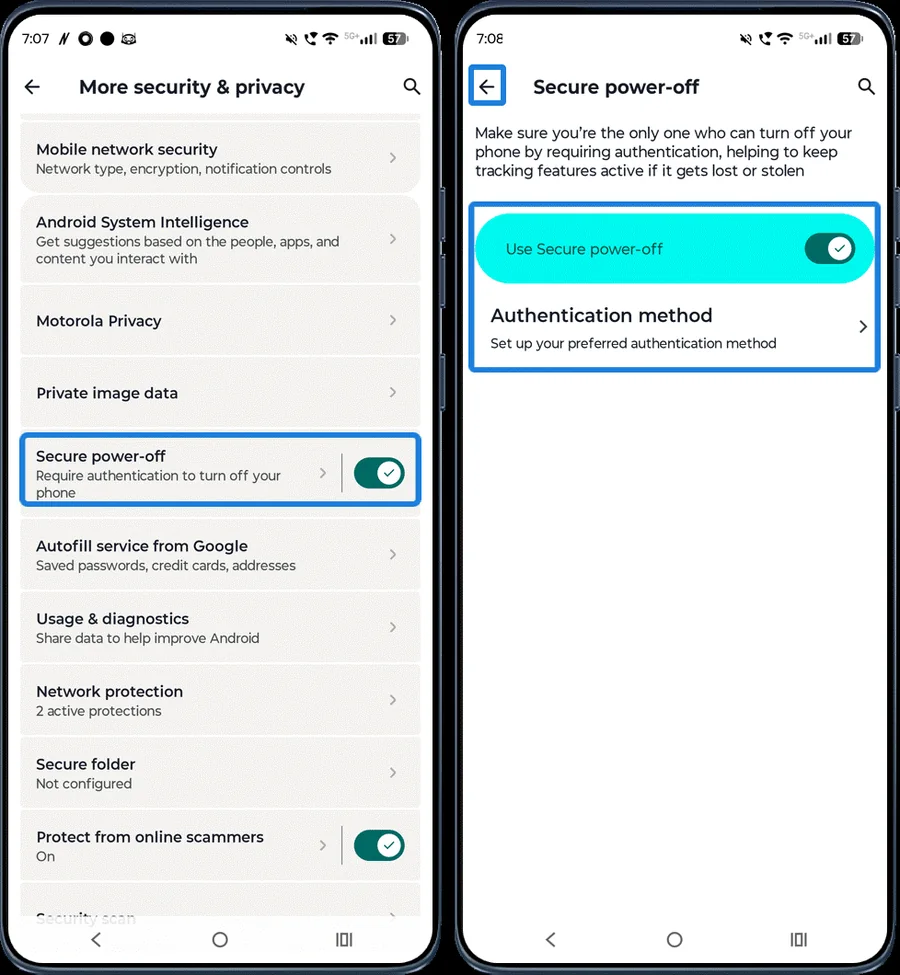 Step 3
Secure power-off
Tap Secure power-off and turn it on so the phone can’t be switched off without unlocking it — useful if it’s stolen. Choose an authentication method.
-
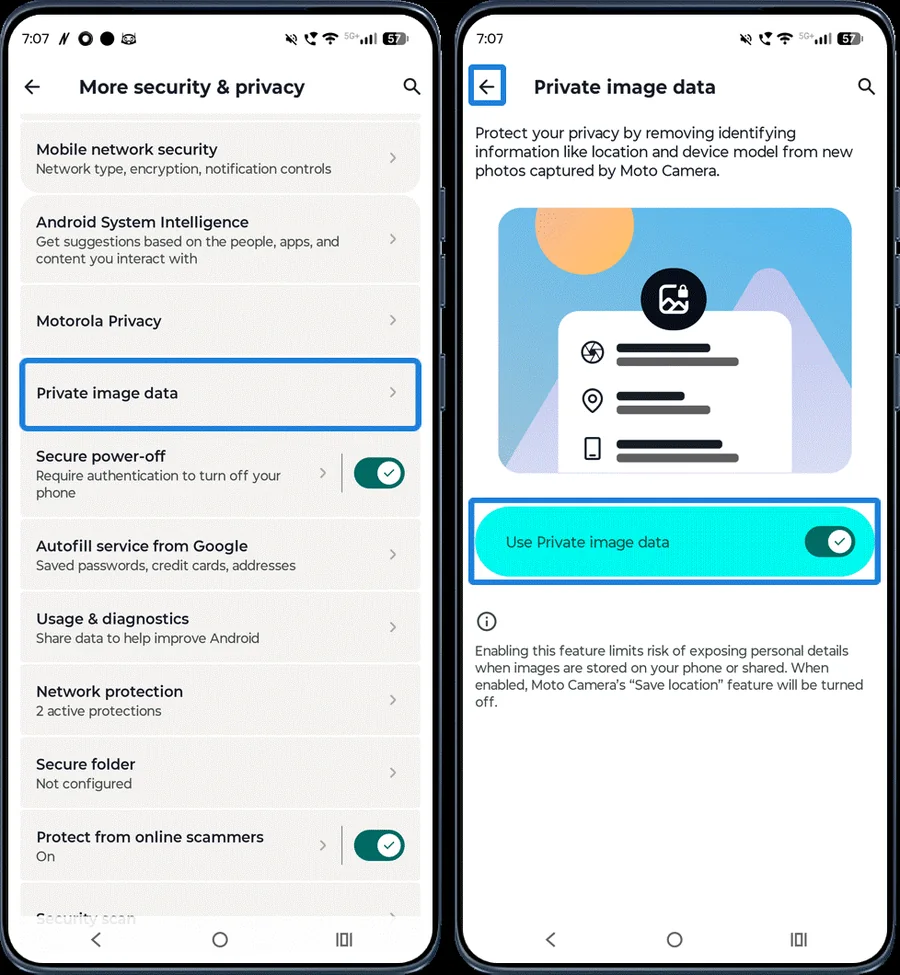 Step 4
Private image data
Tap Private image data and turn it on to remove location and other identifying information from photos taken with Moto Camera.
-
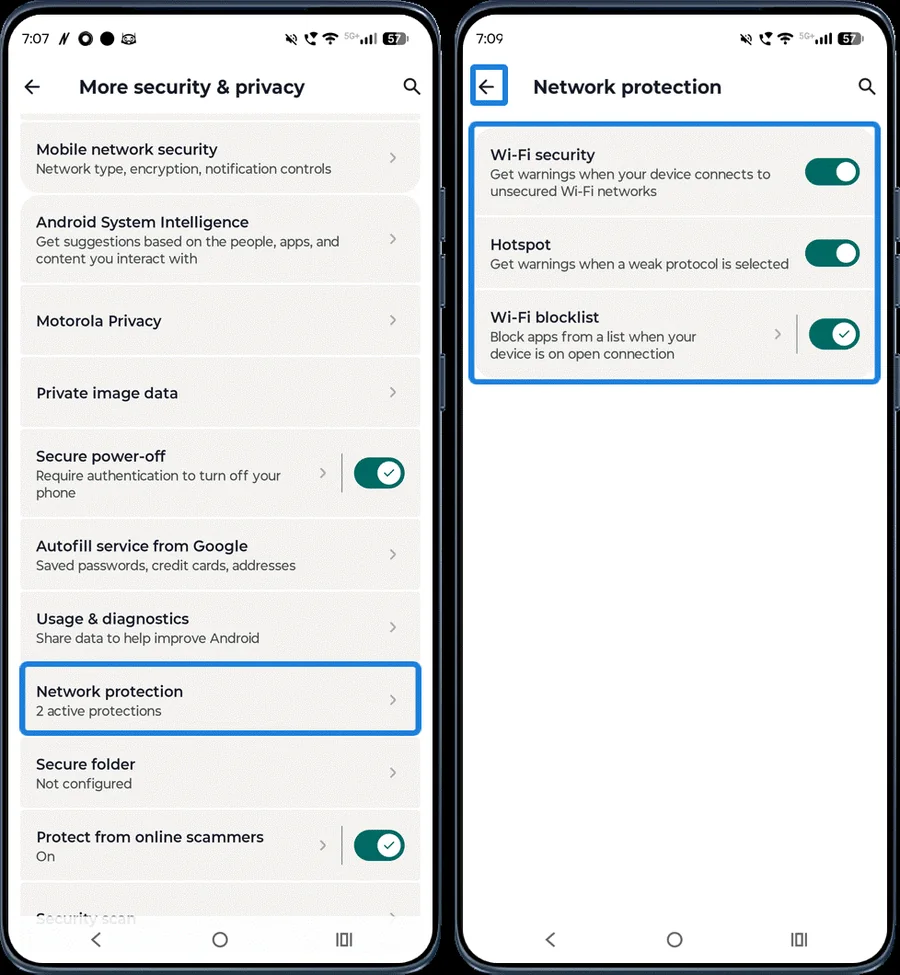 Step 5
Network protection
Tap Network protection to turn on Wi-Fi and hotspot security warnings and manage the Wi-Fi blocklist.
-
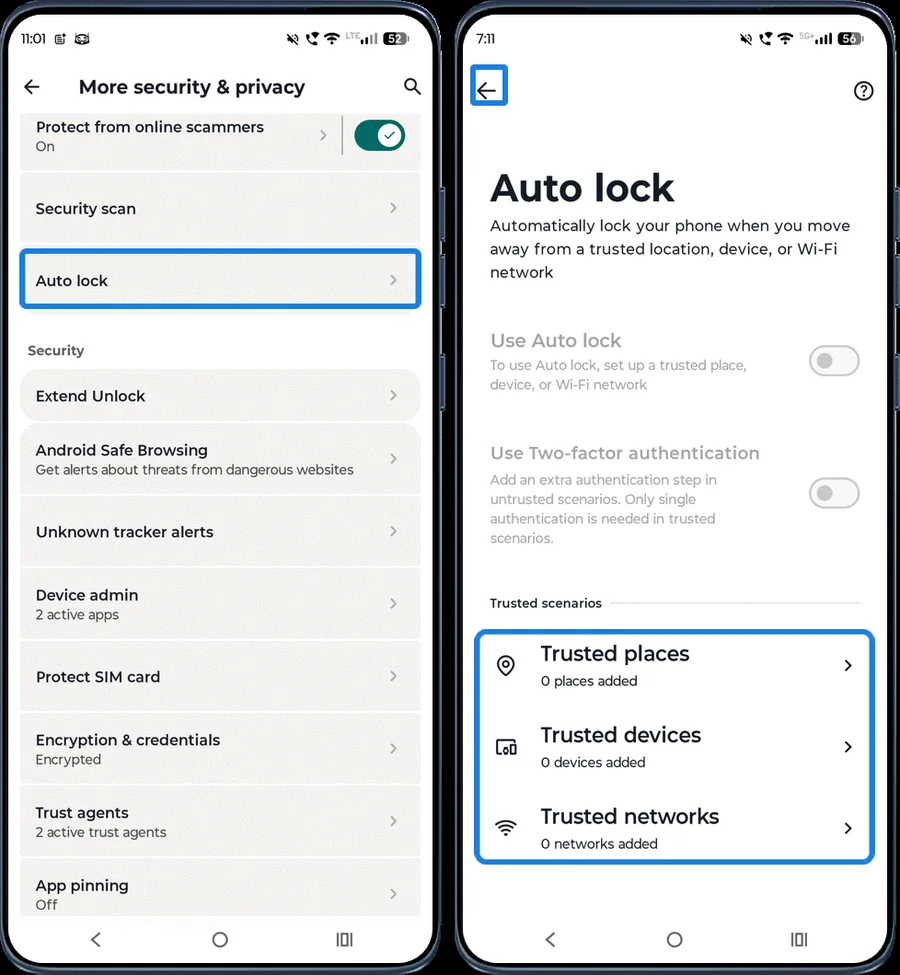 Step 6
Auto lock
Tap Auto lock and turn it on to lock the phone automatically when you leave trusted places, devices or networks.
-
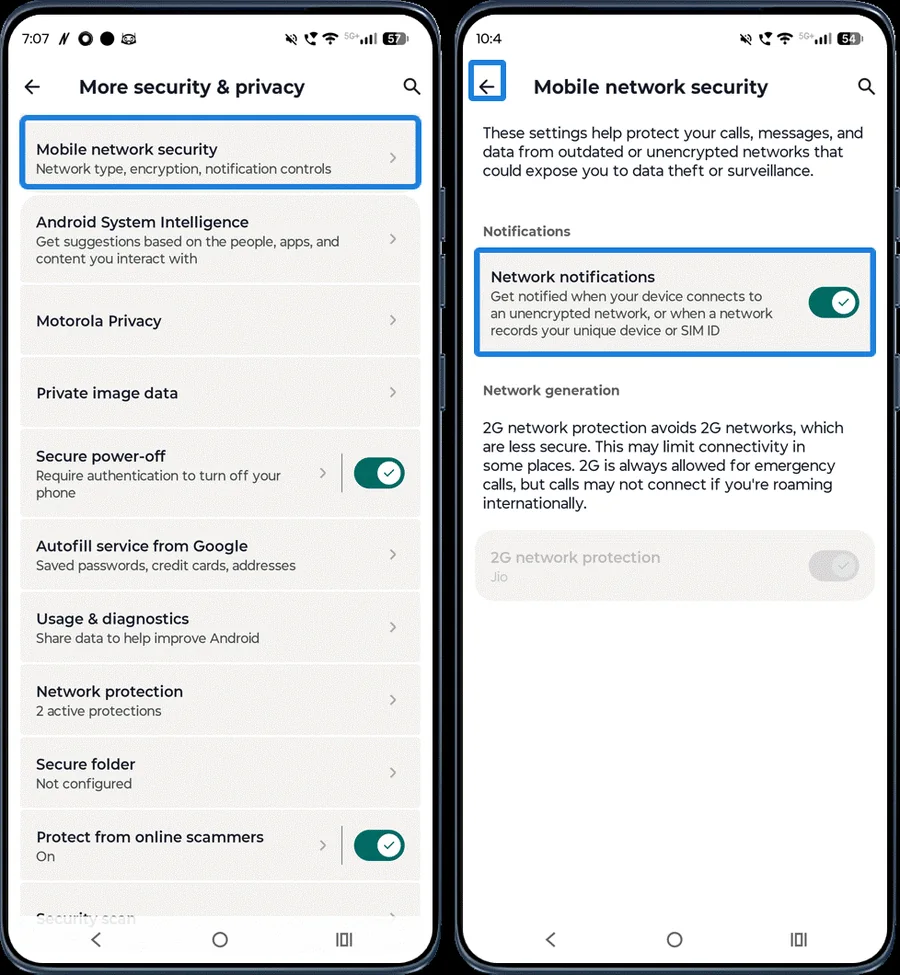 Step 7
Mobile network security
Tap Mobile network security and turn on Network notifications to be warned when you connect to an unencrypted mobile network.
Other settings in More security & privacy
- Android Safe Browsing and Unknown tracker alerts (scan for nearby trackers).
- Protect SIM card: lock your SIM with a PIN.
- App pinning: keep one app on screen until it’s unpinned.
- Extend Unlock: keep the phone unlocked in trusted places or with trusted devices.
- Advanced Protection for extra device and Google account security.
Frequently asked questions
Is Moto Secure an antivirus?
Not exactly. It’s a dashboard for your phone’s built-in security: Google Play Protect scans apps for malware, and Moto Secure adds features like Secure folder, scam protection and network warnings.
What is Secure folder on Motorola?
A private, separately locked space for apps and files. Set it up in Moto Secure > More security & privacy > Secure folder.
Still having problems? It may be a hardware fault. Check the Motorola spare part prices for your model, or compare battery and display replacement costs.
Related Motorola guides
- How to Turn On (and Off) Developer Options on a Motorola Phone
- Is My Motorola Phone Hacked? How to Check and Remove Malware
- Lost Your Motorola Phone? How to Find, Lock or Erase It
- Forgot Your Motorola Unlock PIN, Pattern or Password? How to Reset It
- How to Personalize the External Display on a Motorola razr
Steps and screenshots based on Motorola's official Moto App tutorial. Steps can vary slightly by model and Android version.