How to Turn On (and Off) Developer Options on a Motorola Phone
Developer options is a hidden Settings menu used for things like USB debugging, animation speed and app testing. On a Motorola phone you unlock it by tapping the Build number seven times, and you can switch it off again at any time.
Turn on Developer options
-
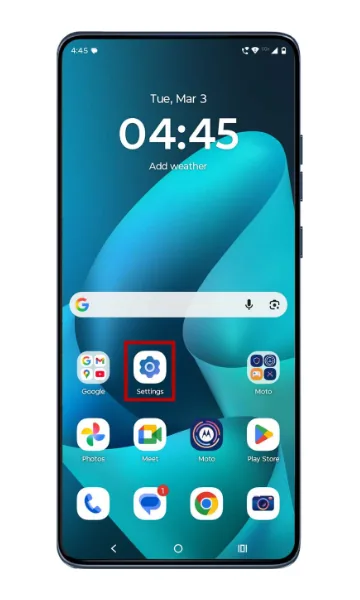 Step 1
Open Settings
Unlock your phone and tap the Settings app (the gear icon) on the Home screen or in the app drawer.
-
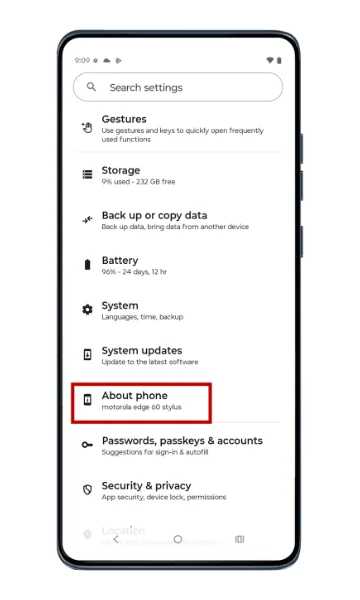 Step 2
Tap About phone
Scroll down and tap About phone. On some models it is inside the System section — tap System, then About phone.
-
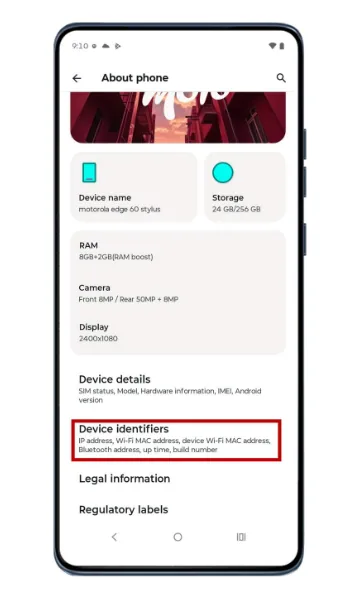 Step 3
Tap Device identifiers
In About phone, tap Device identifiers.
-
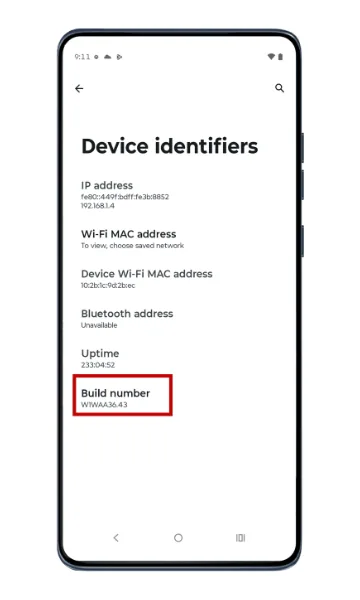 Step 4
Find Build number
Scroll to Build number, usually near the bottom of the list. It shows a string of letters and numbers.
-
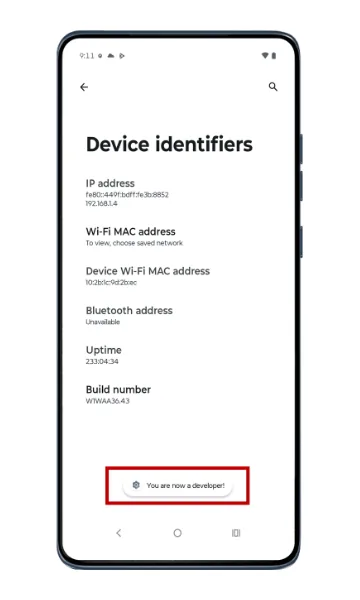 Step 5
Tap Build number seven times
Tap Build number seven times quickly. A countdown shows how many taps are left, and after the seventh tap you will see “You are now a developer!”. Enter your PIN if asked.
Turn off Developer options
-
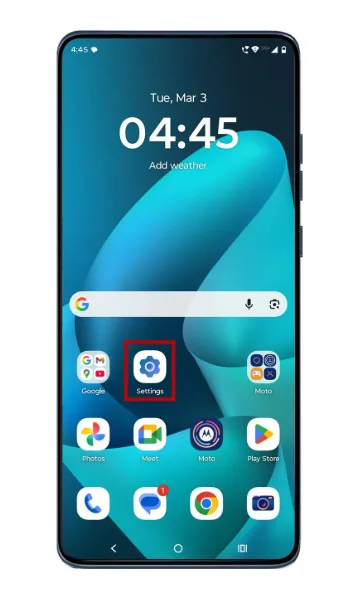 Step 1
Open Settings
Unlock your phone and open the Settings app.
-
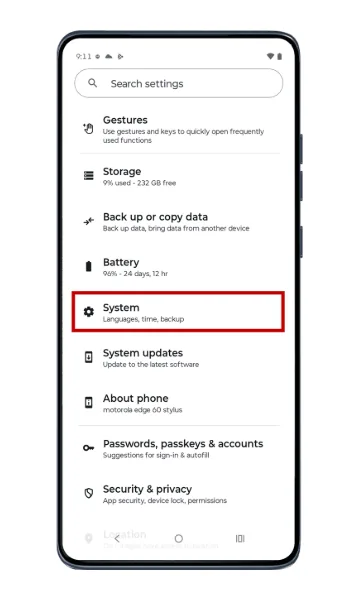 Step 2
Tap System
Scroll down and tap System.
-
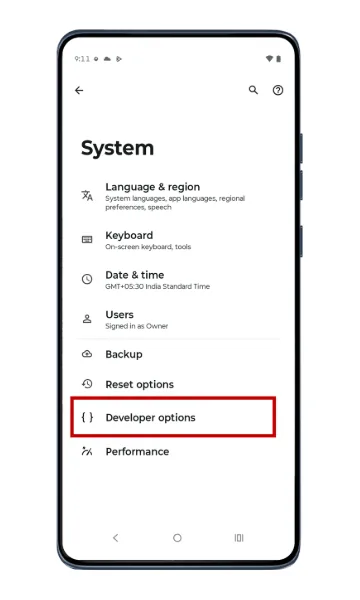 Step 3
Tap Developer options
In System, tap Developer options.
-
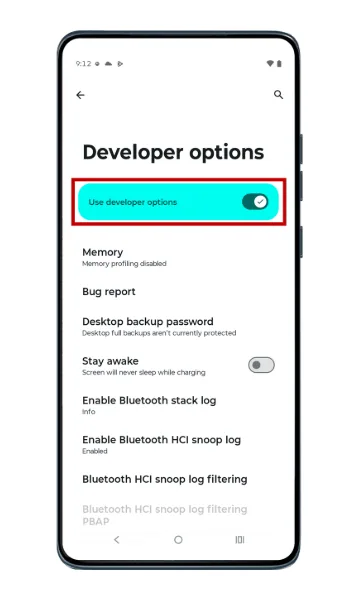 Step 4
Switch it off
At the top of the Developer options screen, turn off the Use developer options switch.
Frequently asked questions
Is it safe to turn on Developer options on a Motorola phone?
Turning it on is safe and does not change anything by itself. Only change settings inside it if you know what they do — some options can affect performance, battery life or security. Turn it off when you no longer need it.
Where is Developer options on my Motorola phone?
After enabling it, go to Settings > System > Developer options.
How do I enable USB debugging on Motorola?
First enable Developer options using the steps above, then go to Settings > System > Developer options and turn on USB debugging.
Does turning off Developer options reset its settings?
Yes. Switching off Developer options returns its settings to their defaults, so your phone goes back to its standard, secure configuration.
Still having problems? It may be a hardware fault. Check the Motorola spare part prices for your model, or compare battery and display replacement costs.
Related Motorola guides
- Moto Secure: Motorola Security and Privacy Settings Explained
- How to Personalize the External Display on a Motorola razr
- Motorola Battery Draining Fast? Settings to Make It Last Longer
- Motorola APN Settings for Jio, Airtel, Vi and BSNL (Internet & MMS)
- How to Update the Software on a Motorola Phone
Steps and screenshots based on Motorola's official Developer options tutorial. Steps can vary slightly by model and Android version.