How to Personalize the External Display on a Motorola razr
You can personalize the external display of your motorola razr by changing its wallpaper and theme, adding or removing panels, adjusting the font and display size, and choosing how calls and apps behave on the cover screen.
Open External display settings
-
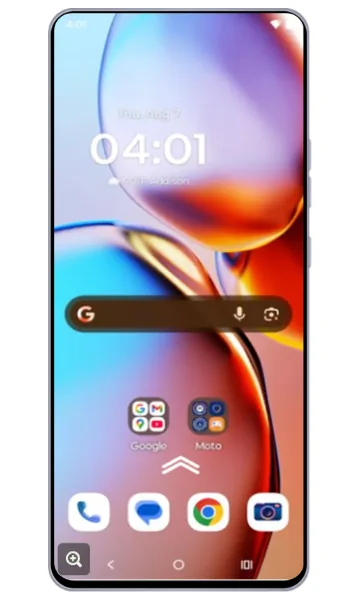 Step 1
Open the app drawer
Go to the Home screen and swipe up to open the list of all apps.
-
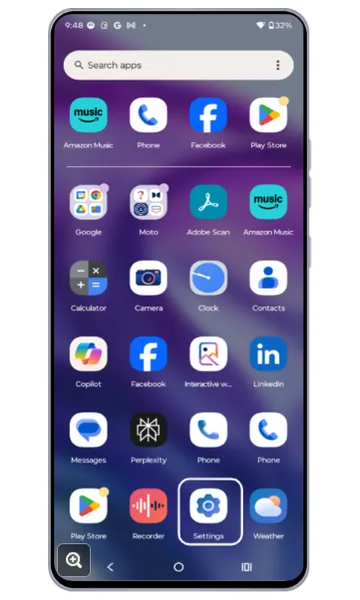 Step 2
Open Settings
Tap Settings.
-
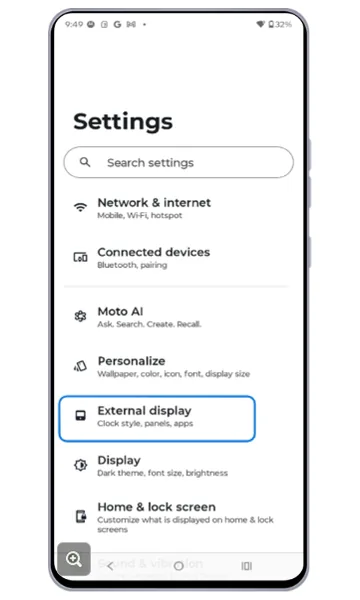 Step 3
Tap External display
In Settings, tap External display.
Change the lock and home screen look
-
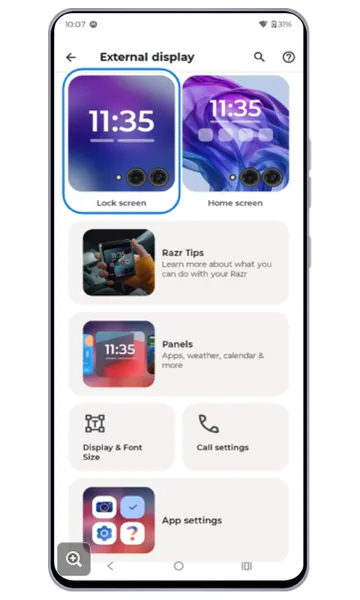 Step 1
Choose Lock screen
Tap the Lock screen preview.
-
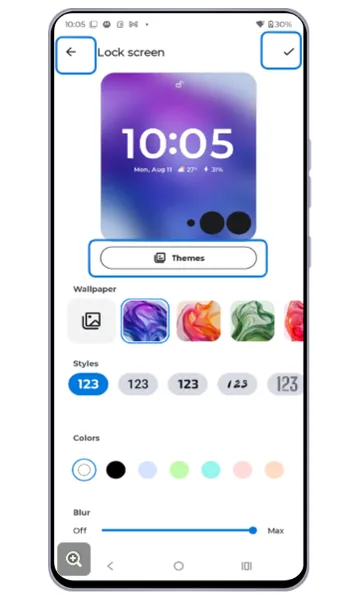 Step 2
Pick a lock screen theme
Tap Themes and choose a wallpaper, clock style, colour or blur. Tap the check mark to save, then tap the back arrow.
-
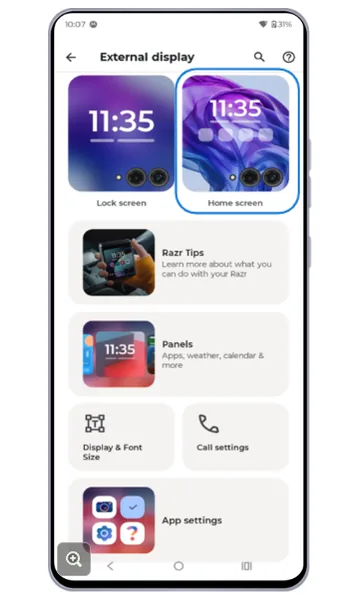 Step 3
Choose Home screen
Tap the Home screen preview.
-
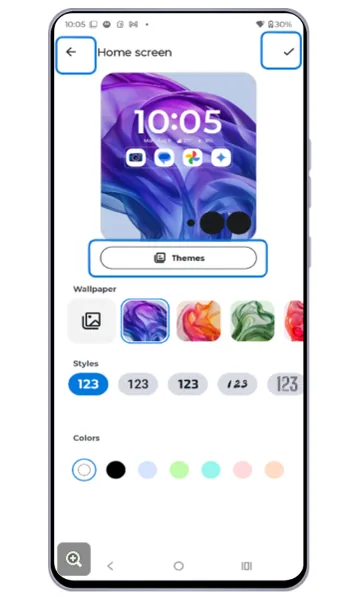 Step 4
Pick a home screen theme
Tap Themes and choose one or more options. Tap the check mark to save, then tap the back arrow.
Add or remove panels
-
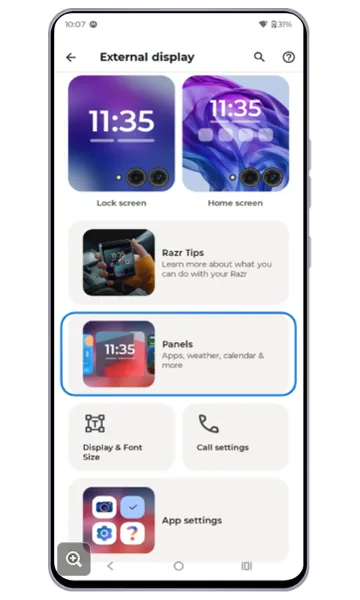 Step 1
Choose Panels
Tap Panels. Note: panels themselves are customized on the external display.
-
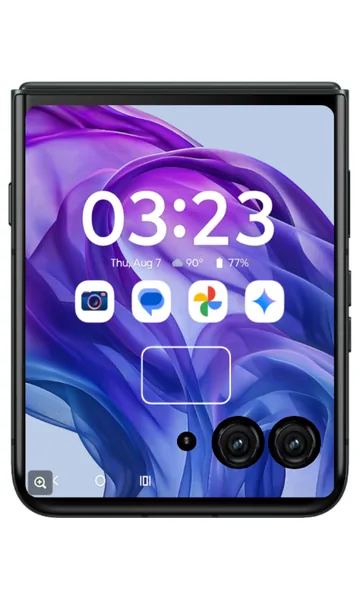 Step 2
Press and hold the external display
With the flip closed, press and hold a blank area of the external display.
-
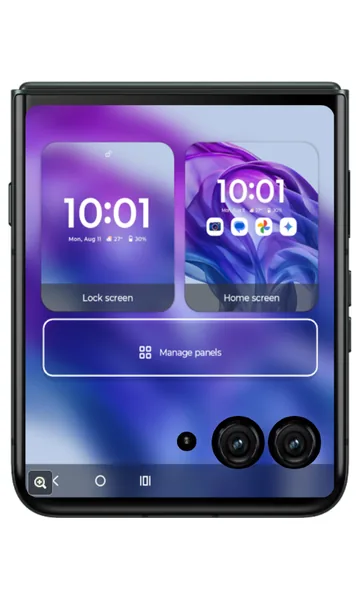 Step 3
Tap Manage panels
Tap Manage panels.
-
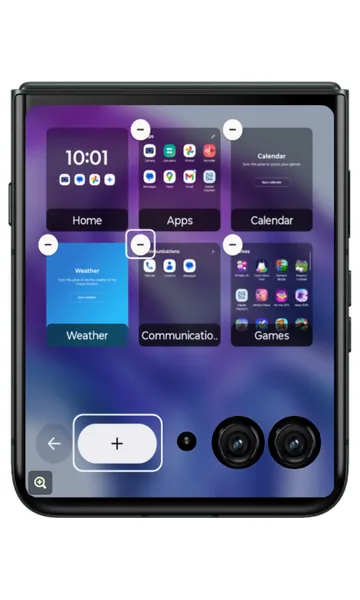 Step 4
Add or remove panels
Tap – on a panel to remove it, or tap + to add a new one.
Adjust font and display size
-
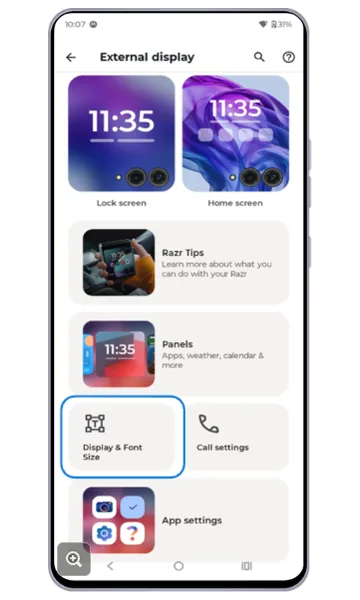 Step 1
Choose Display & Font Size
Back in External display settings, tap Display & Font Size.
-
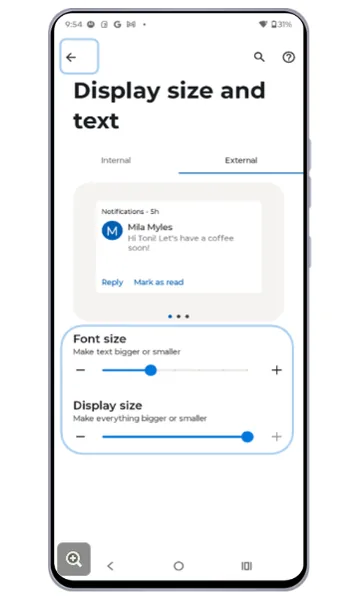 Step 2
Drag the size sliders
Drag the Font size slider to make text bigger or smaller, and the Display size slider to make everything bigger or smaller. Then tap the back arrow.
Call and app settings (optional)
-
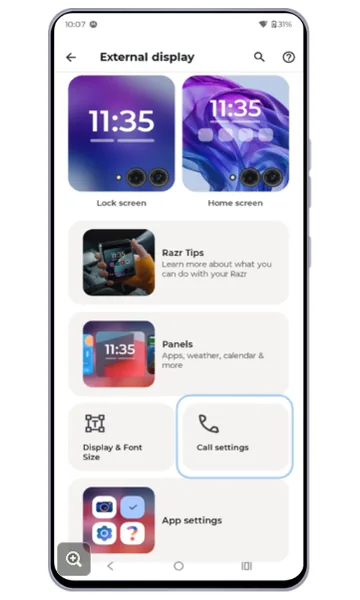 Step 1
Choose Call settings
Tap Call settings to change what happens with calls on the external display.
-
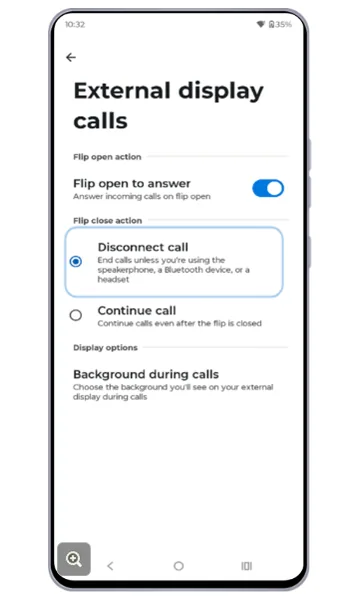 Step 2
Pick a call option
Turn Flip open to answer on or off, and choose whether closing the flip disconnects or continues the call.
-
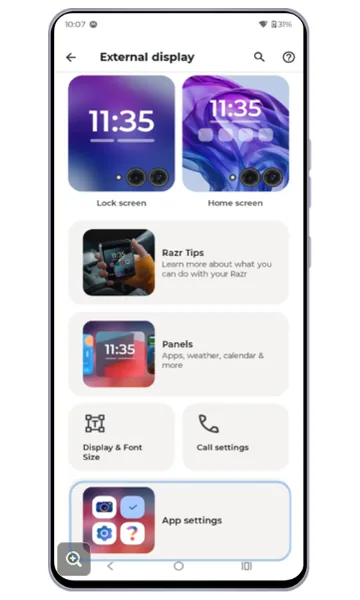 Step 3
Choose App settings
Back in External display settings, tap App settings.
-
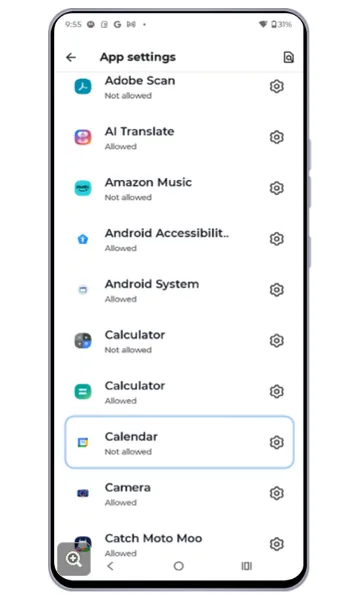 Step 4
Pick an app
Scroll down and choose an app — in this example, Calendar.
-
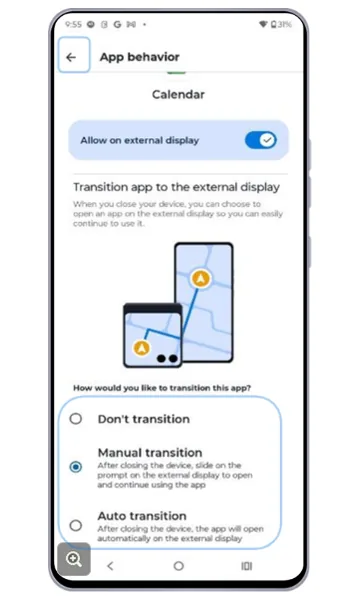 Step 5
Choose how the app behaves
Allow the app on the external display and choose how it transitions when you close the flip (Don’t transition, Manual or Auto). Tap the back arrow twice and return to the Home screen.
Frequently asked questions
How do I change the wallpaper on my razr external display?
Go to Settings > External display, tap the Lock screen or Home screen preview, then tap Themes and pick a wallpaper. Tap the check mark to save.
How do I make apps open on the razr cover screen when I close the phone?
Go to Settings > External display > App settings, choose the app, allow it on the external display and set the transition to Auto or Manual.
Can I make the text bigger on the razr external display?
Yes. Go to Settings > External display > Display & Font Size and drag the Font size and Display size sliders.
Still having problems? It may be a hardware fault. Check the Motorola spare part prices for your model, or compare battery and display replacement costs.
Related Motorola guides
- How to Use the External Display on a Motorola razr
- Moto Gestures: How to Use Chop for Flashlight, Twist for Camera and More
- How to Customize Your Motorola Phone with the Moto App (Personalize)
- Moto Display: Smart Lock Screen, Sleep Display and Attentive Display
- How to Turn On (and Off) Developer Options on a Motorola Phone
Steps and screenshots based on Motorola's official Personalize the external display tutorial. Steps can vary slightly by model and Android version.