Moto Display: Smart Lock Screen, Sleep Display and Attentive Display
The Display section of the Moto app controls what your Motorola phone shows when it’s locked or asleep, and how the screen behaves while you use it. Open the Moto app, tap the menu and choose Display.
Lock screen
-
 Step 1
Smart lock screen
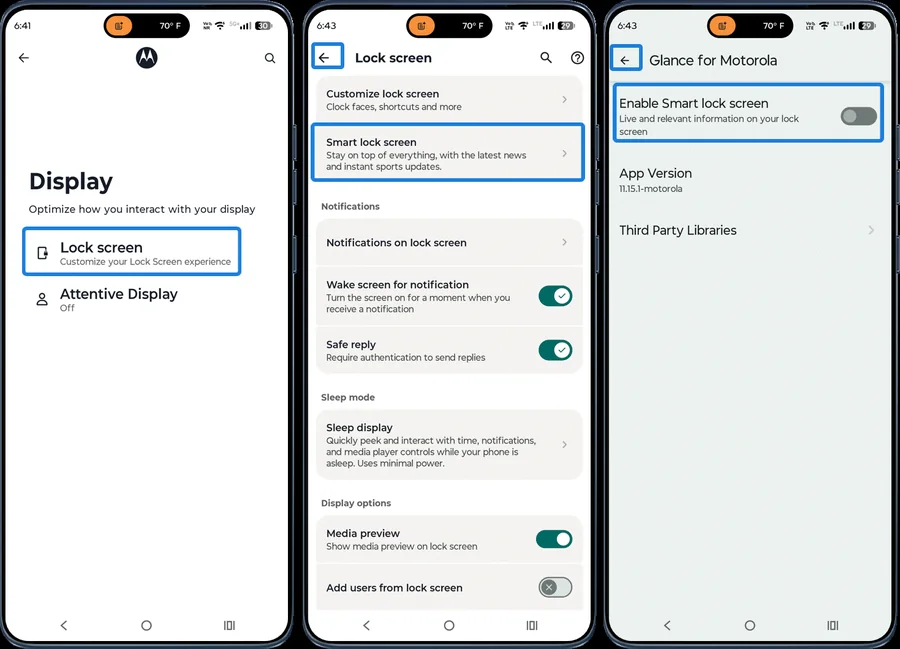
In the Moto app, open Display > Lock screen > Smart lock screen. Turn on Enable Smart lock screen to show dynamic content such as news and weather.
-
 Step 2
Lock screen notifications
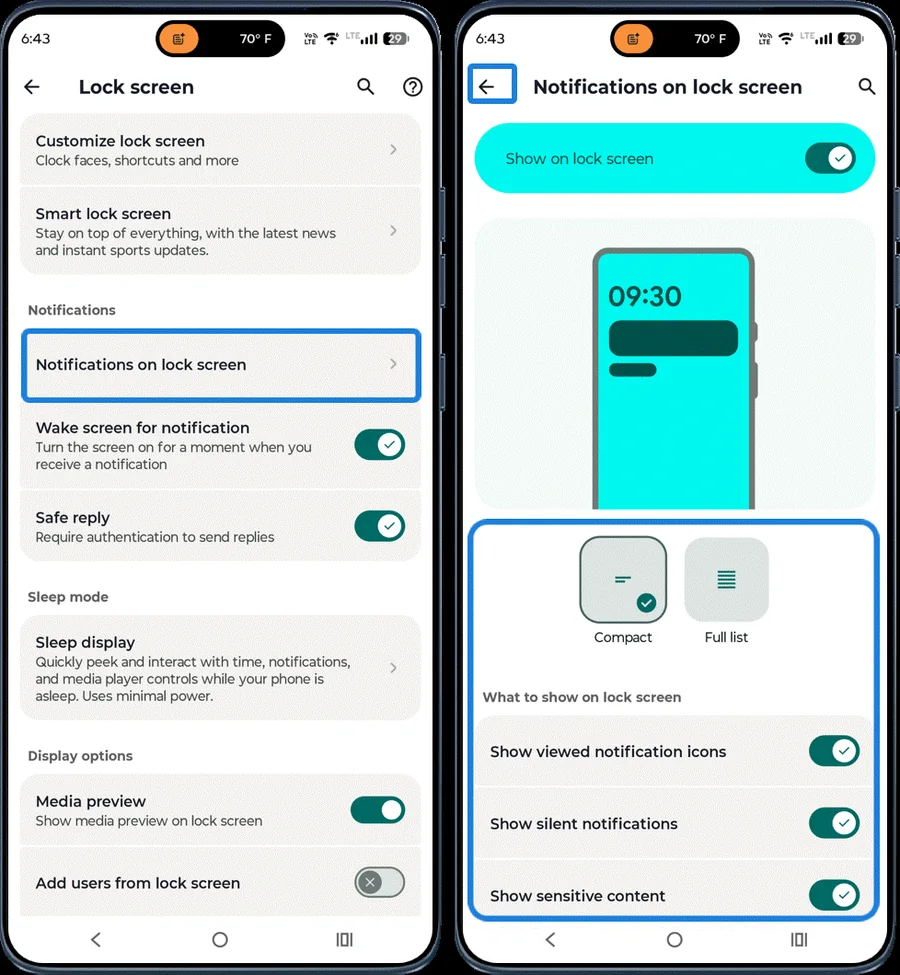
Tap Notifications to choose how notifications look on the lock screen, and turn options such as Wake screen for notifications on or off.
-
 Step 3
Sleep display
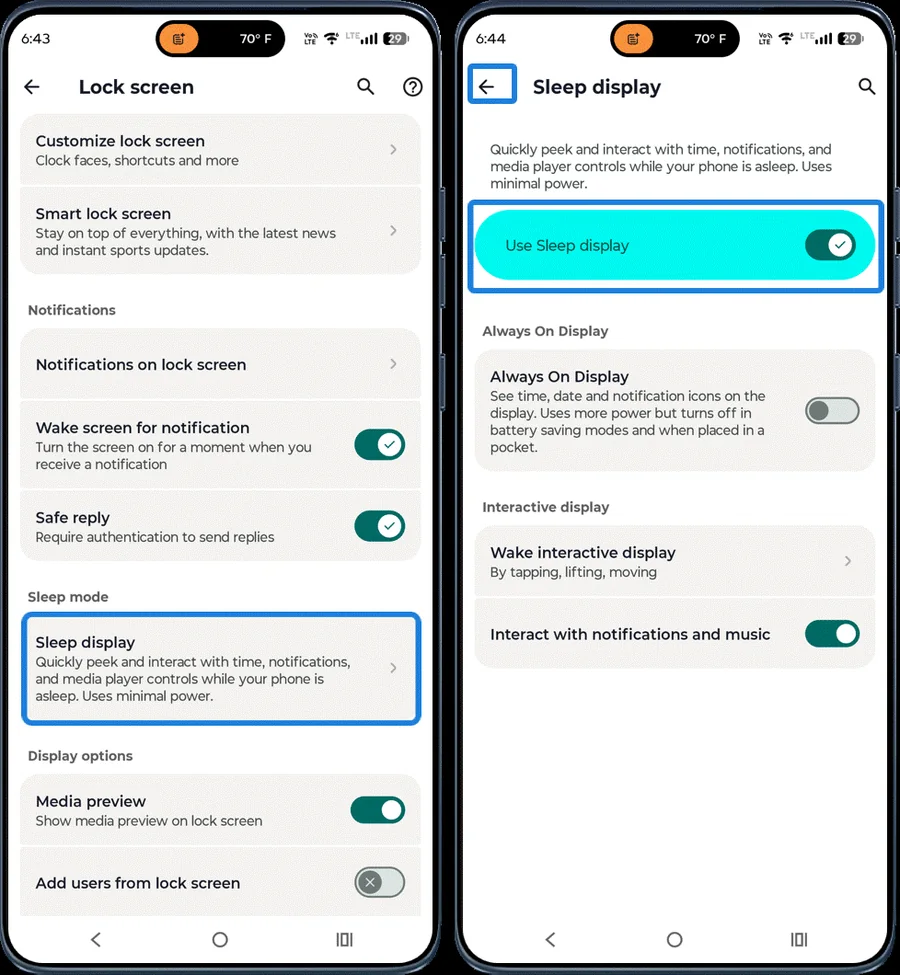
Tap Sleep display and turn on Use Sleep display to see the time, notifications and music controls while the phone is asleep.
-
 Step 4
Display options
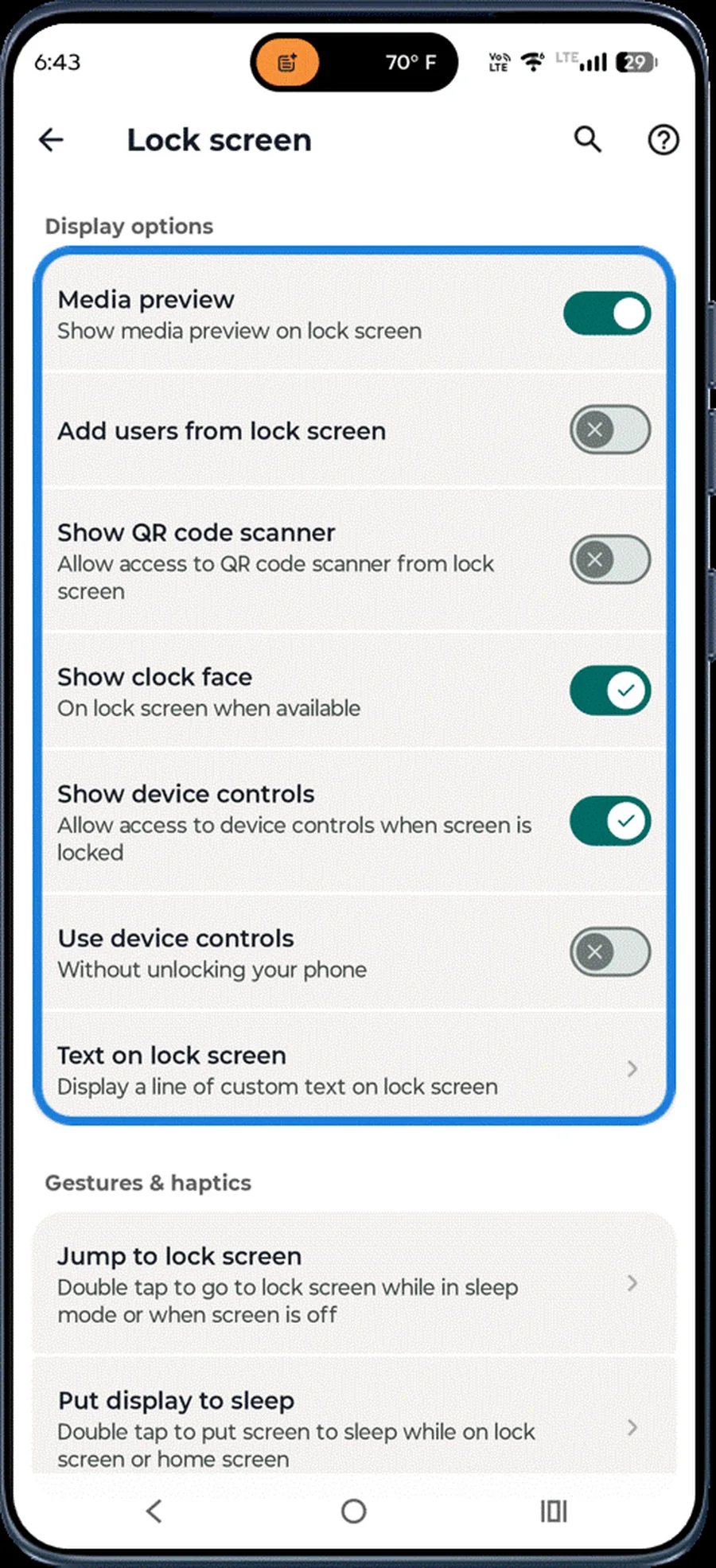
Under Lock screen > Display options, choose what appears on the lock screen.
Double-tap and screen behaviour
-
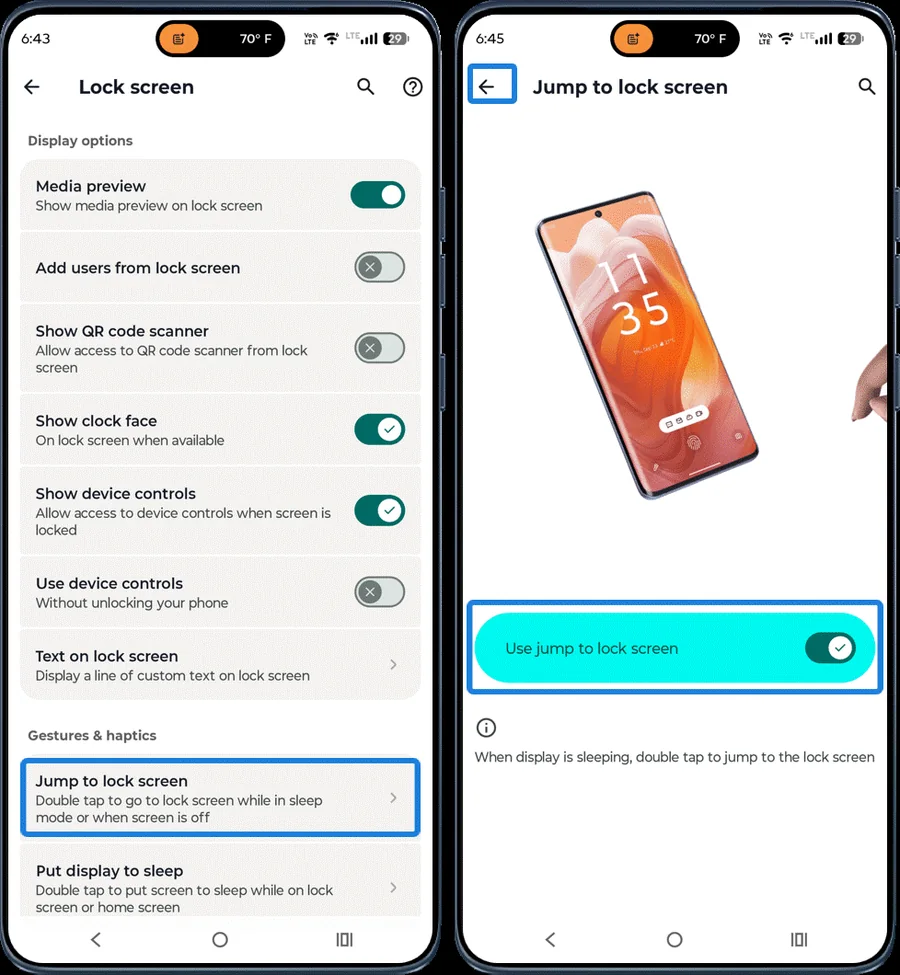 Step 1
Jump to lock screen
Tap Jump to lock screen and turn it on to wake the phone to the lock screen by double-tapping when the display is off.
-
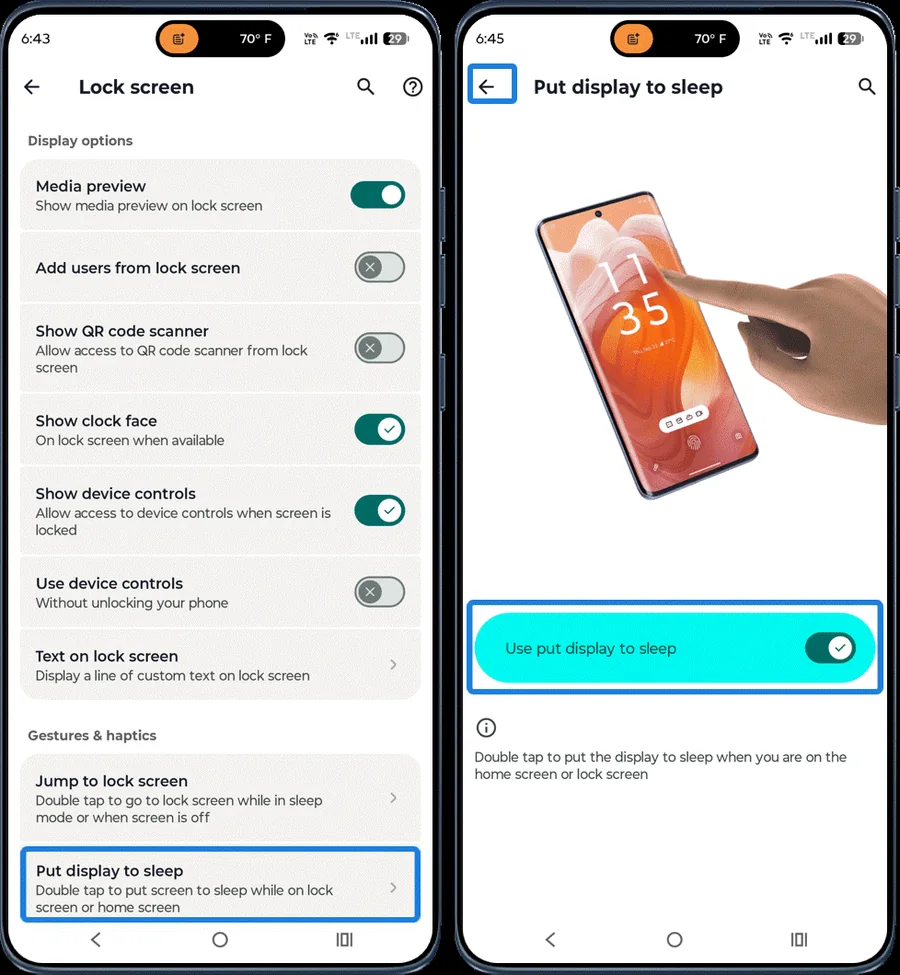 Step 2
Put display to sleep
Tap Put display to sleep and turn it on to turn off the screen by double-tapping the Home or lock screen.
-
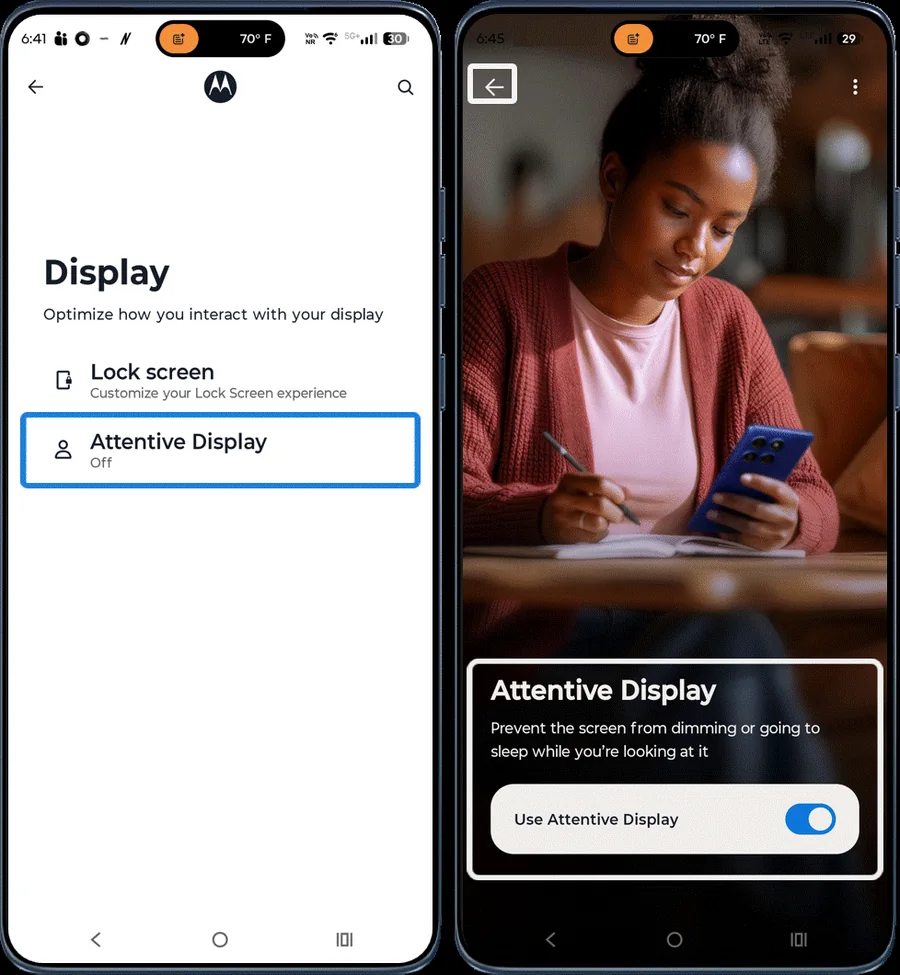 Step 3
Attentive Display
Under Display, tap Attentive Display and turn it on to keep the screen from dimming or turning off while you’re looking at it.
Frequently asked questions
What is Sleep display on Motorola?
Sleep display shows the time, notifications and music controls on a dimmed screen while the phone is asleep, so you can check them without unlocking.
Why does my Motorola screen stay on when I look at it?
That’s Attentive Display. It uses the front camera to keep the screen on while you’re looking at it. Turn it off in the Moto app > Display.
Still having problems? It may be a hardware fault. Check the Motorola spare part prices for your model, or compare battery and display replacement costs.
Related Motorola guides
- How to Personalize the External Display on a Motorola razr
- Moto Gestures: How to Use Chop for Flashlight, Twist for Camera and More
- How to Customize Your Motorola Phone with the Moto App (Personalize)
- How to Use the External Display on a Motorola razr
- How to Turn On (and Off) Developer Options on a Motorola Phone
Steps and screenshots based on Motorola's official Moto App tutorial. Steps can vary slightly by model and Android version.