Moto Gestures: How to Use Chop for Flashlight, Twist for Camera and More
The Moto app adds quick gestures to your Motorola phone, like chopping twice to turn on the flashlight or twisting your wrist to open the camera. Open the Moto app, tap the menu and choose Gestures to turn each one on. Available gestures vary by model.
-
 Step 1
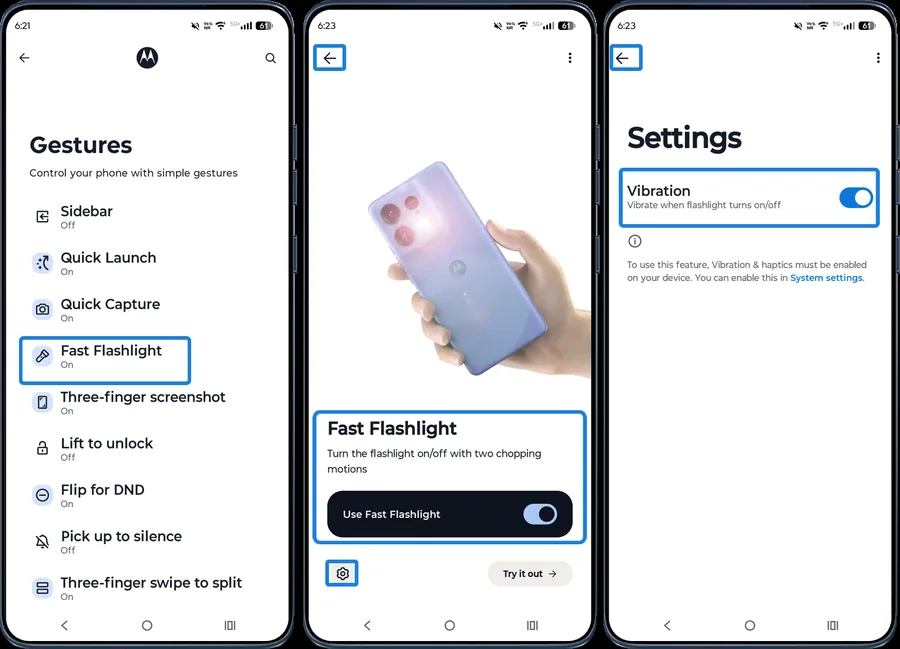
Fast Flashlight (chop chop)
Under Gestures, select Fast Flashlight and turn on Use Fast Flashlight. Make a chopping motion twice to turn the flashlight on or off. Tap the Settings icon to turn on Vibration so you know when it switches.
-
 Step 2
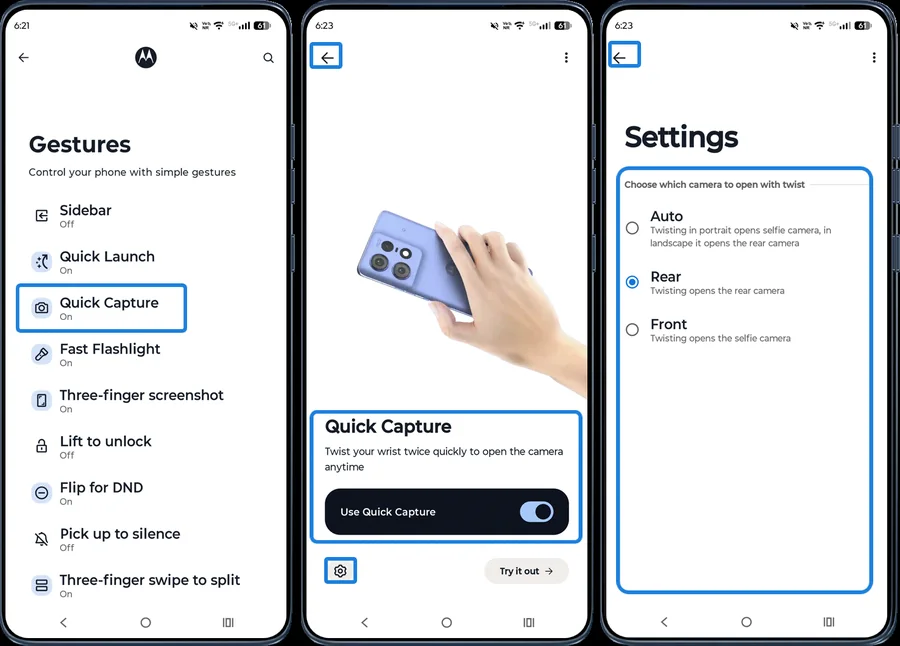
Quick Capture (twist for camera)
Select Quick Capture and turn on Use Quick Capture. Twist your wrist twice to open the camera — twist again to switch between front and rear cameras. Tap the Settings icon to choose which camera opens.
-
 Step 3
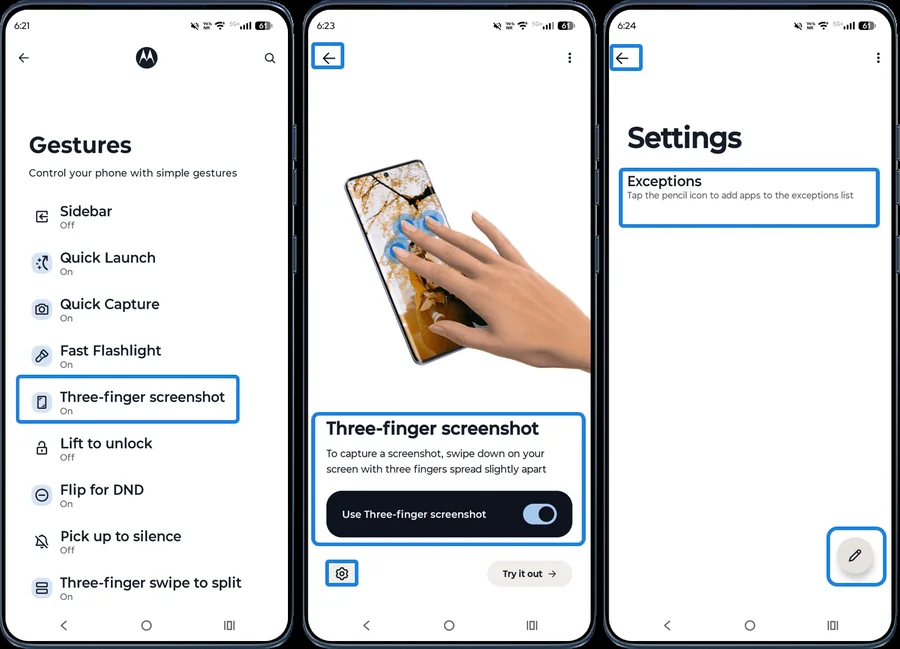
Three-finger screenshot
Select Three-finger screenshot and turn on Use Three-finger screenshot. Touch and hold the screen with three fingers to take a screenshot. To exclude apps, tap the Settings icon and add them to Exceptions.
-
 Step 4
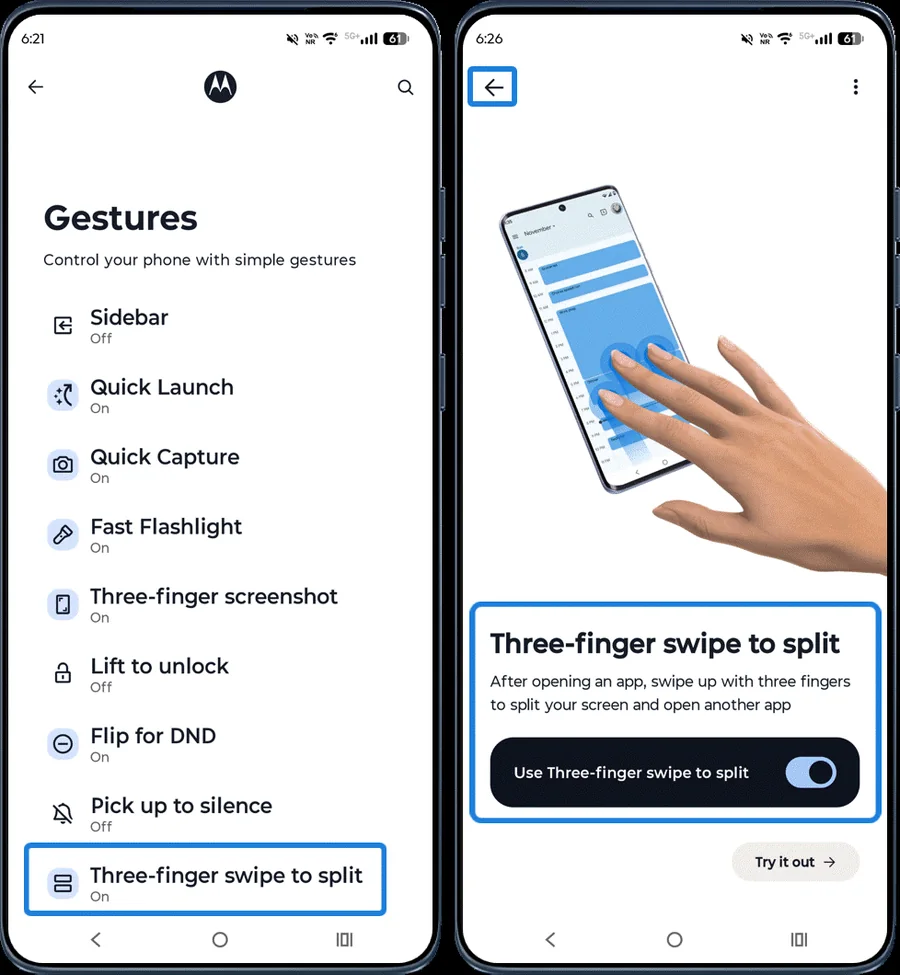
Three-finger swipe to split
Select Three-finger swipe to split and turn it on. Swipe with three fingers to open two apps in split screen.
-
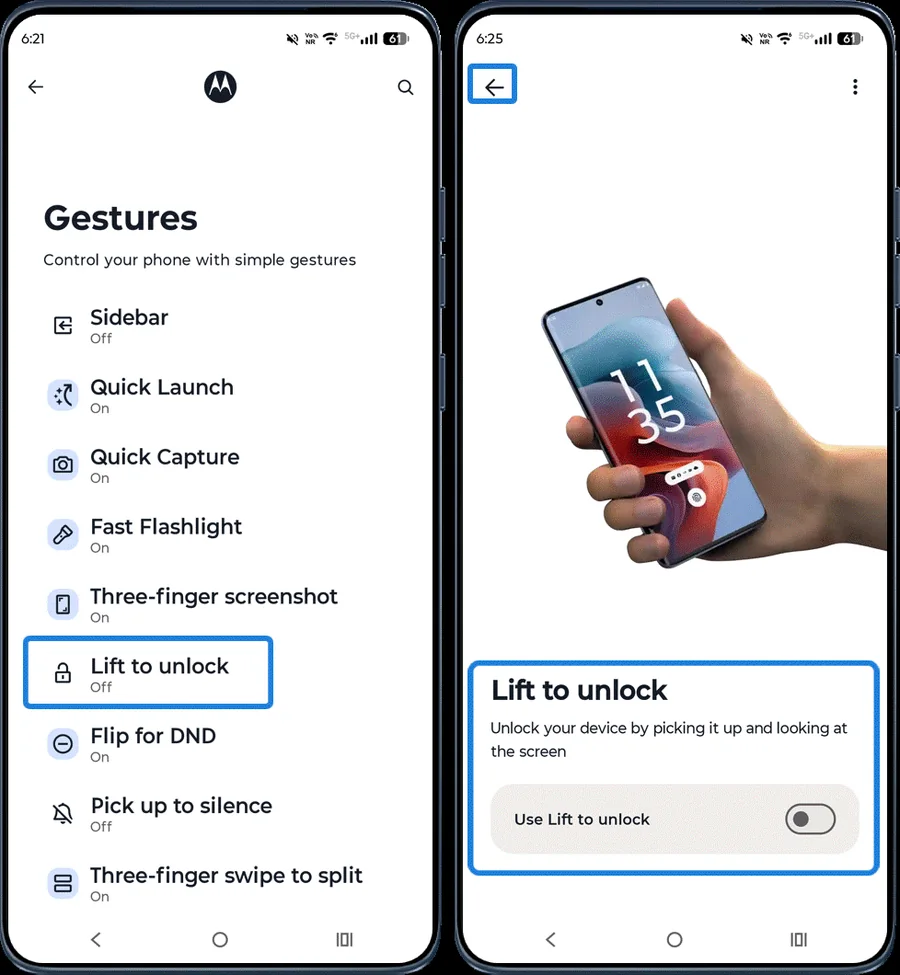 Step 5
Lift to unlock
Select Lift to unlock and turn on Use Lift to unlock to unlock the phone with face unlock as soon as you pick it up.
-
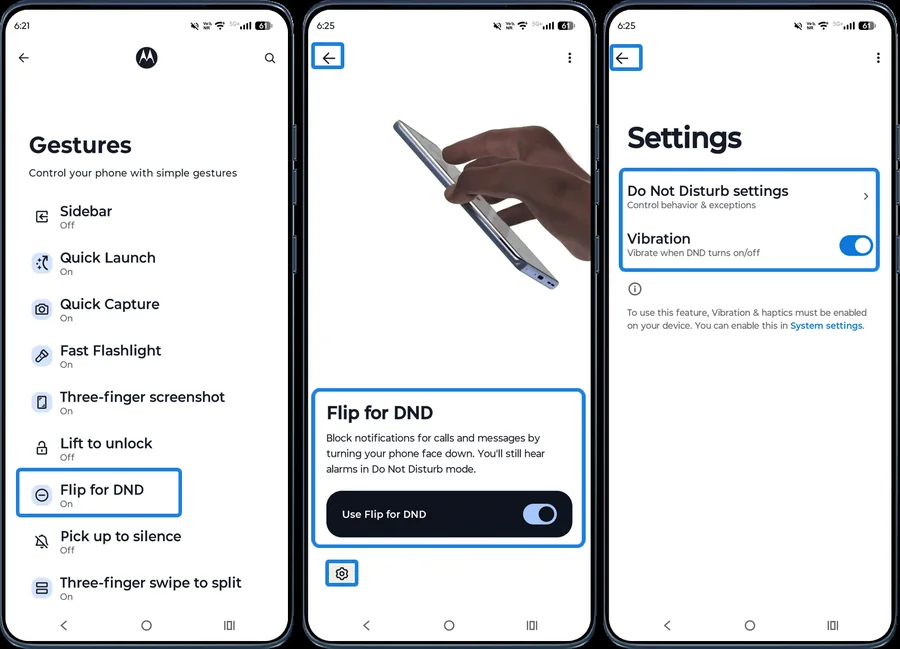 Step 6
Flip for DND
Select Flip for DND and turn on Use Flip for DND. Place the phone face down to turn on Do Not Disturb. Tap the Settings icon to adjust what gets silenced.
-
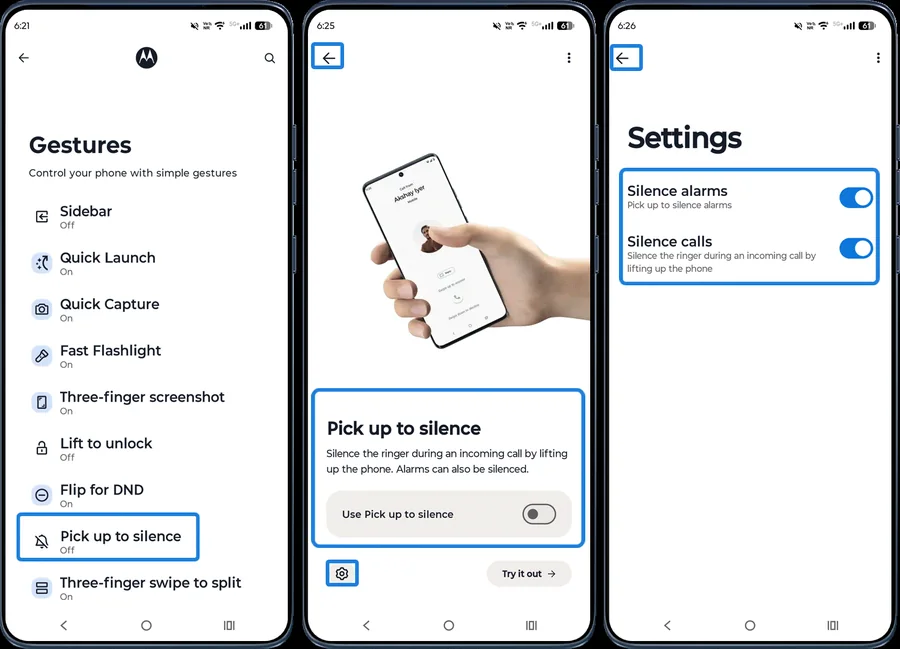 Step 7
Pick up to silence
Select Pick up to silence and turn it on to mute incoming calls and alarms when you pick up the phone. Tap the Settings icon to choose what to silence.
-
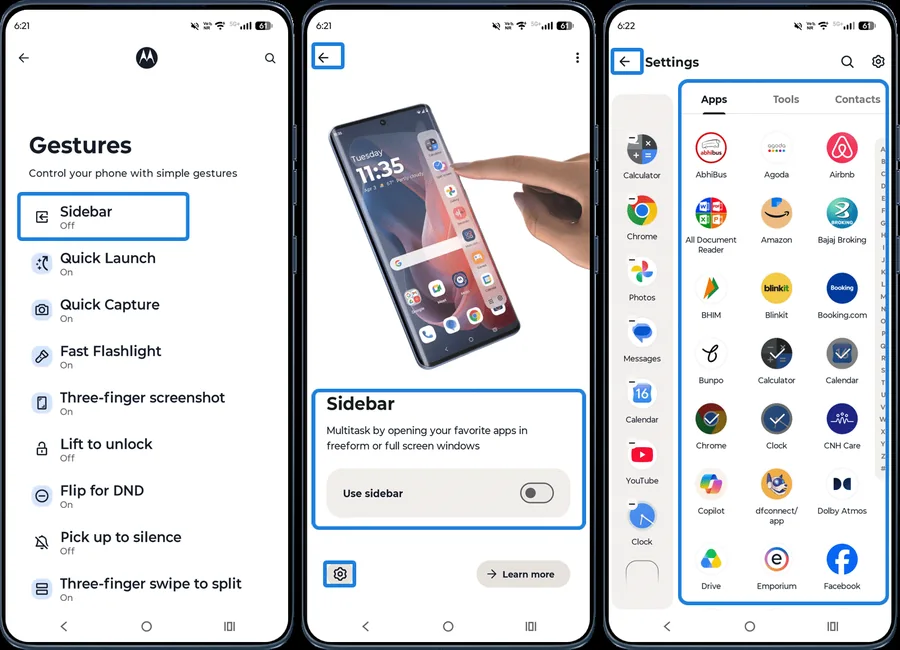 Step 8
Sidebar
Select Sidebar and turn on Use sidebar for quick access to your favourite apps, tools and contacts from the edge of the screen. Tap the Settings icon to choose what appears.
-
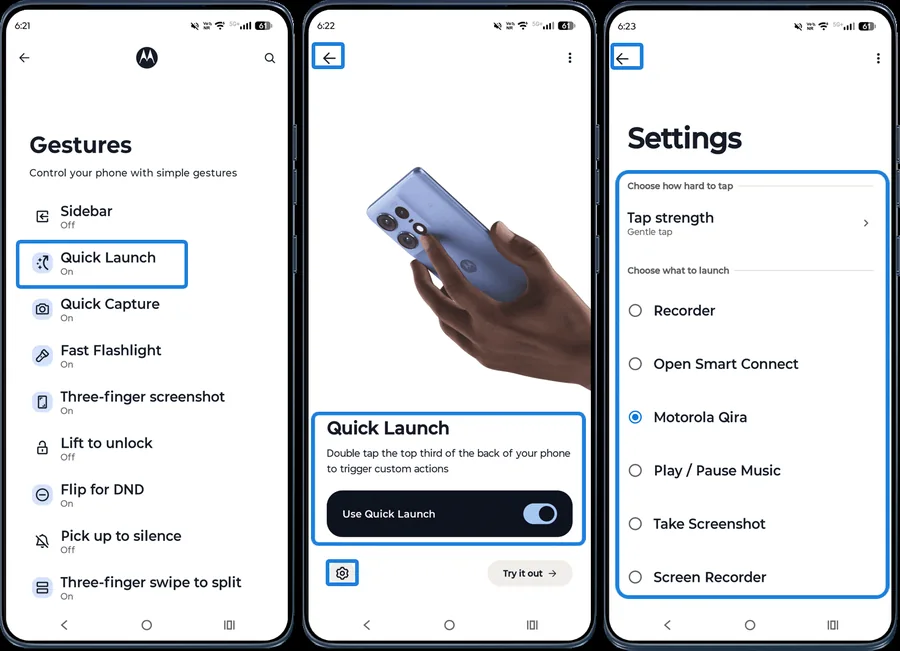 Step 9
Quick Launch
Select Quick Launch and turn on Use Quick Launch to trigger an action by double-tapping the fingerprint sensor (on supported models). In Settings, choose what to launch and adjust the tap strength.
More in the Moto app
- <strong>Personalize:</strong> wallpapers, themes, fonts, colours, icon shapes, layout and dark mode.
- <strong>Display:</strong> Smart lock screen, Sleep display, Attentive Display and double-tap to sleep or wake.
- <strong>Play:</strong> Games, media controls with the volume keys, and Dolby Atmos.
- <strong>Moto Secure:</strong> security scan, app permissions, Secure folder and network protection.
Frequently asked questions
Why is my Moto gesture not working?
Open the Moto app > Gestures and check the gesture is switched on. Gestures don’t work in some situations, such as when the screen is in a pocket or battery saver is limiting background activity. Availability also varies by model.
Where is the Moto app on my phone?
It comes preinstalled on Motorola phones — look for “Moto” in the app drawer. If it’s missing or outdated, update it from the Play Store.
Still having problems? It may be a hardware fault. Check the Motorola spare part prices for your model, or compare battery and display replacement costs.
Related Motorola guides
- How to Personalize the External Display on a Motorola razr
- How to Customize Your Motorola Phone with the Moto App (Personalize)
- Moto Display: Smart Lock Screen, Sleep Display and Attentive Display
- How to Use the External Display on a Motorola razr
- How to Turn On (and Off) Developer Options on a Motorola Phone
Steps and screenshots based on Motorola's official Moto App tutorial. Steps can vary slightly by model and Android version.