How to Customize Your Motorola Phone with the Moto App (Personalize)
The Moto app’s Personalize section lets you change how your Motorola phone looks and sounds — wallpaper, themes, fonts, colours, icon shapes, lock screen, layout and more — all in one place. The Play section adds games and sound settings. Open the Moto app and tap the menu to get started; available options vary by model.
Personalize
-
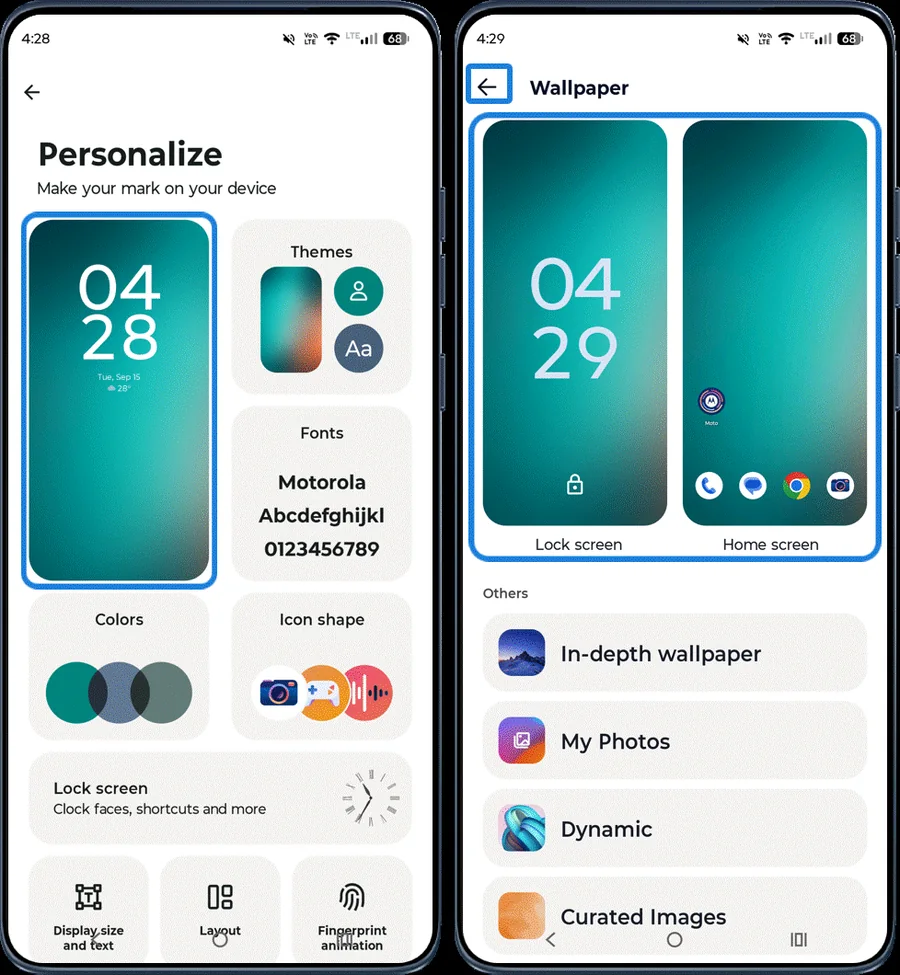 Step 1
Change the wallpaper
In the Moto app, open Personalize and tap the wallpaper preview. Choose a wallpaper for the lock screen and Home screen, then tap back.
-
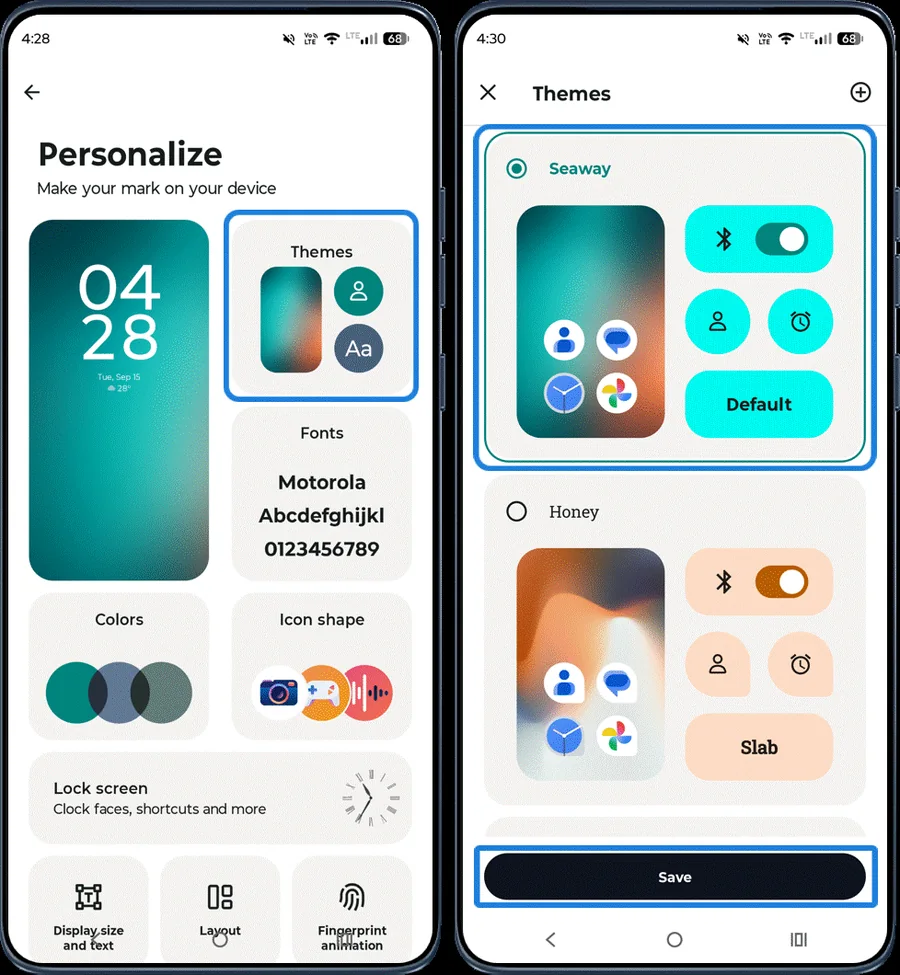 Step 2
Choose a theme
Tap Themes, pick a theme, preview it and tap Save.
-
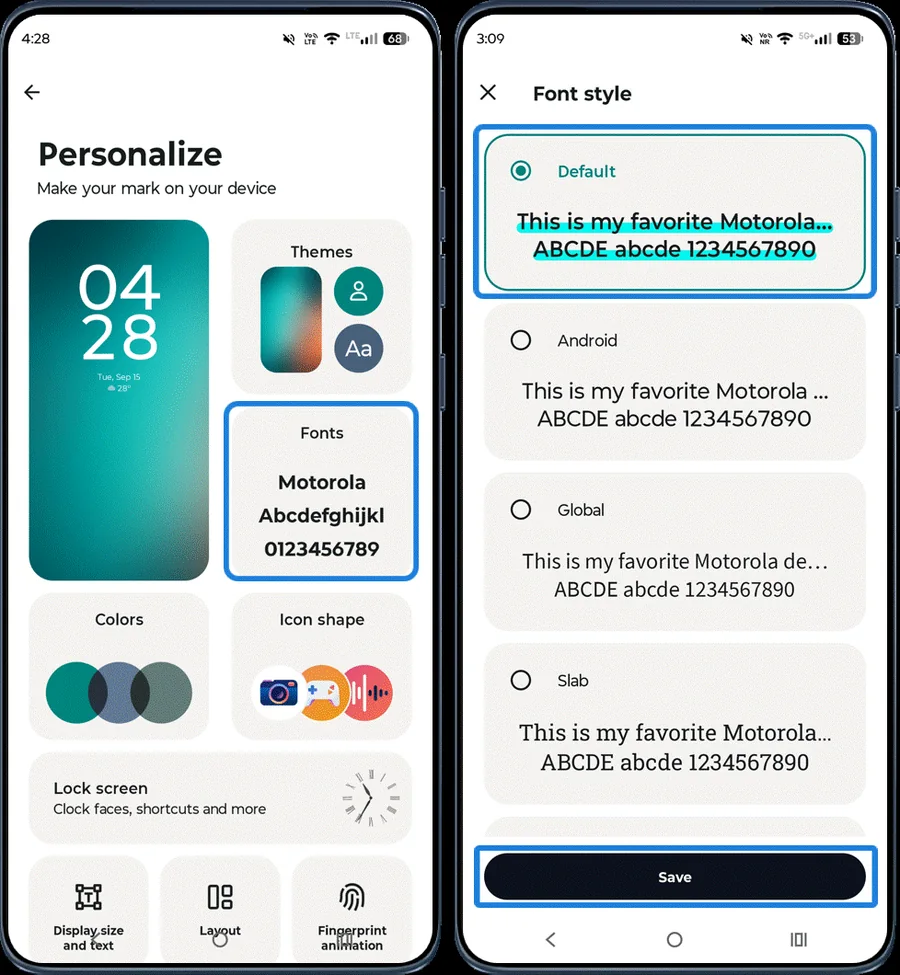 Step 3
Change the font
Tap Fonts, choose a font style and tap Save.
-
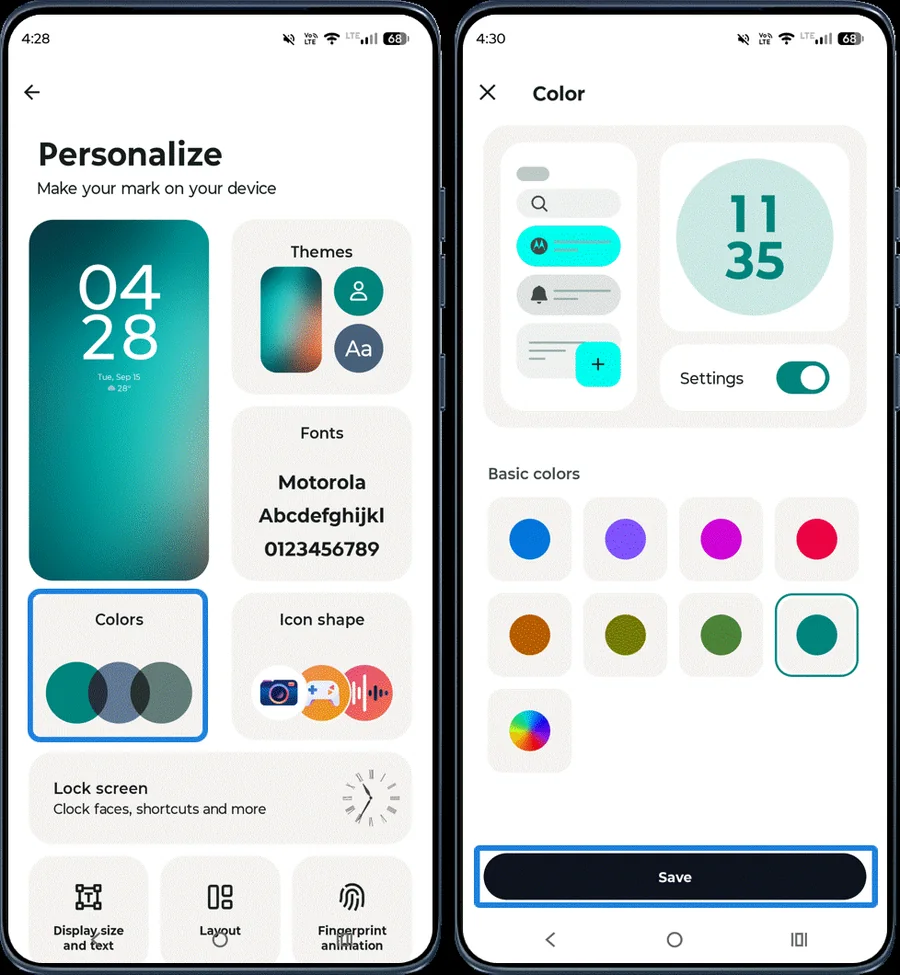 Step 4
Change the accent colour
Tap Colors, choose a colour and tap Save.
-
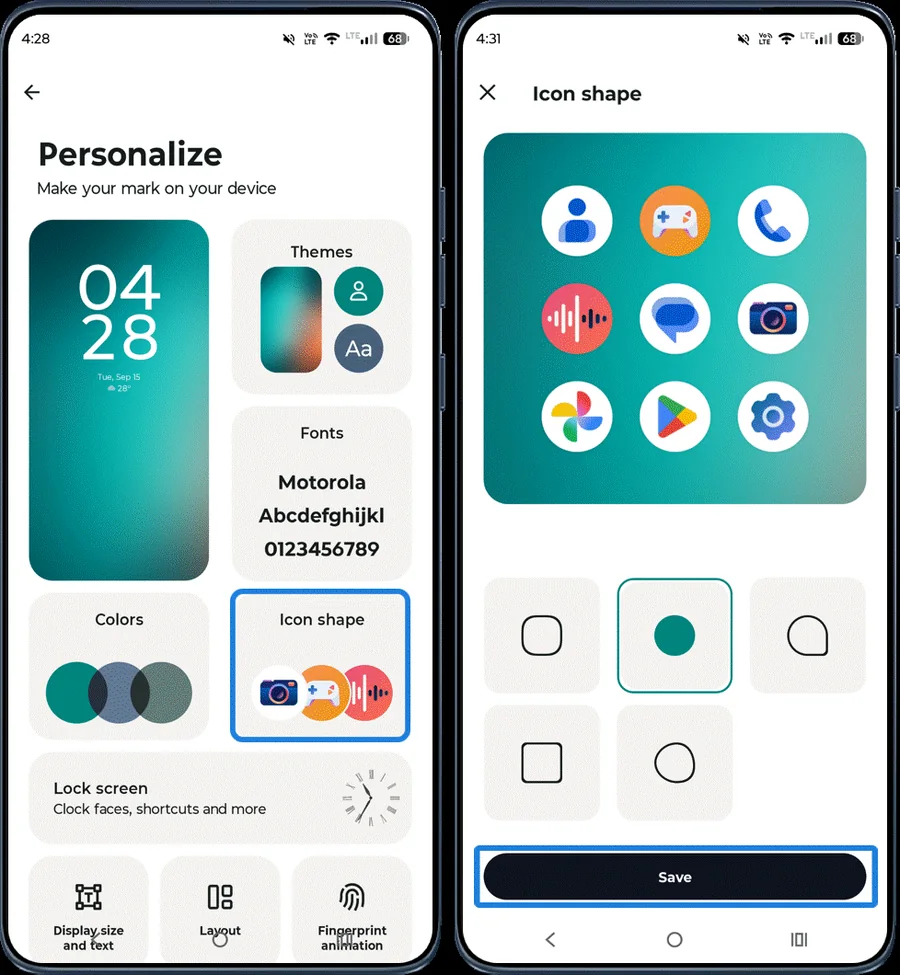 Step 5
Change the icon shape
Tap Icon shape, choose a shape and tap Save.
-
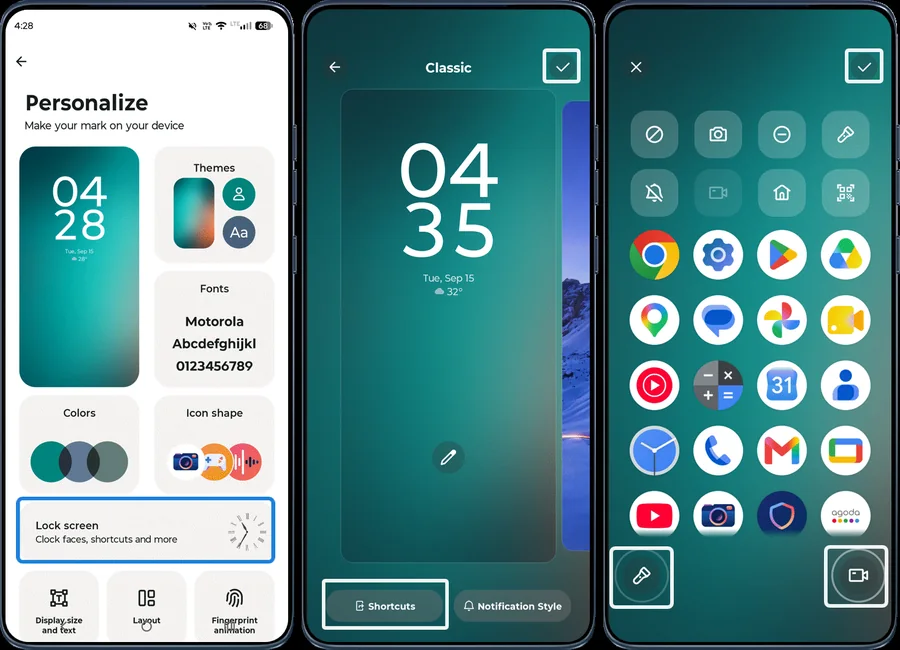 Step 6
Pick lock screen shortcuts
Tap Lock screen > Shortcuts, choose the shortcuts you want on the lock screen and tap the check mark.
-
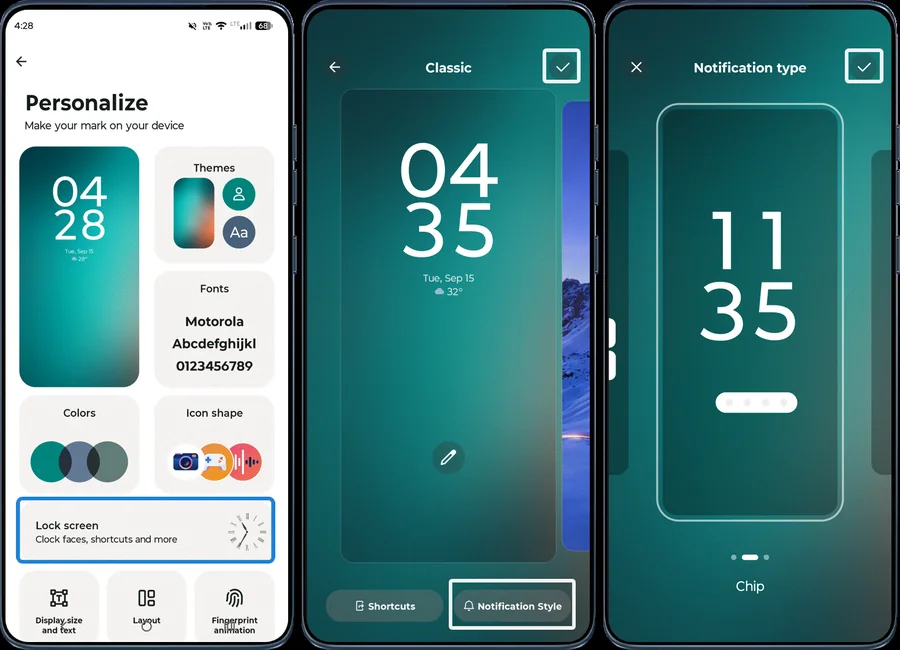 Step 7
Choose the lock screen notification style
Tap Lock screen > Notification style, pick a style, tap the check mark, then tap it again to save all changes.
-
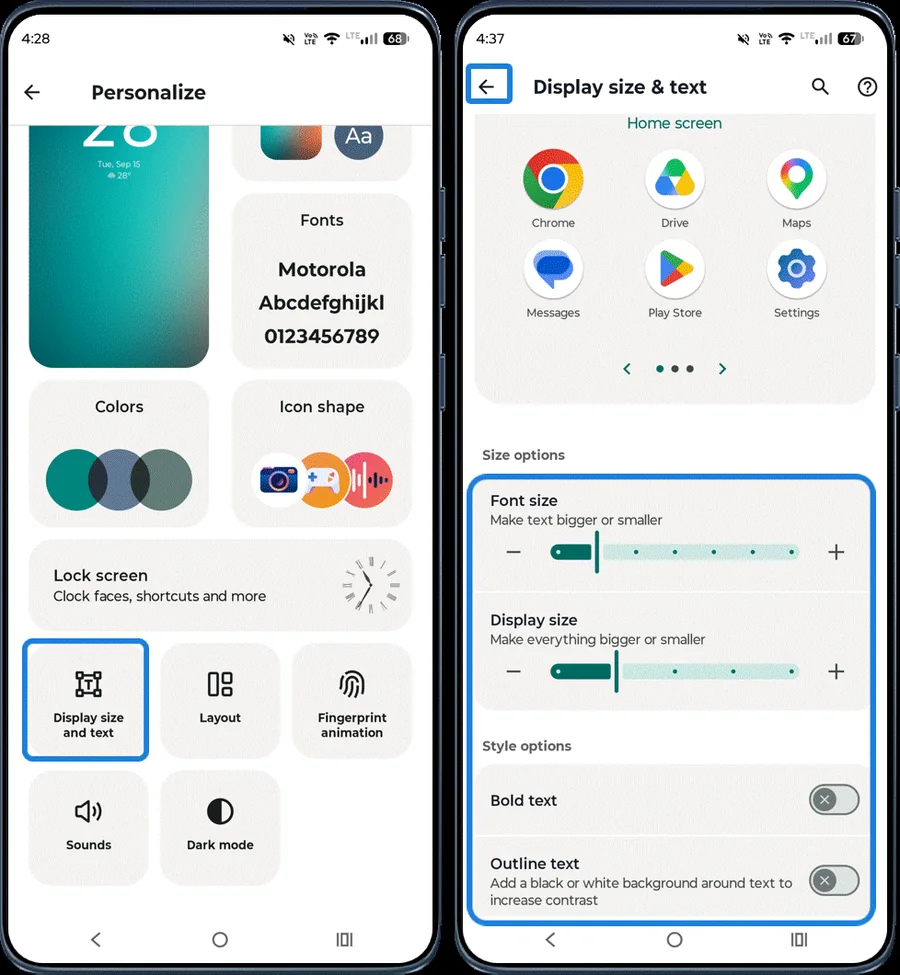 Step 8
Adjust display size and text
Tap Display size and text. Drag the Font size and Display size sliders, and turn Bold text or Outline text on or off. Then tap back.
-
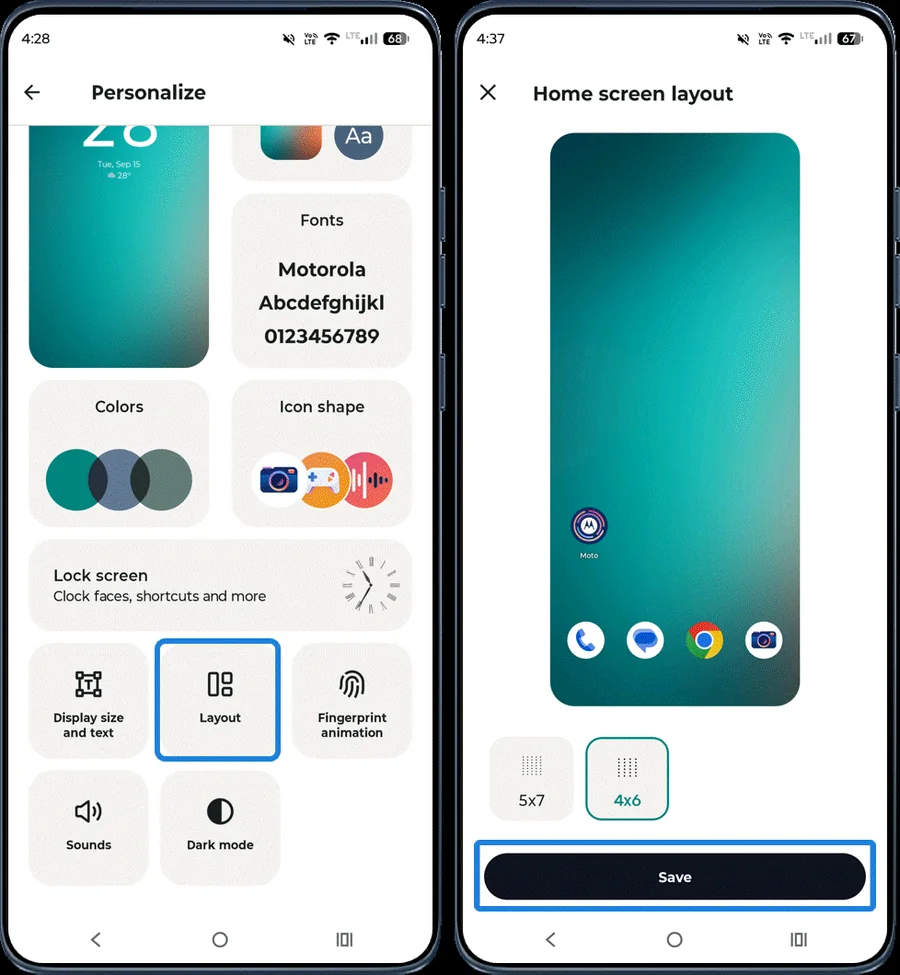 Step 9
Change the Home screen layout
Tap Layout, choose a Home screen grid and tap Save.
-
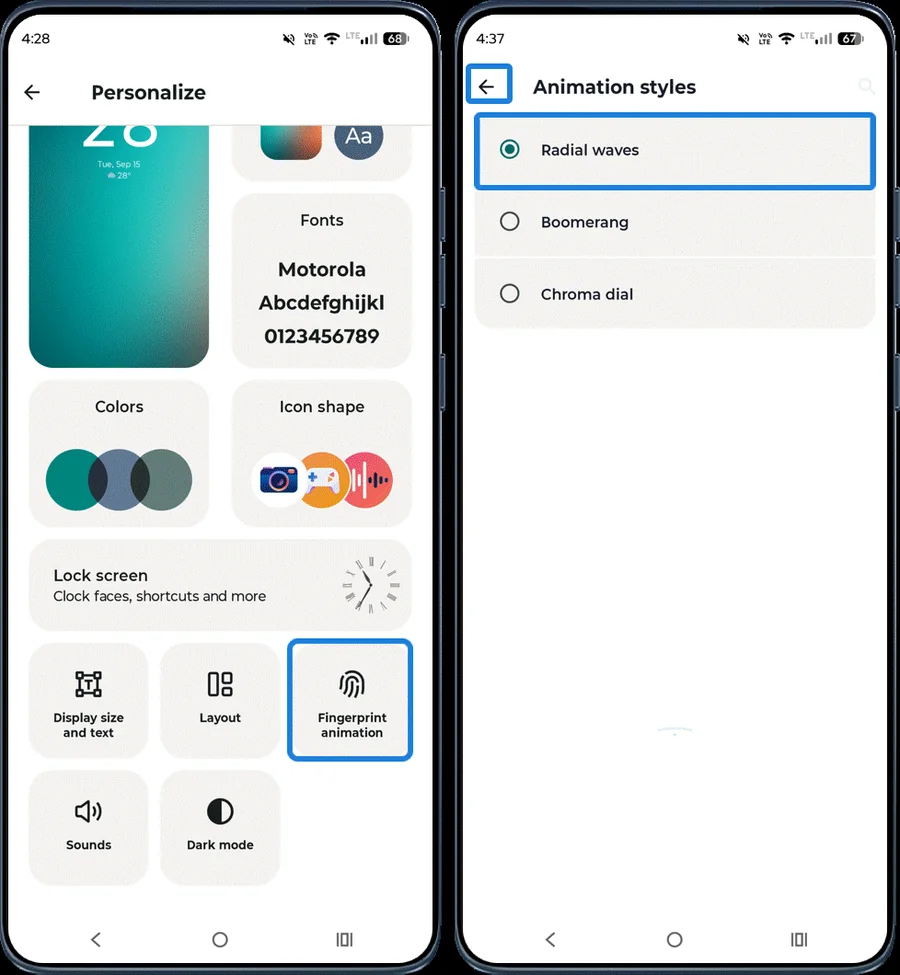 Step 10
Change the fingerprint animation
Tap Fingerprint animation, choose an animation style and tap back.
-
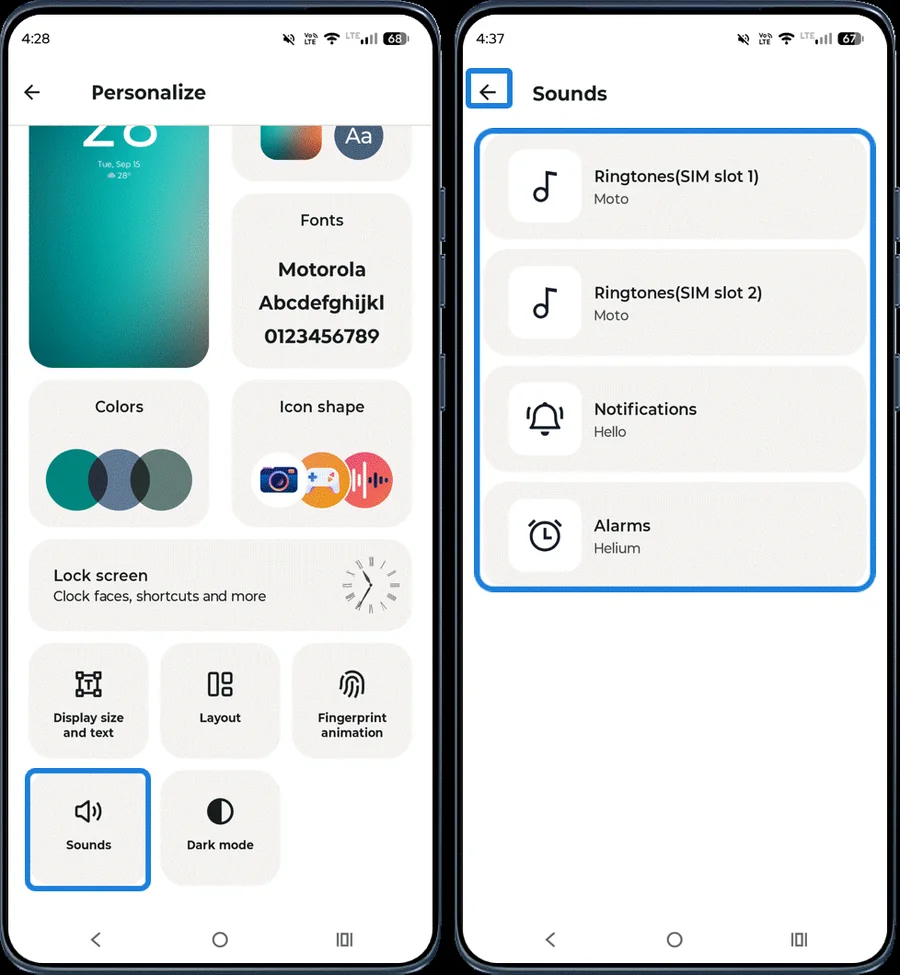 Step 11
Customize sounds
Tap Sounds and choose sounds for ringtones, notifications and alarms. Then tap back.
-
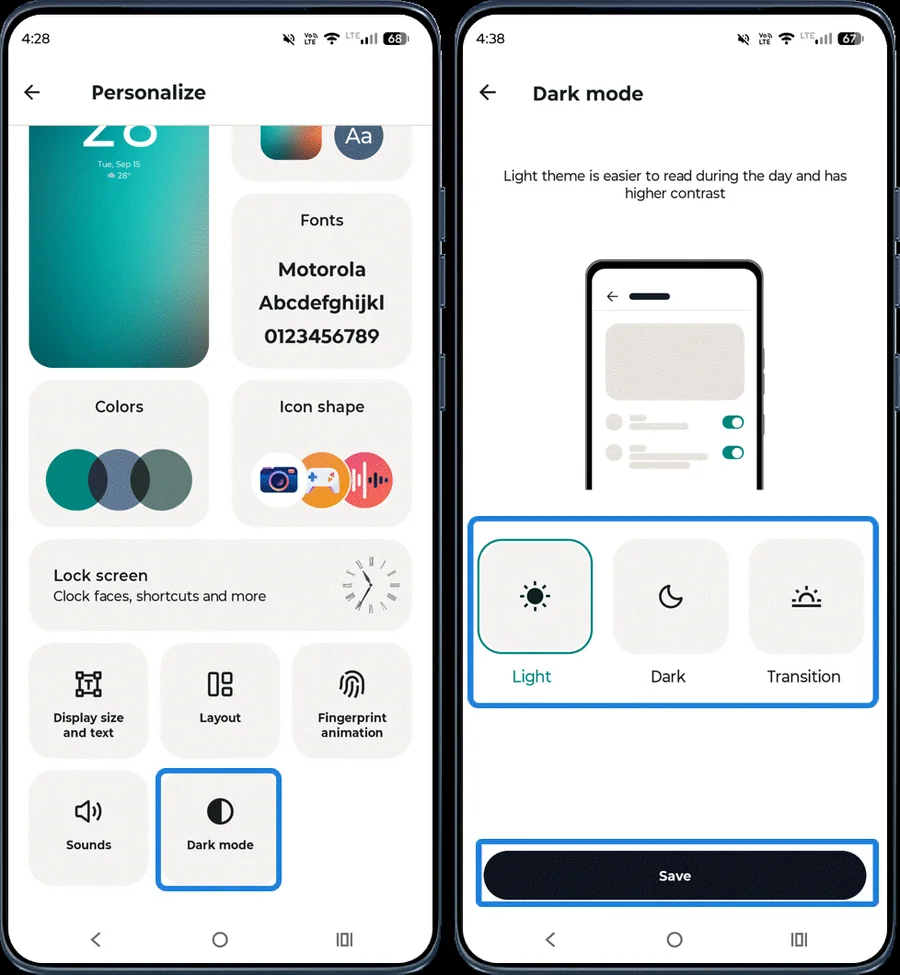 Step 12
Turn on Dark mode
Tap Dark mode, choose Light, Dark or Transition (switches automatically) and tap Save.
Play: games and sound
-
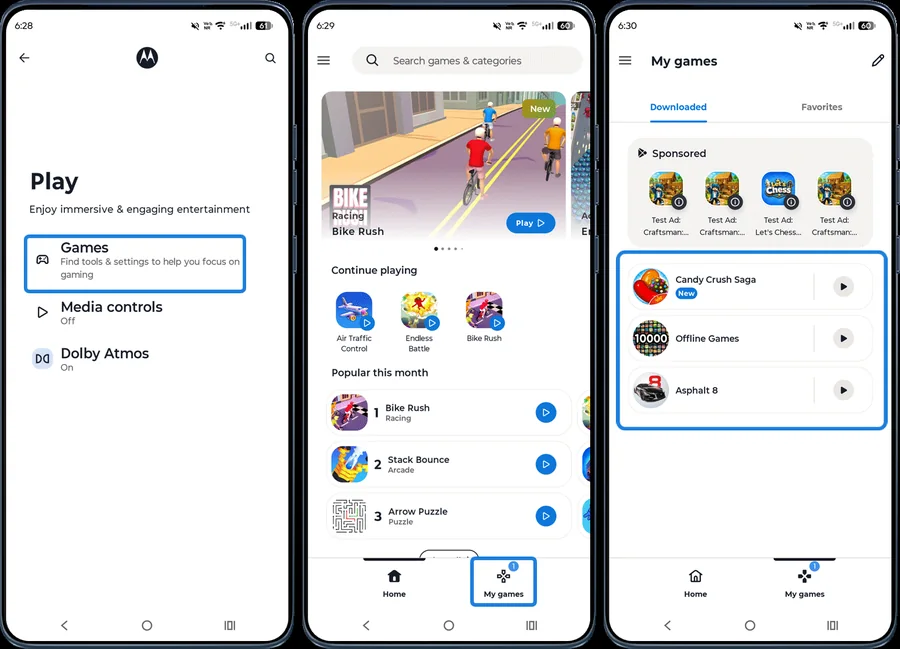 Step 1
Games
In the Moto app, open Play and tap Games to find, launch and organize your games. Use the Home tab to browse and My games to manage installed games.
-
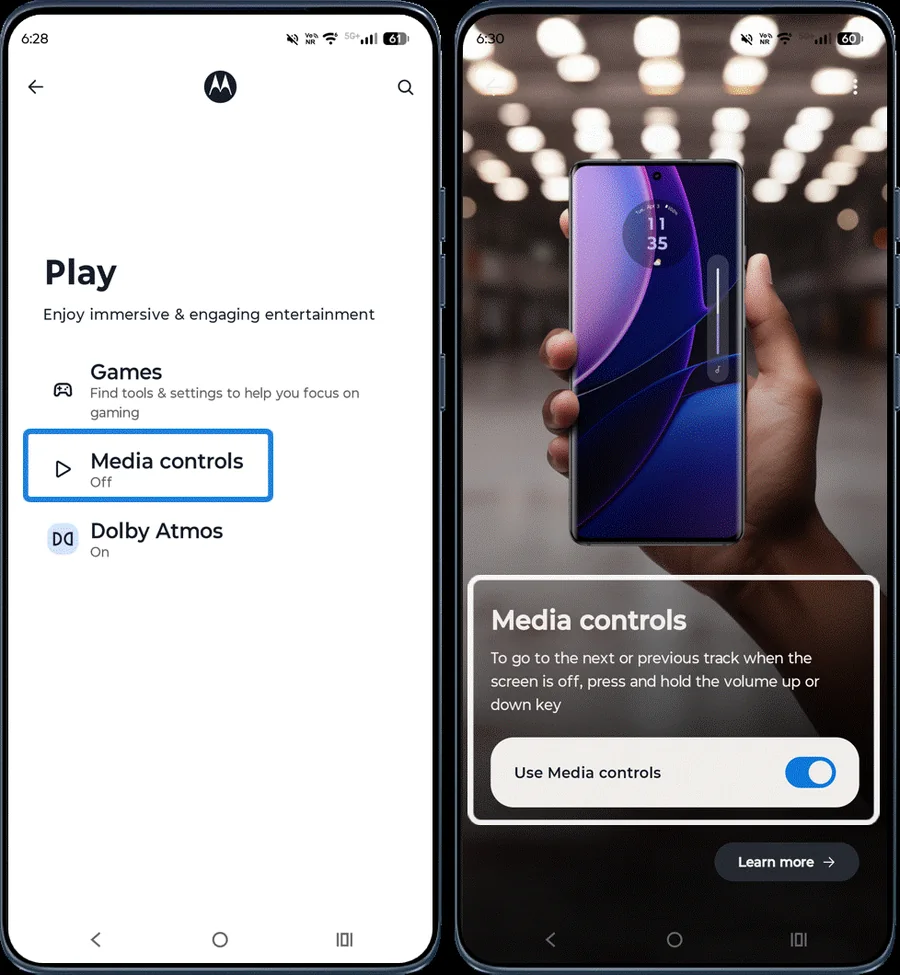 Step 2
Media controls
Tap Media controls and turn on Use Media controls to control music with the volume keys while the screen is off.
-
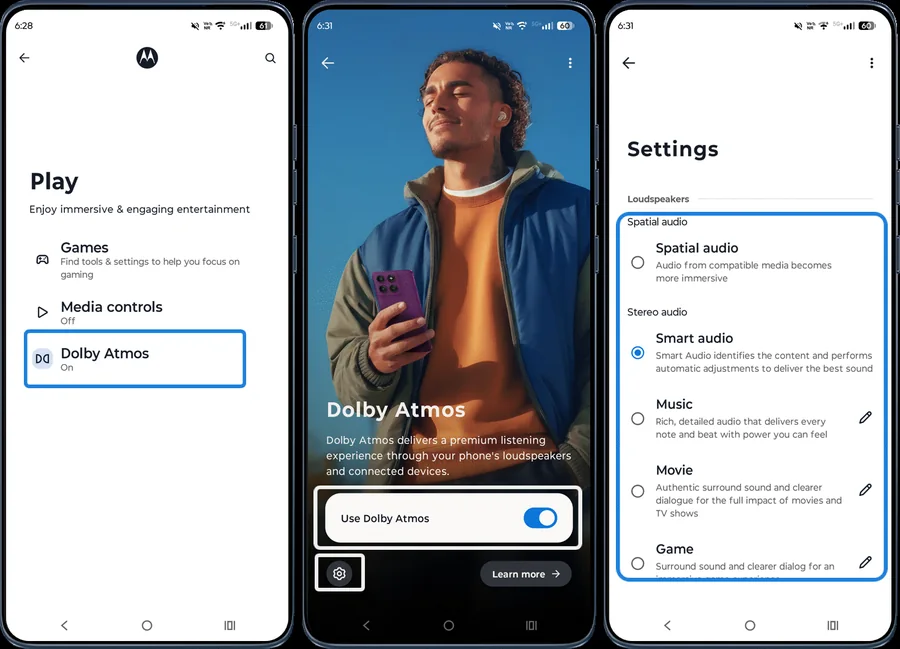 Step 3
Dolby Atmos
Tap Dolby Atmos and turn on Use Dolby Atmos for richer sound. Tap the Settings icon to choose an audio mode such as Music, Movie or Game.
Frequently asked questions
How do I change the font on my Motorola phone?
Open the Moto app > Personalize > Fonts, choose a style and tap Save. To make text bigger, use Personalize > Display size and text.
How do I turn on dark mode on Motorola?
Open the Moto app > Personalize > Dark mode and choose Dark, or Transition to switch automatically. You can also use Settings > Display > Dark theme.
Still having problems? It may be a hardware fault. Check the Motorola spare part prices for your model, or compare battery and display replacement costs.
Related Motorola guides
- How to Personalize the External Display on a Motorola razr
- Moto Gestures: How to Use Chop for Flashlight, Twist for Camera and More
- Moto Display: Smart Lock Screen, Sleep Display and Attentive Display
- How to Use the External Display on a Motorola razr
- How to Turn On (and Off) Developer Options on a Motorola Phone
Steps and screenshots based on Motorola's official Moto App tutorial. Steps can vary slightly by model and Android version.