How to Use the External Display on a Motorola razr
With the external display of your motorola razr you can use your phone even when it’s closed — read notifications, open apps, and change quick settings without flipping it open. Here is how to get around it.
-
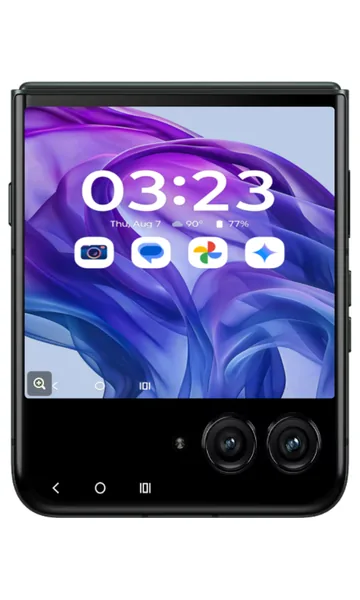 Step 1
Get to know the Home screen
With the flip closed, this is the Home screen of the external display. Shortcuts to the main panels are shown here.
-
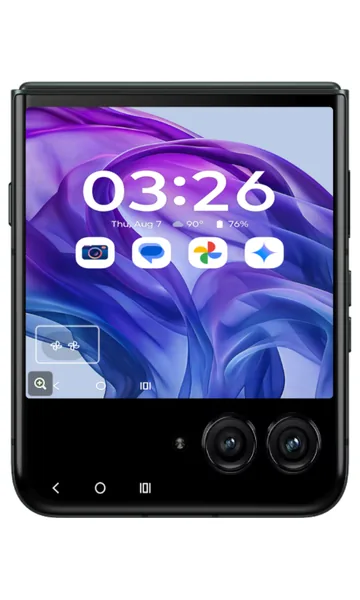 Step 2
Open a notification
When you receive a notification, an icon appears in the bottom-left corner. Tap the notification icon.
-
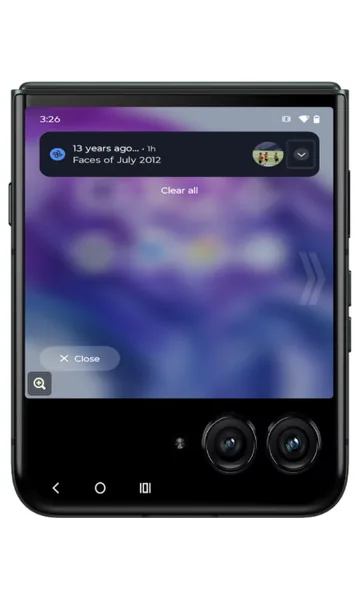 Step 3
Expand or dismiss notifications
All notifications are shown here. Tap the arrow to expand a notification, or swipe it to the right to dismiss it.
-
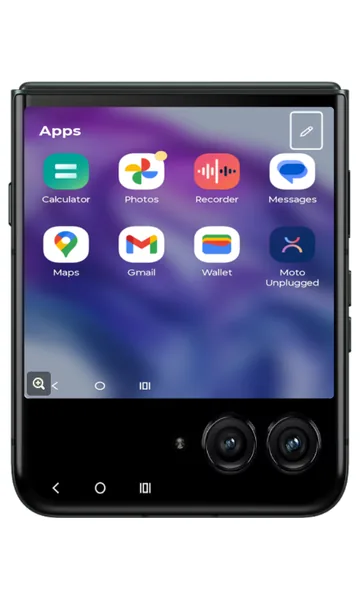 Step 4
Edit the Apps panel
Scroll right to the Apps panel, then tap the edit (pencil) icon.
-
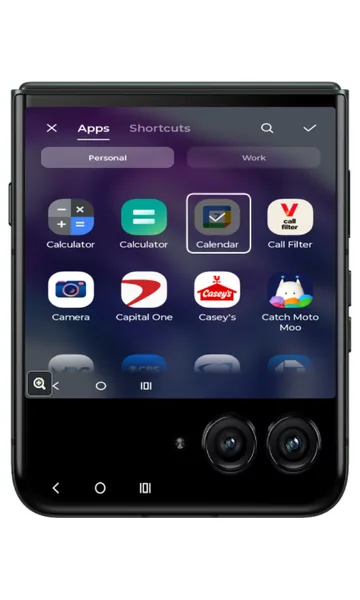 Step 5
Select an app to add
Check the app you want to add — in this example, Calendar.
-
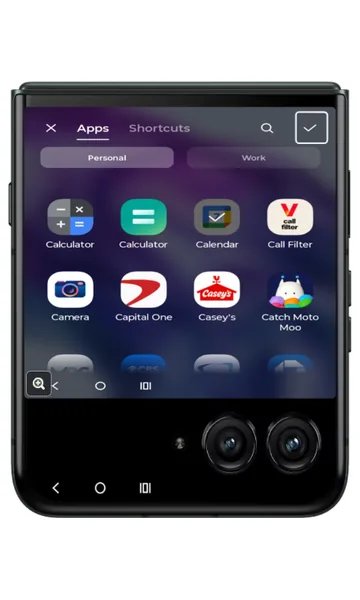 Step 6
Save your selection
Tap the check mark at the top right to save.
-
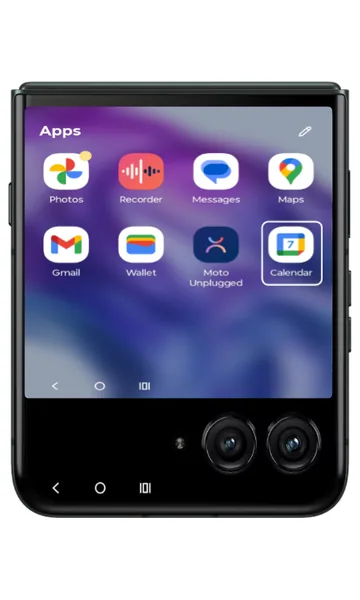 Step 7
Find the new app
Calendar has been added to the Apps panel. To manage it, touch and hold Calendar.
-
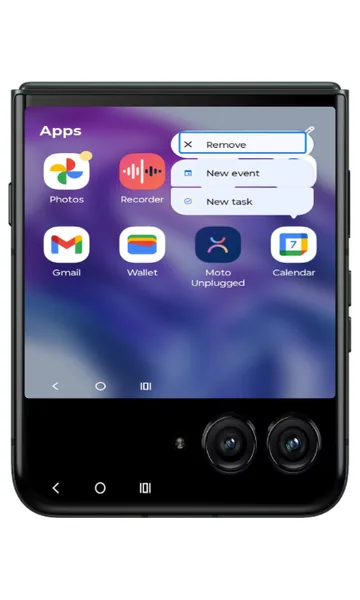 Step 8
Remove an app (optional)
To remove the app from the panel, tap Remove.
-
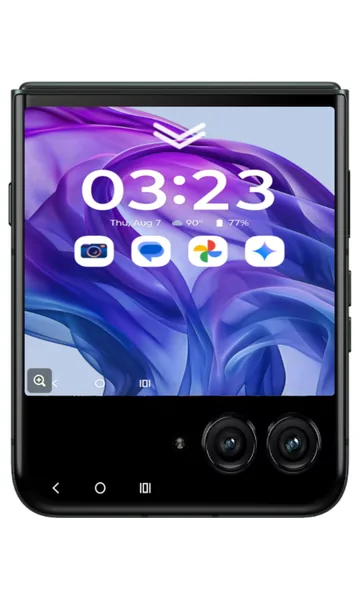 Step 9
Open quick settings
Swipe down from the top of the external display to open quick settings.
-
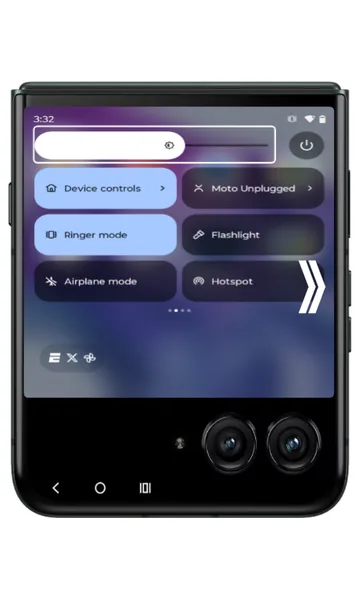 Step 10
Use quick settings and brightness
Turn Wi-Fi, mobile data or Bluetooth on or off here. Drag the slider to set the external display brightness. Scroll right for more options.
-
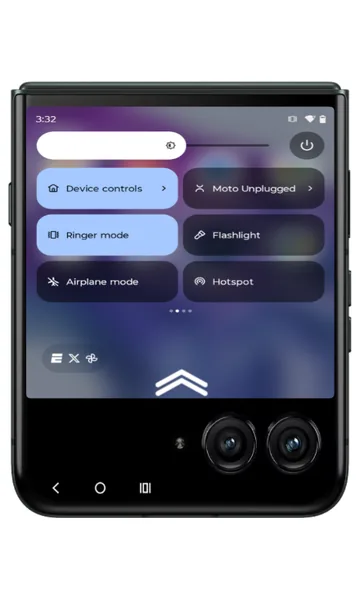 Step 11
Return to the Home screen
Swipe up from the bottom edge of the screen to go back to the external display Home screen.
Frequently asked questions
What can I do on the motorola razr external display?
You can read and reply to notifications, open apps from the Apps panel, view panels such as weather and calendar, change quick settings like Wi-Fi, Bluetooth and brightness, and take selfies with the main cameras — all without opening the phone.
How do I add more apps to the razr external display?
Scroll to the Apps panel, tap the edit (pencil) icon, check the apps you want and tap the check mark. You can also choose which apps are allowed on the external display in Settings > External display > App settings.
Why is my razr external display not responding or cracked?
Try restarting the phone first. If the external display stays blank, flickers or is cracked, it may need replacing — check the motorola razr spare part prices on this site for an estimate.
Still having problems? It may be a hardware fault. Check the Motorola spare part prices for your model, or compare battery and display replacement costs.
Related Motorola guides
- How to Personalize the External Display on a Motorola razr
- Moto Gestures: How to Use Chop for Flashlight, Twist for Camera and More
- How to Customize Your Motorola Phone with the Moto App (Personalize)
- Moto Display: Smart Lock Screen, Sleep Display and Attentive Display
- How to Start a Motorola Phone in Safe Mode
Steps and screenshots based on Motorola's official Using the external display tutorial. Steps can vary slightly by model and Android version.