Motorola APN Settings for Jio, Airtel, Vi and BSNL (Internet & MMS)
Your Motorola phone normally gets internet and MMS settings automatically from the SIM card. If mobile data or picture messages don’t work, you can add the Access Point Name (APN) manually using the values for your network below.
Internet APN settings
| Network | Name | APN | APN type |
|---|---|---|---|
| Jio | jionet | jionet | default,supl |
| Airtel | Airtel | airtelgprs.com | default,supl |
| Vi (Vodafone Idea) | Vi Internet | internet | default,supl |
| BSNL | BSNL Internet | bsnlnet | default,supl |
Leave Proxy, Port, Username, Password and Server empty, and set Authentication type to None. Keep the MCC and MNC that are already filled in — they depend on your SIM’s telecom circle. Some Vi (ex-Vodafone) SIMs use the APN www. Motorola’s tutorial lists an incorrect APN for BSNL; bsnlnet is BSNL’s standard internet APN.
MMS APN settings
| Network | APN | MMSC | MMS proxy | MMS port | APN type |
|---|---|---|---|---|---|
| Airtel | airtelmms.com | http://100.1.201.172:10021/mmsc | 100.1.201.172 | 8799 | mms |
| BSNL | bsnlmms | http://bsnlmmsc.in:8514/ | 10.210.10.11 | 8080 | mms |
Jio doesn’t provide an MMS APN, and Motorola doesn’t list complete Vi MMS settings — contact your operator if you need picture messaging. For MMS, enter mms as the APN type instead of default,supl.
Open Access Point Names
-
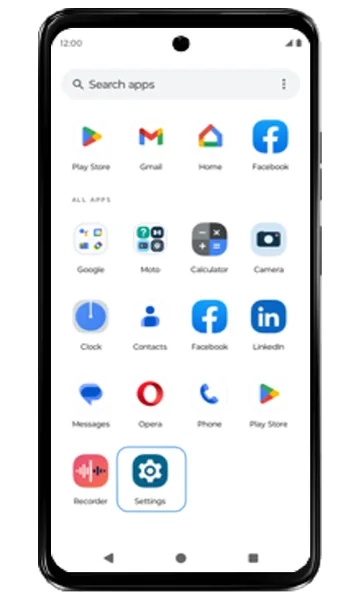 Step 1
Open Settings
Swipe up on the Home screen to open all apps, then tap Settings.
-
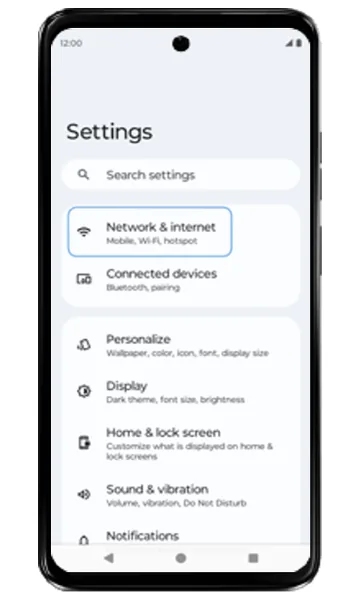 Step 2
Tap Network & internet
Tap Network & internet.
-
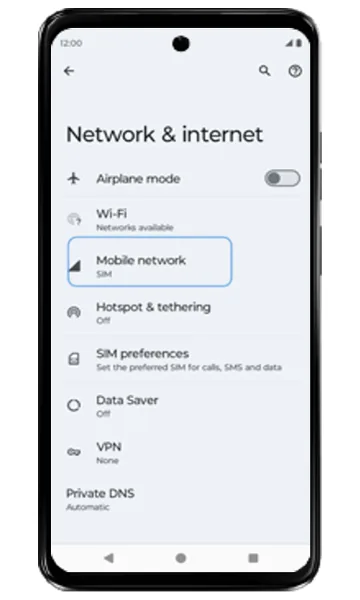 Step 3
Tap Mobile network
Tap Mobile network.
-
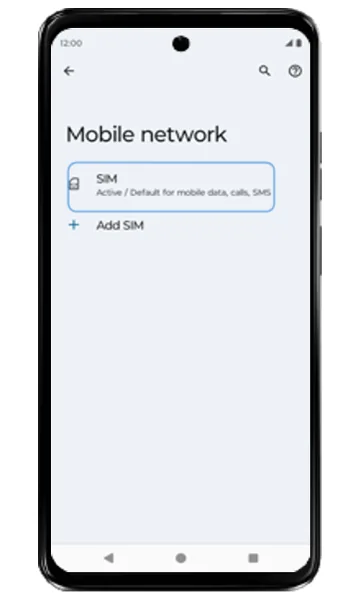 Step 4
Choose your SIM
Tap the SIM you want to set up.
-
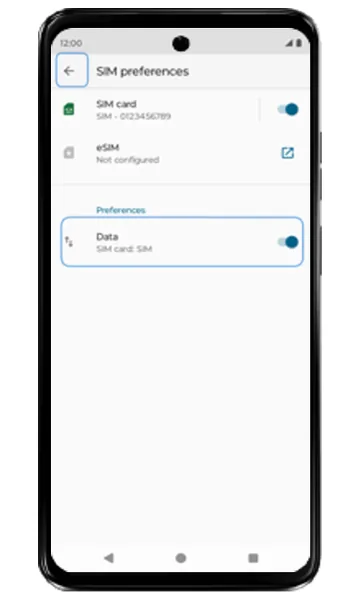 Step 5
Make sure mobile data is on
In SIM preferences, check that Data is switched on for this SIM, then go back.
-
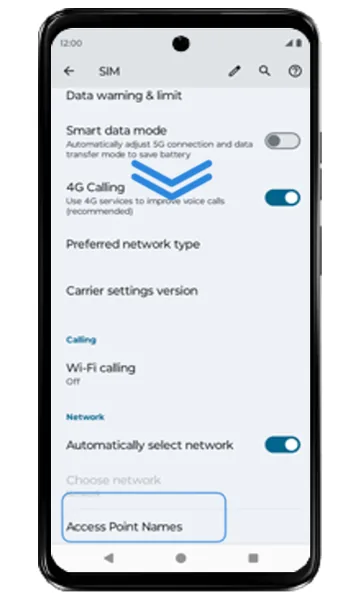 Step 6
Tap Access Point Names
Scroll down and tap Access Point Names.
-
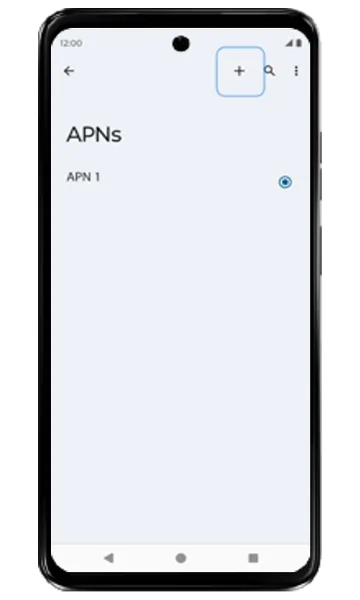 Step 7
Add a new APN
Tap the + symbol at the top right.
Enter the APN details
-
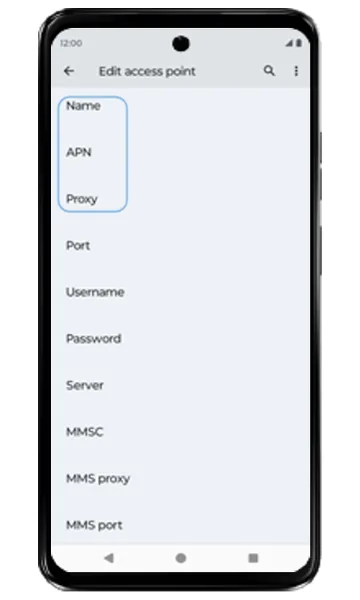 Step 1
Enter Name and APN
Under Name and APN, enter the values for your network from the table above (e.g. jionet for Jio, airtelgprs.com for Airtel). Leave Proxy empty.
-
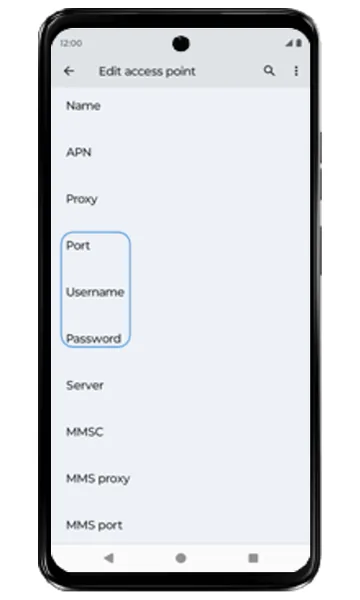 Step 2
Leave Port, Username and Password empty
Don’t enter anything under Port, Username or Password.
-
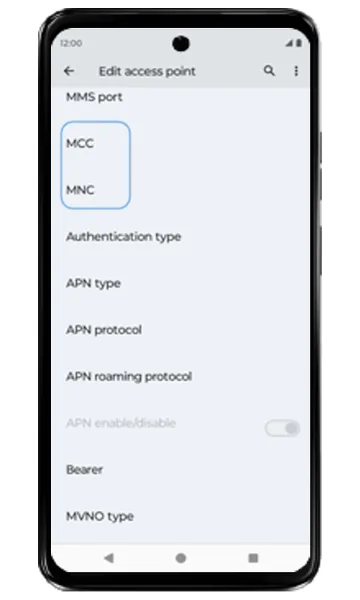 Step 3
Keep MCC and MNC
Scroll down. Leave the MCC and MNC values that are already filled in from your SIM.
-
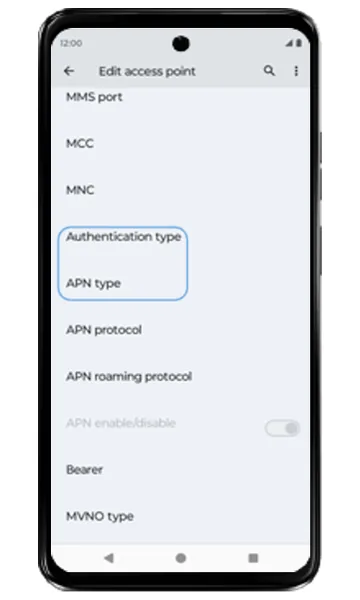 Step 4
Set Authentication type and APN type
Set Authentication type to None, then tap APN type.
-
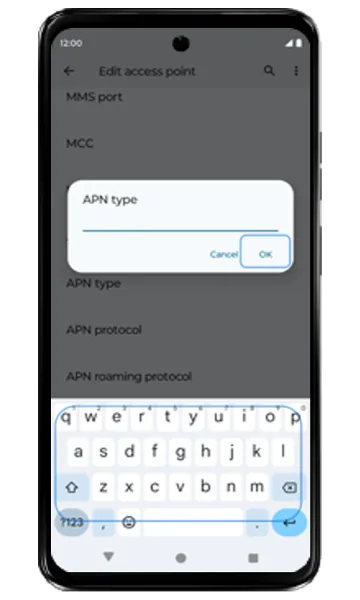 Step 5
Enter the APN type
Enter default,supl (lower case, no spaces) for internet, or mms for an MMS APN, and tap OK.
-
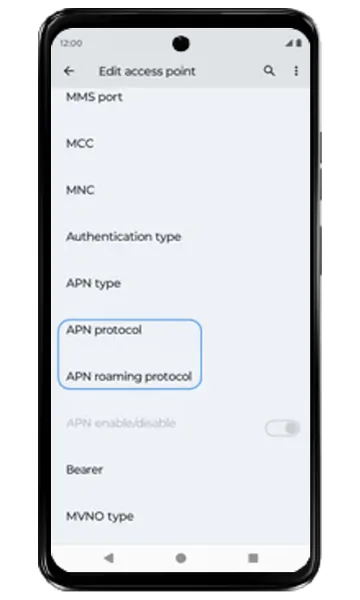 Step 6
Set the APN protocol
Set APN protocol and APN roaming protocol to IPv4 (or IPv4/IPv6 if your operator recommends it).
-
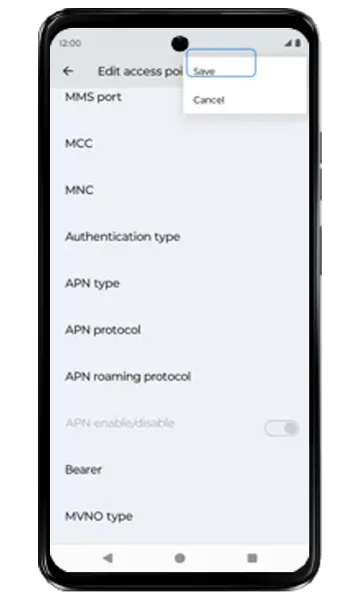 Step 7
Save the APN
Tap the three-dot menu at the top right and choose Save.
-
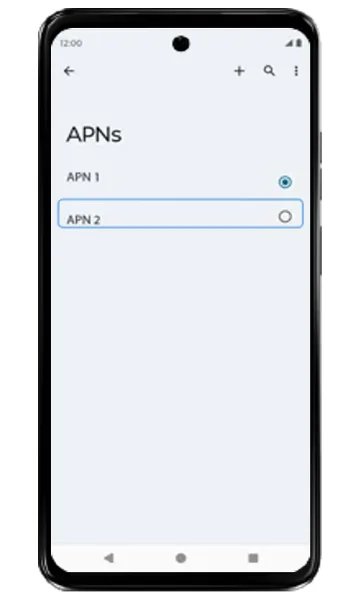 Step 8
Select the new APN
Back on the APNs list, select the APN you just created.
-
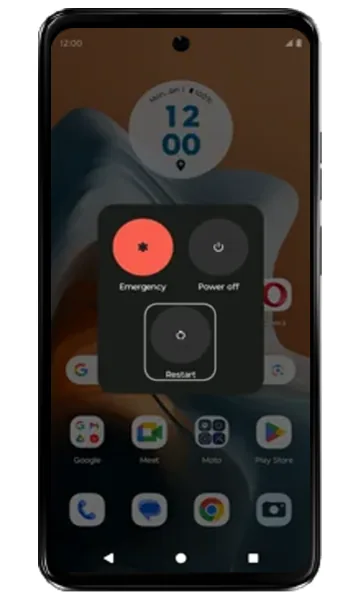 Step 9
Restart the phone
Press Power and Volume up together and tap Restart. After the restart, mobile data uses the new settings.
Frequently asked questions
What is the Jio APN for a Motorola phone?
Name: jionet, APN: jionet, APN type: default,supl. Leave the other fields empty and keep the pre-filled MCC/MNC.
Why is mobile data not working even with the correct APN?
Check that mobile data is on, airplane mode is off and your plan is active. Then reset network settings and restart. If the SIM works in another phone but not yours, the phone may need repair.
Can I reset the APN to default?
Yes. In Access Point Names, tap the three-dot menu and choose Reset to default. The phone reloads the APNs from your SIM.
Still having problems? It may be a hardware fault. Check the Motorola spare part prices for your model, or compare battery and display replacement costs.
Related Motorola guides
- How to Reset Network Settings on a Motorola Phone
- How to Check Signal Strength on a Motorola Phone (and Fix No Signal)
- How to Personalize the External Display on a Motorola razr
- How to Turn On (and Off) Developer Options on a Motorola Phone
- Motorola Battery Draining Fast? Settings to Make It Last Longer
Steps and screenshots based on Motorola's official Internet and MMS manual configuration tutorials. Steps can vary slightly by model and Android version.